

Open Snowy anytime from the Ask Snowy anything bar at the top of your dashboard, or press Ctrl + K (⌘ K on Mac).
Snowy defaults to your currently selected brand - say “my brand” or “my site” and that’s the one it uses. You can also ask about your other brands right in the same chat (for example, “compare this to my other brand X”), and Snowy will look them up and pull the right data. It can only ever see brands you have access to.
Opening Snowy
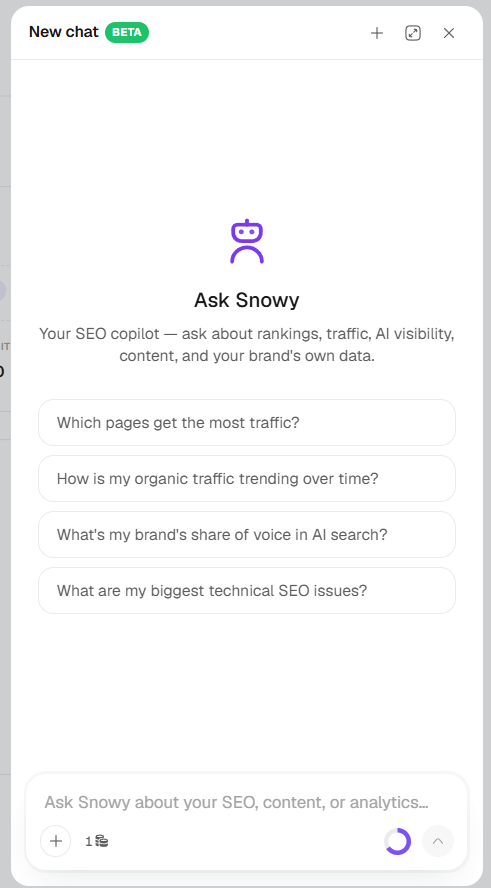
Snowy lives in a panel that opens over your dashboard, so you never lose your place.- From the top bar - Click the Ask Snowy anything bar (or press Ctrl + K / ⌘ K) on any dashboard page. The menu also lists your recent chats, suggested prompts for the page you’re on, and shortcuts to jump to other pages.
- From a “Fix Now” or “Help” menu - Many places in SnowSEO (SEO Audit issues, Page Speed, Keyword and Prompt research, Next Steps, Outreach) have an Ask Snowy option that opens Snowy with the right question already filled in.
- Window
Your First Conversation
1
Open Snowy
Click the Ask Snowy anything bar in the dashboard header. The panel slides in with a few suggested prompts to get you started.
2
Ask a question
Type a question - for example, “How visible is my brand in AI answers this month?” - and press Enter (or the send button). Use Shift + Enter for a new line.
3
Watch Snowy work
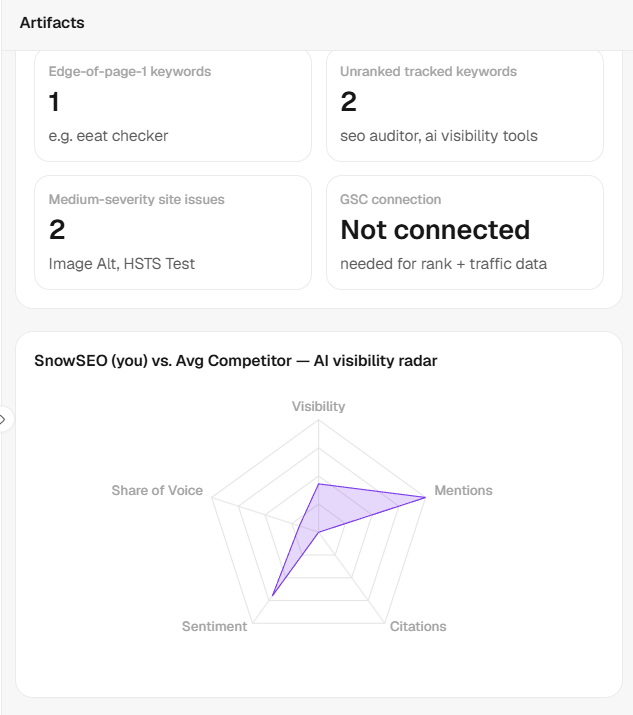
Snowy pulls the relevant data, then streams its answer back. When the answer involves numbers, it builds a chart, table, or metric card so you can see the trend at a glance - not just a wall of figures.
4
Keep the conversation going
Ask follow-ups in the same chat - “Now compare that to last month” or “Which competitor is ahead of me?” Snowy remembers the context of your conversation.
What You Can Ask
Snowy is focused on your SEO, AI visibility, rankings, analytics, content, audits, and brand. A few examples of what people ask:- “What’s my AI visibility score and how has it changed?”
- “Show me my top 10 keywords by clicks from Search Console.”
- “Which of my pages lost traffic in the last 30 days?”
- “How do I compare to competitors in AI answers?”
- “Summarize my latest website audit and what to fix first.”
- “Give me a list of keyword ideas for ‘project management software’.”
- “Write me a competitor analysis I can export to PDF.”
- “Start tracking these 3 keywords for me.”
- “How do I connect Google Search Console?”
Visual Answers
Instead of pasting long lists of numbers, Snowy turns your data into clean, interactive visuals:
In Window mode these appear in a dedicated panel beside your chat. Documents and code come with Copy and Download buttons (Markdown or PDF for documents), so a report Snowy writes is ready to save or share.
Taking Action - Snowy Always Asks First
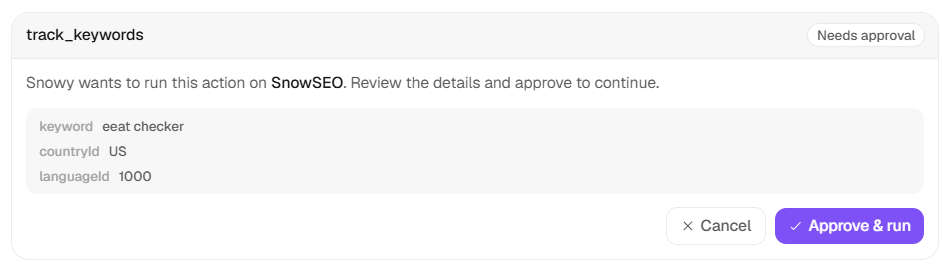
This is the most important thing to know about Snowy: it never changes your data without your explicit approval. Snowy can do two kinds of things:- Read your data - pulling rankings, traffic, audits, AI visibility, brand settings, and articles. These run automatically in the background (you’ll see a short “Searching your rankings…” style status while it works) because they only look at your data.
- Take actions that change your data - like tracking keywords or prompts, creating a topic cluster, or editing, scheduling, publishing, or deleting an article.
Web Search & Images
Two extras sit in the message box: the Web search chip, and Add photos in the + menu.- Web search
- Images
Off by default. Click the Web search chip next to the cost badge when you need current, time-sensitive info Snowy can’t get from your data - for example, “What changed in the latest Google algorithm update?” It stays on for follow-ups in the same chat and resets when you switch chats. When it’s off, Snowy answers from your data, your brand knowledge, and the SnowSEO docs instead.Web search adds +1 credit to each message it’s on for (see Credits & Usage below).
Credits & Usage
Every message you send to Snowy uses AI credits from your plan. The cost is simple:
So a plain question costs 1 credit; a question with web search and one image costs 3 credits.
Two small indicators in the message box keep this clear:
- The coin badge next to the + button shows what the current message will cost. Hover or tap it for a breakdown (text chat + any web-search or image surcharge).
- The circular meter next to the send button shows how many AI credits you have left. Hover or tap it to see your exact remaining balance and when it resets.

Trial accounts use trial credits, and the meter shows your trial balance. If you run out of credits mid-conversation, Snowy lets you know and links you to your usage and plan options - your conversation stays saved.
Chat History
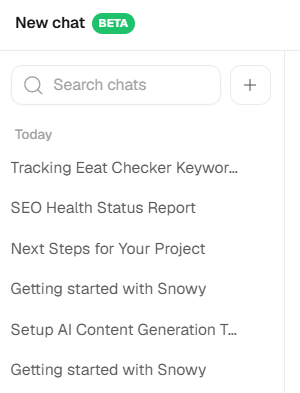
Every conversation is saved automatically so you can pick up where you left off.- History rail - In Window mode (and the mobile menu), browse all your past chats, grouped by date.
- Auto-titles - Snowy names each new chat for you based on your first message.
- Search - Find an old conversation by title.
- Manage - Pin important chats to the top, Rename them, or Delete ones you don’t need.
Snowy Agent Settings
Brand admins can tune Snowy under Settings → Automation → Snowy Agent:- Custom instructions - house rules for tone and what to always mention.
- Answer length - Concise, Balanced, or Detailed.
- Reply language - match the question (default) or pick a fixed language.
- Capabilities - switch on or off Let Snowy make changes (off makes Snowy read-only), Search your knowledge base, Search what you’ve told Snowy, and Remember what you tell it.
Good to Know
- Connect your integrations for the richest answers. A lot of Snowy’s data comes from connected tools - Google Search Console, Analytics, Bing, PostHog, a CMS. If something isn’t connected, Snowy will tell you which integration you need and where to connect it (Settings → Integrations), then offer to continue.
- Snowy stays on-topic. It’s built for SEO, AI visibility, content, and marketing analytics. Ask it something unrelated and it’ll politely point you back to where it can help.
- It only uses real data. Snowy builds its charts and answers from the numbers it actually pulls from your account - it doesn’t invent figures.
Frequently Asked Questions
Can Snowy change my data without me knowing?
Can Snowy change my data without me knowing?
No. Snowy can freely read your data, but anything that changes your data - tracking keywords, creating clusters, editing/scheduling/publishing/deleting articles - is only ever proposed. You’ll see an Approve / Cancel card, and nothing runs until you approve it. Destructive actions are flagged clearly.
Why does Snowy say an integration isn't connected?
Why does Snowy say an integration isn't connected?
Some questions need data from a connected tool (like Search Console or Analytics). If that integration isn’t set up, Snowy can’t pull those numbers - it’ll name the integration you need and point you to Settings → Integrations to connect it, then you can re-run the question.
How much does each message cost?
How much does each message cost?
A text message is 1 credit. Turning on web search adds +1 credit, and each image you attach adds +1 credit. The coin badge in the message box always shows the current message’s cost, and the circular meter shows your remaining balance.
Are my attached images saved?
Are my attached images saved?
No. Images are used only to answer the single message you attach them to, and are not stored in your chat history.
Can I ask about a different brand?
Can I ask about a different brand?
Yes. Snowy defaults to your currently selected brand, but you can ask about any of your other brands in the same conversation - just name the brand (e.g. “how does my other brand X compare?”) and Snowy pulls its data. It can only access brands you have access to.
Can I export what Snowy creates?
Can I export what Snowy creates?
Yes - when Snowy builds a document (like an audit or strategy doc) it includes Copy and Download buttons, with Markdown or PDF export. Code snippets can be copied or downloaded too.
Does Snowy reply in my language?
Does Snowy reply in my language?
Yes. Snowy answers in the language you write in, including any charts and reports it generates.