

If you manage multiple websites (for example, as an agency or an organization with regional domains), you should create a separate Brand for each one. Every Brand maintains its own integrations, settings, and dataset.
Creating Your First Brand
1
Register your Organisation
Once your account is created, SnowSEO automatically initializes your organization with a default name in the format: 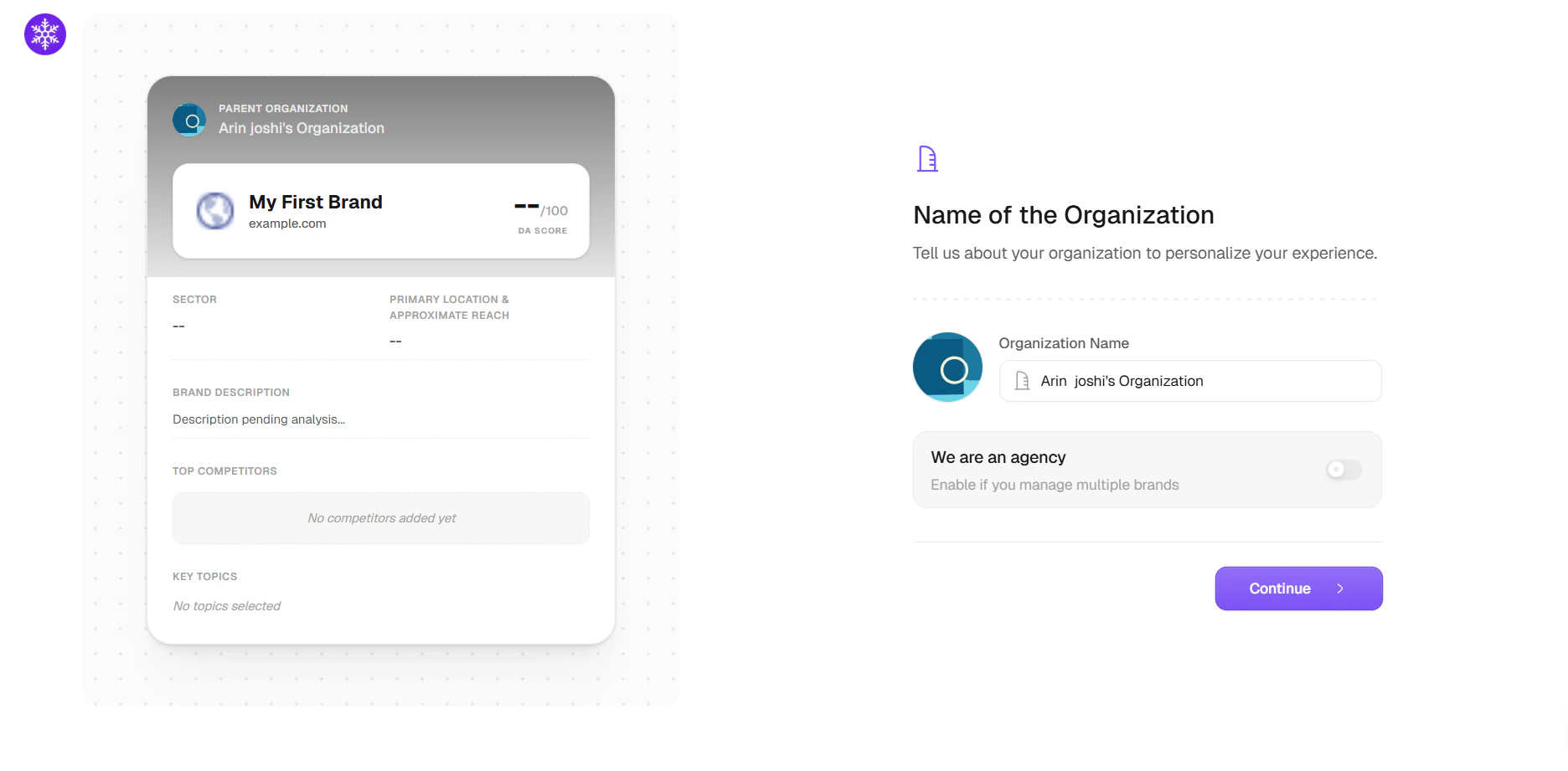
<Your Name> Organisation.2
Enter your brand
Enter the root domain of your website without including the protocol — for example, 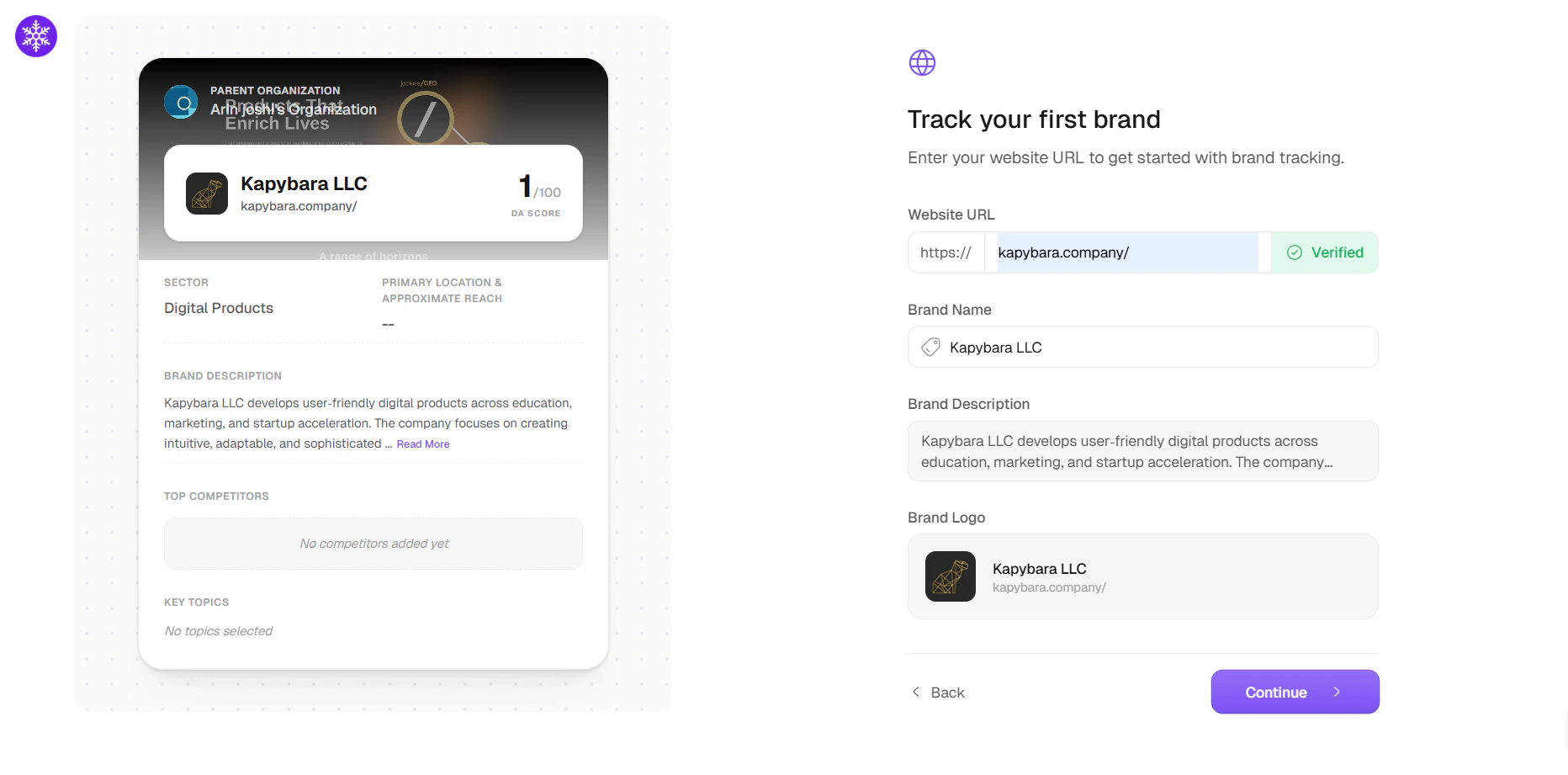
acme.com or www.acme.com.3
Choose your target region
Select the primary regions where your audience is located — you can choose more than one. This determines which regional Google index is used for rank tracking (for example, Google US vs. Google UK results), and the first region becomes your default country.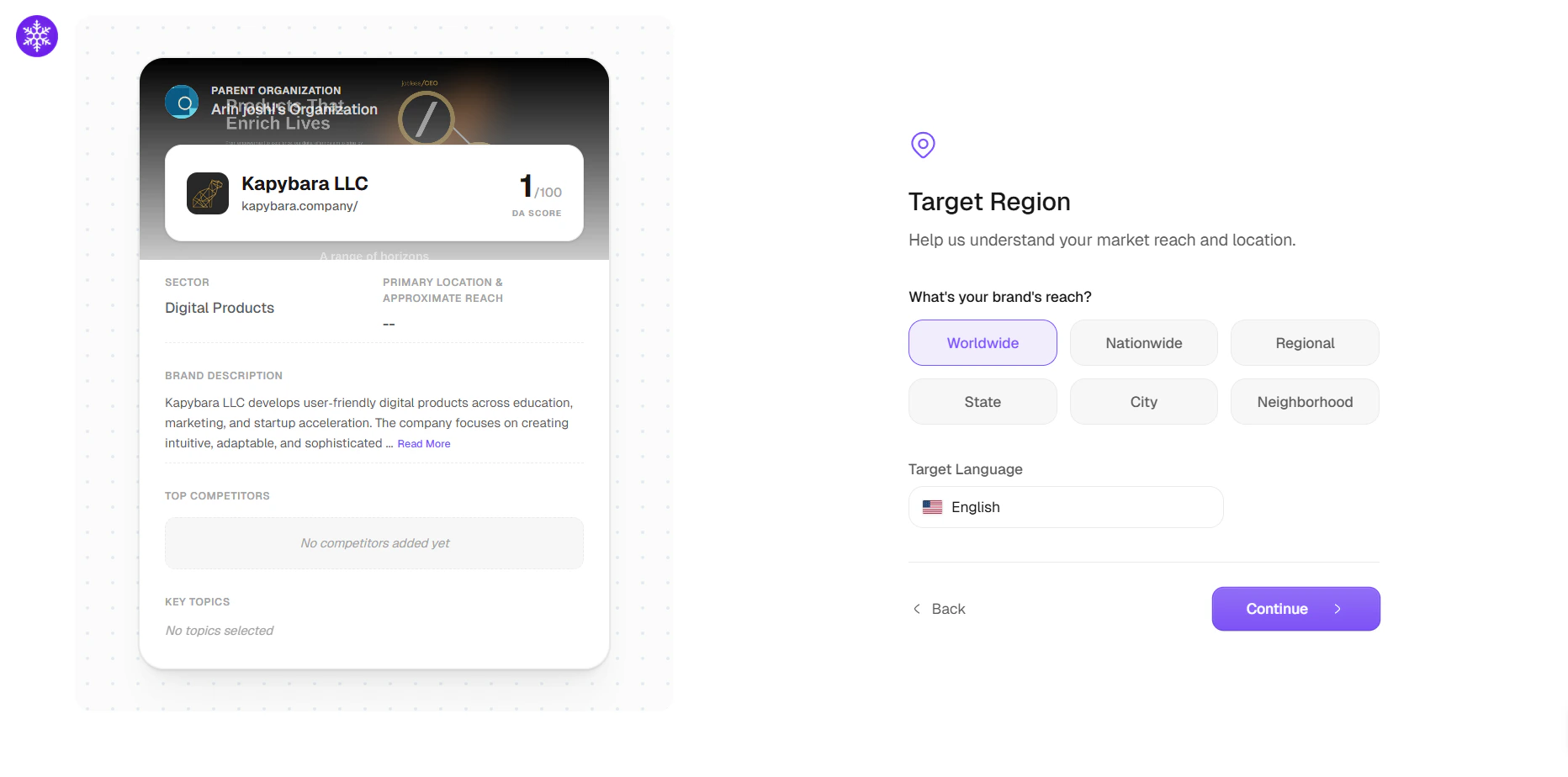
4
Choose your Competitors
SnowSEO automatically identifies your top competitors and suggests the main topics you should cover, based on your domain. You can add or adjust both as needed.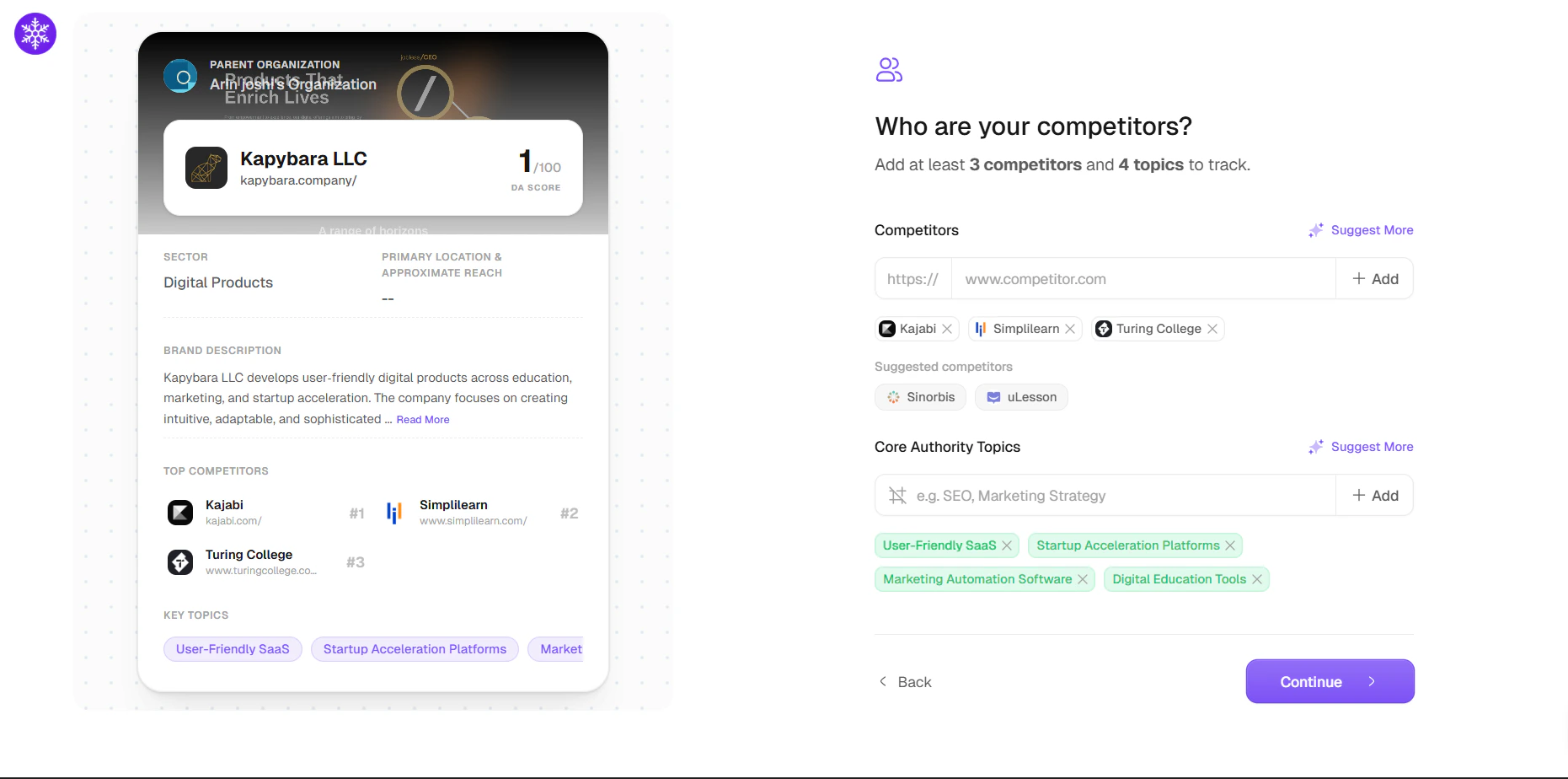
5
View your stats
- AI Visibility Report
- GEO Audit Report
The AI Visibility Report provides a high-level overview of your brand’s presence across AI platforms. It helps you evaluate how your brand compares against competitors and how frequently it appears in AI-generated responses.
It answers key questions such as: “How visible is my brand?” and “Where do I stand within the competitive landscape?”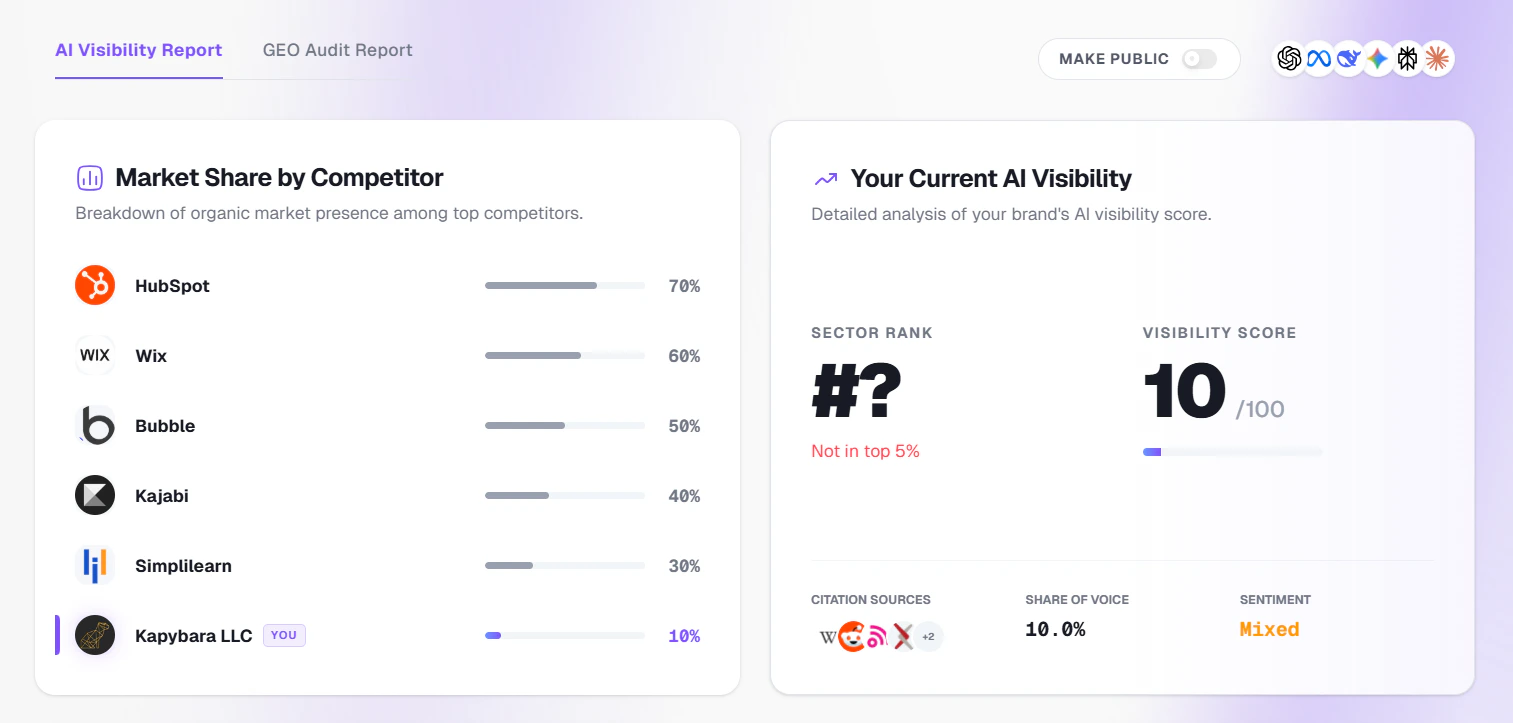
It answers key questions such as: “How visible is my brand?” and “Where do I stand within the competitive landscape?”
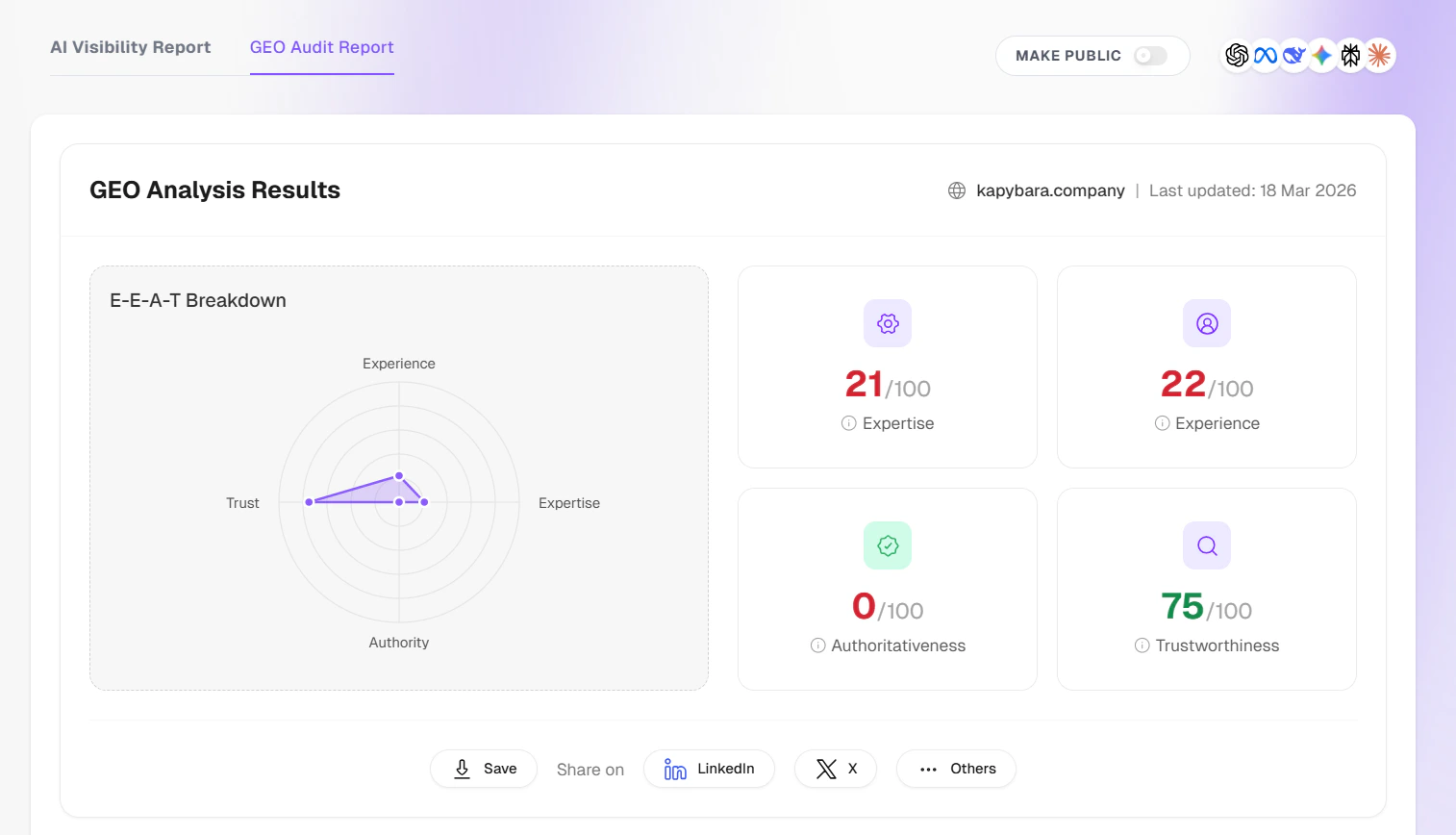
Brand Settings Reference
Frequently Asked Questions
Can I manage multiple websites in one SnowSEO account?
Can I manage multiple websites in one SnowSEO account?
Yes. You can create a separate Brand for each website. Each Brand includes its own keyword tracking, audits, content workflows, and integrations — all accessible within a single account. You can switch between Brands using the sidebar.
Can I change the domain after creating a Brand?
Can I change the domain after creating a Brand?
Yes, but only once every 30 days. Changing your domain resets the brand’s data (articles, keywords, audits, integrations, competitors) and walks you through onboarding for the new domain. Your organization and team members are preserved. If you’d rather keep the existing data, create a separate Brand for the new domain instead.
How many Brands can I create?
How many Brands can I create?
The number of Brands depends on your subscription plan. Starter plans include a limited number of Brands, while Pro and Scale plans support a higher limit. You can review your plan details in Account Settings → Billing.
Do all team members see the same data?
Do all team members see the same data?
Yes. Once integrations such as GSC and GA4 are connected, all invited team members can access the same Brand data. Individual authentication is not required for each user.
How many team members can I invite?
How many team members can I invite?
There are no seat limits on any plan — you can invite as many team members as needed at no additional cost.
My GSC property isn't showing in the dropdown — what do I do?
My GSC property isn't showing in the dropdown — what do I do?
Ensure you are signed in with a Google account that has access to the desired GSC property (at least “Restricted” permission). If the issue persists, try disconnecting and reconnecting your Google account in Brand Settings.