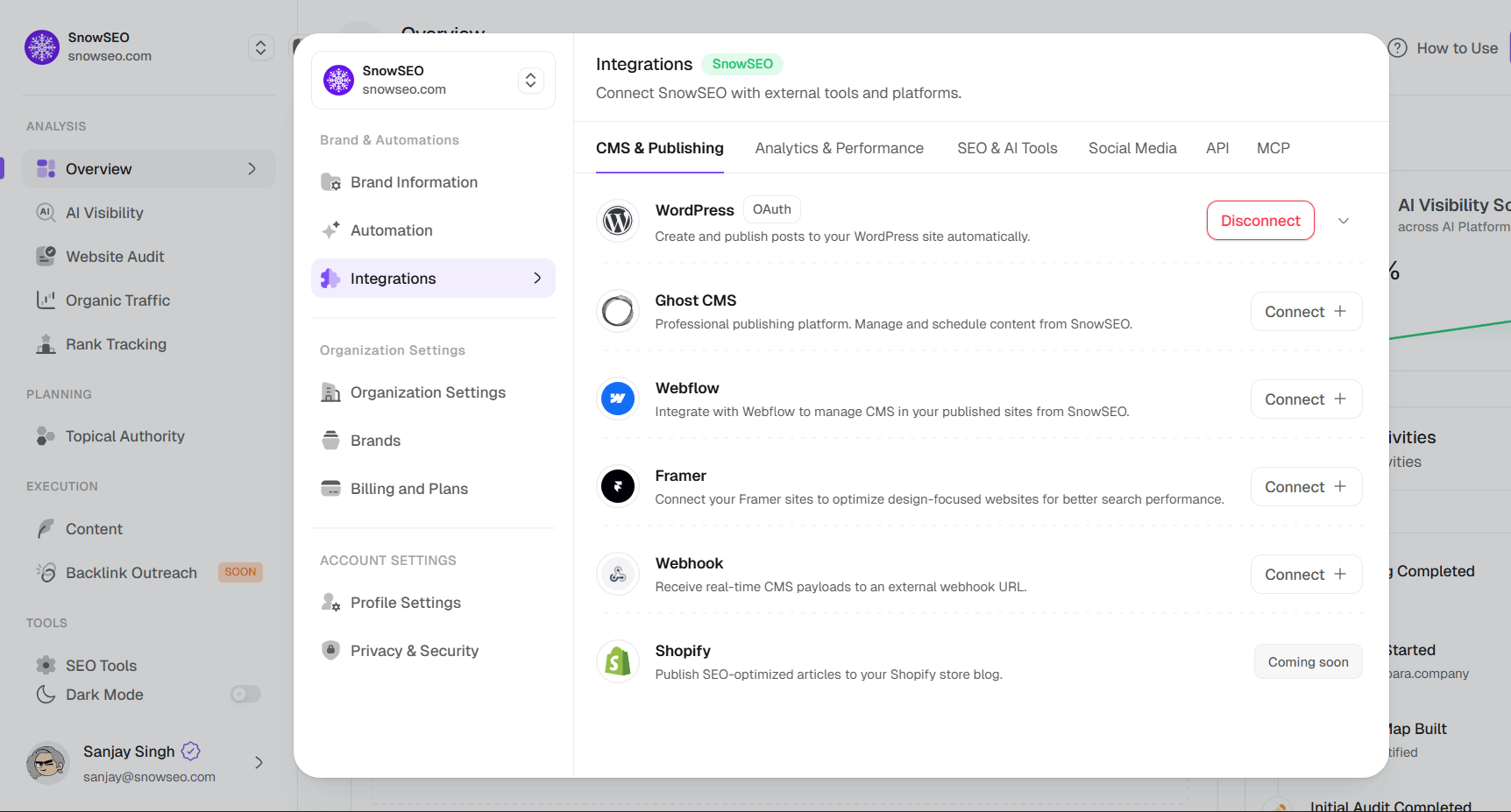
Connect SnowSEO with your favorite CMS platforms, analytics tools, and SEO services to create a unified content workflow.
Integrations let you connect SnowSEO to the external tools your team already uses — so you can publish content, track performance, and monitor search visibility without switching between platforms.
All integrations are configured per brand. If you manage multiple websites, connect each brand to its own set of tools independently.
To manage your integrations, open the user menu at the bottom-left of the dashboard and select Integrations from the dropdown.This opens the Integrations drawer with tabs organized by function: CMS, Analytics, SEO, Social, Sending Accounts, MCP, and API.Each integration uses an accordion pattern — click the row to expand it and see connection details.
Not all integrations are equally important. Here’s the priority order:
Priority
Integration
Why
1st
Google Search Console
Without it, SnowSEO cannot show your real search traffic, keyword positions, or click-through rates. This is the foundation of almost every dashboard.
2nd
Your CMS (WordPress, Ghost, etc.)
Unlocks Publish and Schedule buttons in the Article Editor so you can push content live without copy-pasting.
3rd
Google Analytics
Enables Content ROI and Website Traffic metrics on published articles.
4th
Bing Webmaster Tools
Captures the ~6–10% of search traffic that comes from Bing, especially if your audience skews enterprise or older demographics.
5th
PostHog
If you run a SaaS product, this connects product analytics with your SEO performance data.
CMS & Publishing
Analytics & Performance
SEO & AI Tools
Social Media
Sending Accounts
API (Beta)
MCP
The CMS & Publishing tab lists content management platforms you can connect for direct article publishing. Once linked, you can push SEO-optimized articles from SnowSEO straight to your live website.
Connecting a CMS unlocks the Publish Now and Schedule buttons inside the Article Editor. Without it, you can still write and optimize content — but you’ll need to manually copy the output to your website.
Connect your WordPress site to create and publish posts directly from SnowSEO. Supports both WordPress.com and self-hosted WordPress.org installations.
WordPress Connection Prerequisites & Common Issues:
WordPress Version: You must be running WordPress 5.7 or higher. Older versions do not support Application Passwords or the REST API v2 needed for the OAuth and Password methods.
REST API Blocks: Security plugins (like Wordfence, iThemes Security, or Sucuri) and some hosting configurations can block the WordPress REST API. Make sure /wp-json/ endpoints are accessible.
Disabling Security Blocks: If you use Wordfence, ensure it is not blocking Application Passwords (you may need to allow them in Wordfence settings or temporarily disable the plugin to connect).
Fallback to Plugin Method: If your firewall or security setup strictly blocks the REST API, use the Plugin method which is designed to bypass these restrictions.
SnowSEO offers three connection methods — choose based on your hosting setup:
OAuth
Password
Plugin
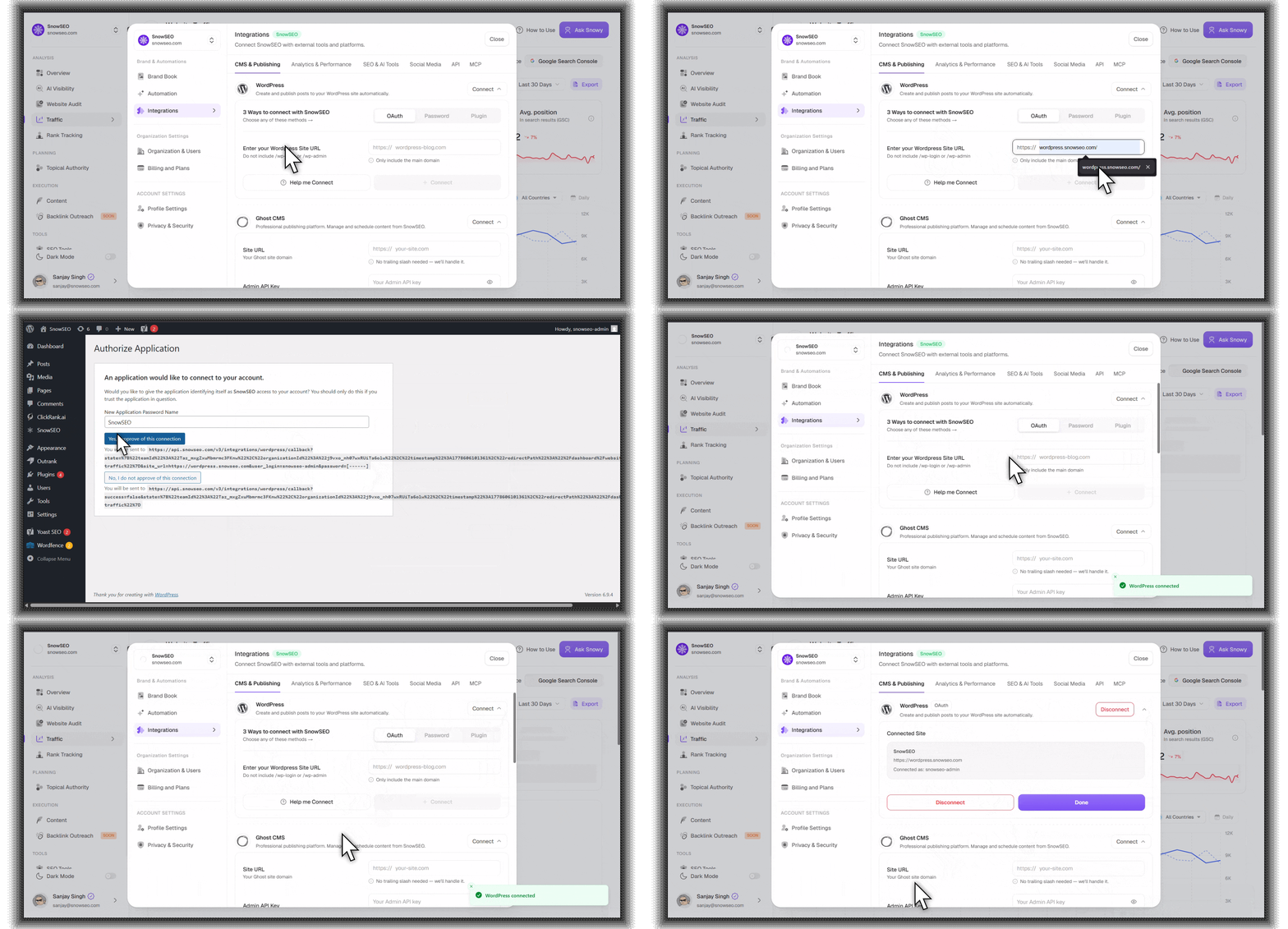
Best for: WordPress.com sites and self-hosted sites where the WordPress REST API is accessible.This is the simplest method — no manual credential management required.
1
Click Connect + on the WordPress row
In SnowSEO, find WordPress in the CMS & Publishing tab and click Connect +. The panel expands with three tab options.
2
Select the OAuth tab
It’s selected by default. You’ll see a single field: Site URL.
3
Enter your WordPress Site URL
Type the main domain of your WordPress site (e.g., wordpress-blog.com). Do not include /wp-login, /wp-admin, or https:// — those are added automatically.
4
Click Connect
Click + Connect. A secure WordPress authorization window opens where you sign in to your WordPress admin and grant SnowSEO permission. Once authorized, the status changes to Connected.
OAuth is the fastest method. Try it first — if your WordPress site blocks the REST API (common with certain hosting providers or security plugins), fall back to the Password or Plugin method.
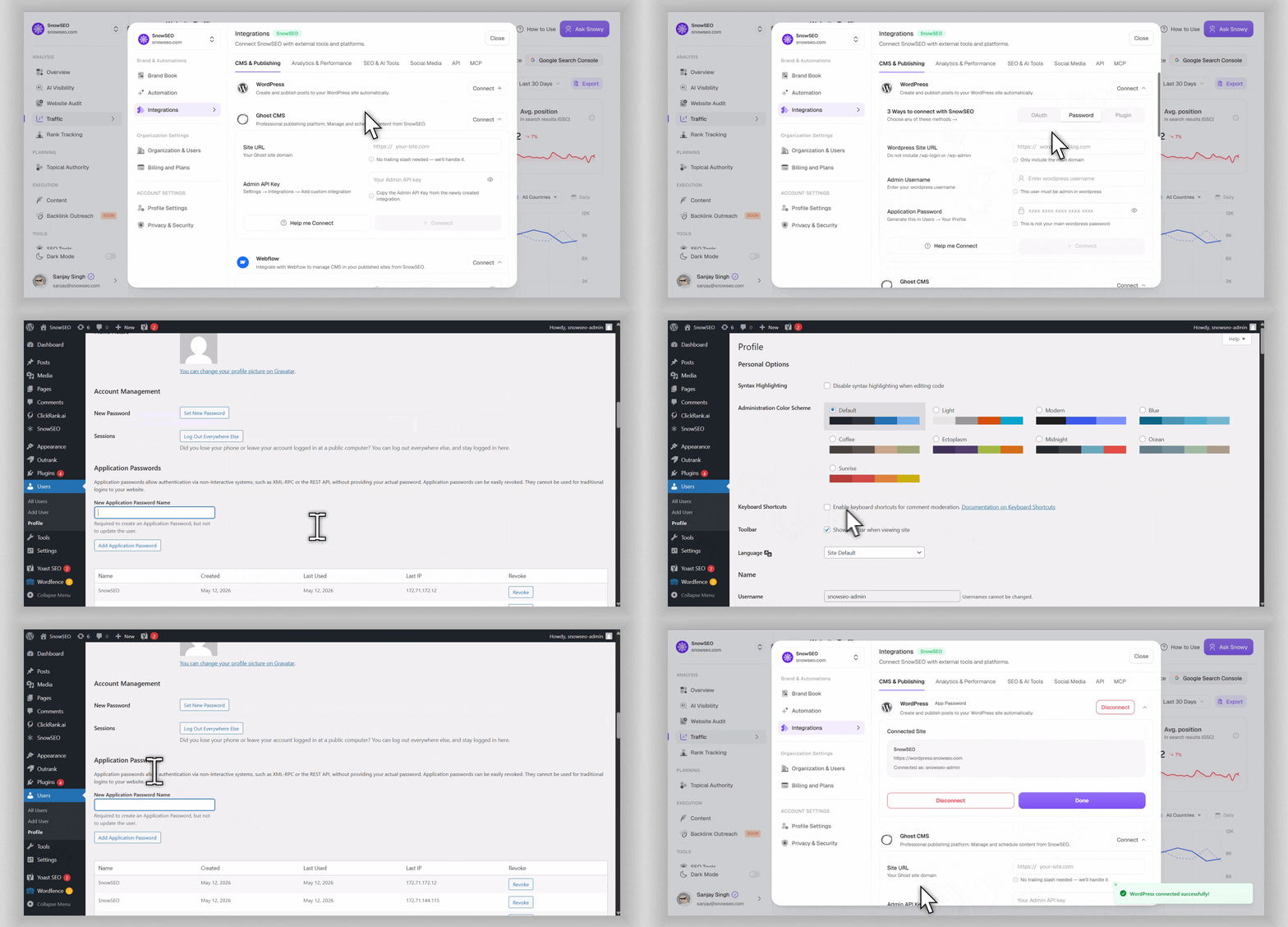
Best for: Self-hosted WordPress.org sites where OAuth is blocked or unavailable.Uses an Application Password — a revocable token generated inside WordPress, not your main login password.
1
Click Connect + and select the Password tab
In SnowSEO, expand the WordPress panel and select the Password tab.
2
Enter your WordPress Site URL
Type your site’s main domain (e.g., wordpress-blog.com). No protocol, no /wp-admin.
3
Enter your Admin Username
Type the WordPress username you log in with. This user must have admin privileges.
4
Generate an Application Password in WordPress
In your WordPress admin:
Go to Users → Your Profile
Scroll to the Application Passwords section
Type a name (e.g., “SnowSEO”) and click Add New Application Password
Copy the generated password — it looks like xxxx xxxx xxxx xxxx xxxx xxxx
5
Paste the Application Password and connect
Back in SnowSEO, paste the generated password into the Application Password field (use the eye toggle to reveal/hide it). Click + Connect.
The Application Password is not your WordPress login password. It’s a separate, revocable credential for third-party access. You can revoke it anytime from your WordPress profile without affecting your main login. If you revoke it, the SnowSEO integration will break — just generate a new one and reconnect.
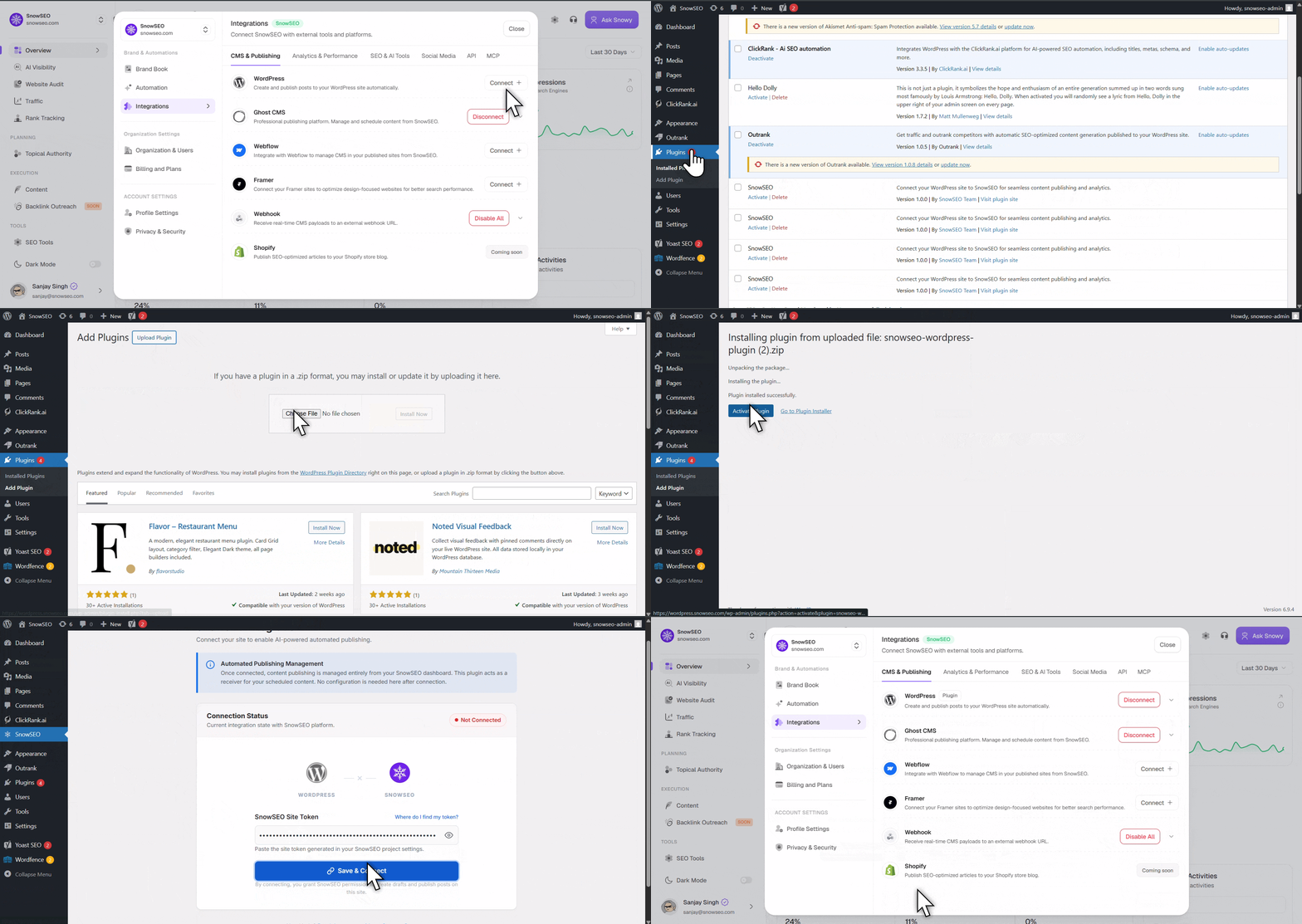
Best for: Sites behind firewalls, using non-standard hosting, or where security plugins block REST API access.Uses a dedicated SnowSEO WordPress plugin with a site token (API key) for the most reliable connection.
1
Click Connect + and select the Plugin tab
In SnowSEO, expand the WordPress panel and select the Plugin tab.
2
Install the SnowSEO WordPress plugin
SnowSEO is published in the official WordPress plugin directory. Click Get Plugin and pick either option:Get from Plugin Directory (recommended): opens Plugins → Add New on your own site with SnowSEO already searched. Click Install Now, then Activate. Installing this way also means WordPress handles plugin updates for you.Download Manually: downloads the .zip instead. Use this if your site can’t reach the plugin directory (offline, intranet, or a locked-down host). Then in your WordPress admin:
Go to Plugins → Add New → Upload Plugin
Upload the downloaded .zip file
Click Install Now, then Activate
3
Generate an API Key in SnowSEO
Back in SnowSEO, click Generate API Key. A unique key appears (e.g., sw_live_941cbd0fbbcf...). Click the copy button.
4
Enter the site token in the WordPress plugin
In WordPress, open SnowSEO in the admin sidebar, paste the site token from SnowSEO (Plugin tab → Generate API Key), and click Save & Connect.
5
Wait for automatic activation
In SnowSEO, the Connect button shows Waiting for activation with a spinner. Once the plugin validates the key with SnowSEO’s servers, the status automatically changes to Connected. This usually takes a few seconds.
If the status stays on “Waiting for activation” for more than a minute, check that your WordPress site can make outbound HTTPS requests to SnowSEO’s API. Some hosts block outbound connections — contact your hosting provider if needed.
Once connected, the WordPress accordion shows:
Site Title — Your WordPress site name
Site URL — The connected domain
Connection Method — Tag showing OAuth, App Password, or Plugin
Update Plugin button (Plugin method only) - same two options as install, for moving to a newer plugin version
Disconnect button (red) — removes the integration
You can only have one active CMS integration per brand. If you connect WordPress, then try to connect Ghost, the previous connection gets replaced. Disconnect first if you want to switch platforms cleanly.
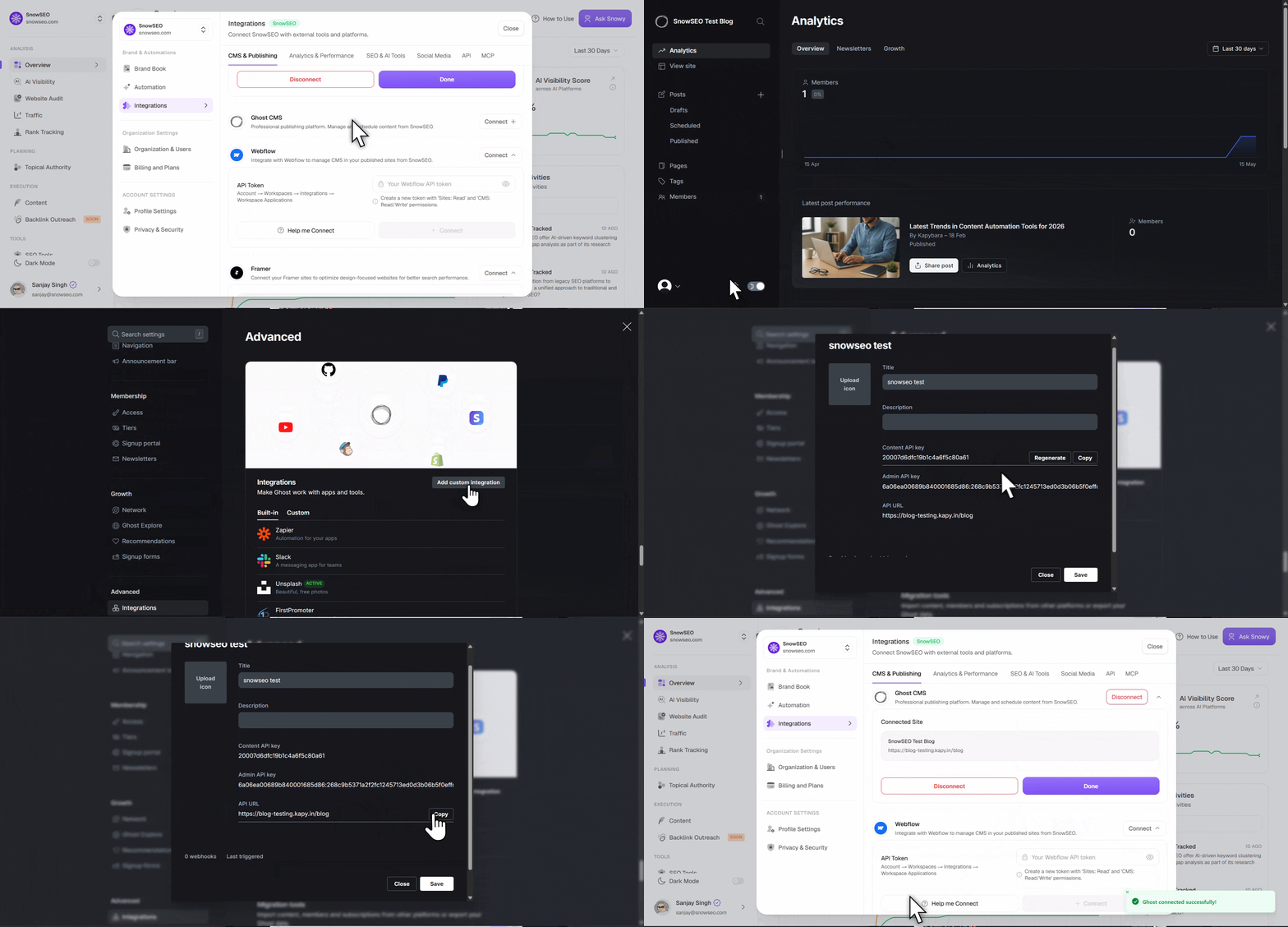
Professional publishing platform. Connect your Ghost publication to manage and schedule content directly from SnowSEO.
1
Click Connect + on the Ghost CMS row
In SnowSEO, find Ghost CMS and click Connect +.
2
Create a custom integration in Ghost
In your Ghost admin:
Go to Settings → Integrations
Click Add custom integration and name it “SnowSEO”
Ghost generates an Admin API Key and shows an API URL — keep this screen open
3
Paste the Admin API Key
Copy the Admin API Key from the integration and paste it into the Admin API Key field.
4
Enter the API URL and connect
Copy the API URL shown in the same integration (e.g., https://your-site.ghost.io) into the API URL field, then click + Connect. Use this exact URL — not your public site domain. They are often different, and using the public domain can cause publishing to fail with an authentication error. The status changes to Connected once verified.
Use the API URL Ghost shows inside the custom integration, not your public-facing site address — on Ghost(Pro) with a custom domain these differ, and the public domain can redirect API requests in a way that drops authentication. The Admin API Key includes both a key ID and a secret in a single string — SnowSEO handles everything else. If you ever regenerate the key in Ghost, you’ll need to reconnect SnowSEO with the new key.
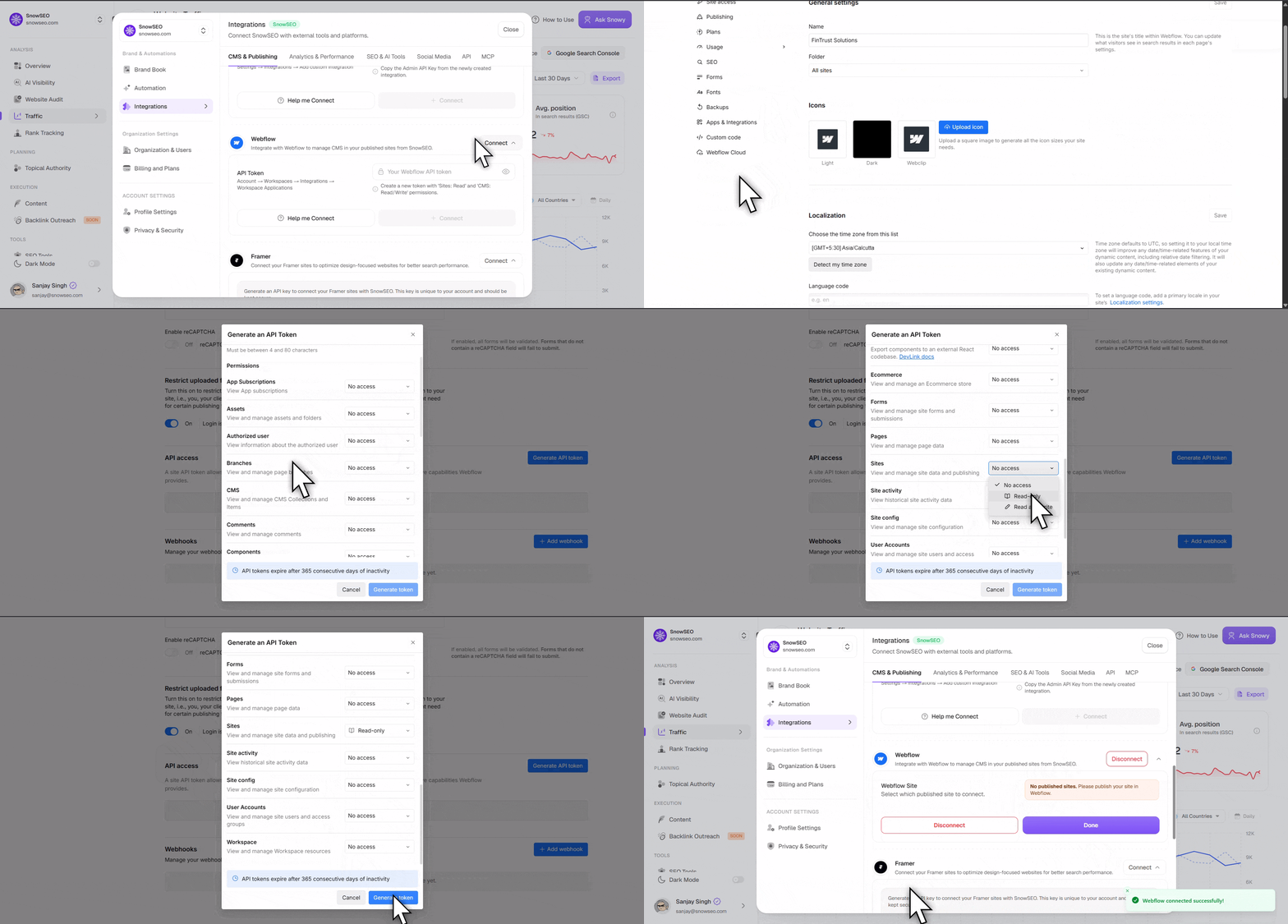
Connect Webflow to manage CMS items on your published sites.
1
Click Connect + on the Webflow row
In SnowSEO, find Webflow and click Connect +.
2
Get your Webflow Site ID
In your Webflow dashboard:
Open the site you want to connect
Go to Site settings → General
Find your Site ID (a string like 1234567890abcdef)
Leave this tab open — you’ll need it after creating the token.
3
Create an API Token in Webflow
Still in Webflow:
Go to Account → Integrations → API access
Click Generate API token
Give it a name (e.g., “SnowSEO”)
Enable CMS Read & Write access — required for publishing
Copy the token immediately — Webflow only shows it once
4
Enter the Site ID and paste the token
Back in SnowSEO:
Paste the Site ID into the first field
Paste the API Token into the second field
Click + Connect
Once connected, you’ll see two dropdowns:
Webflow Site — Select which site to publish to
CMS Collection — Select which collection (blog, articles, etc.)
The API Token is shown only once by Webflow. If you lose it, you must generate a new one in Webflow and reconnect. Keep it in a password manager until the SnowSEO connection is verified.
After connecting, make sure you’ve selected the correct CMS Collection in the expanded panel. SnowSEO will only publish to the collection you select. If you don’t see any collections, make sure your site has at least one CMS collection defined in Webflow.
Connect Framer to publish content directly into your Framer CMS. SnowSEO offers two connection methods — choose based on how hands-off you want publishing to be:
Server API
Plugin Key
Best for: most users — publishes directly to your Framer CMS from SnowSEO’s servers, so you don’t need to keep Framer open.SnowSEO writes articles straight into a Framer CMS collection using a project-scoped Server API key. This is Framer’s official Server API (currently in open beta) and works on any Framer plan — no special tier required.
1
Create a Server API key in Framer
In your Framer project, open Site Settings → General → API Keys and click Add. Name it (e.g. “SnowSEO”), click Create, and copy the key — Framer shows it only once.
2
Copy your Framer project URL
Open the project in the Framer editor and copy the address-bar URL — it looks like https://framer.com/projects/YourSite--AbC123. This is the project URL, not your published .framer.app site URL.
3
Connect the project in SnowSEO
In SnowSEO, expand the Framer panel and select the Server API tab. Paste the Project URL and Server API Key, then click Connect Project. SnowSEO fetches your project’s editable CMS collections.
4
Choose a collection
Pick Use existing collection and select the blog/articles collection you want to publish into, or choose Create SnowSEO collection to have SnowSEO create a ready-made “SnowSEO Articles” collection for you (handy if the project has no CMS collection yet).
5
Map the fields
Match your SnowSEO article fields to Framer collection fields — Title and Content are required; Image, Meta Description, and Created At are optional. Common field names are auto-detected and pre-selected. Keep Add SnowSEO tracking field on (it’s on by default).
6
Save Framer Setup
Click Save Framer Setup. The status changes to Connected and you can publish articles straight to Framer.
The “SnowSEO Article ID” tracking field is essential. SnowSEO adds a hidden text field to your collection and stores each article’s Framer item ID in it, so re-publishing an edited article updates the same Framer item instead of creating a duplicate. This is what makes “update live post” work — leave it enabled.
Draft vs. Published — publishing as Published also deploys your Framer site so the item goes live; publishing as Draft leaves it as a CMS draft (not publicly visible) until you publish the Framer site.
Added a collection or field in Framer? Use the refresh icon next to the collection dropdown to re-fetch collections and fields without reconnecting.
Change your setup later — the connected panel has a Reconfigure button to switch collection or remap fields anytime.
Best for: a fallback when you can’t use the Server API. Syncs content only while the SnowSEO Framer plugin is open inside Framer.
1
Generate a Plugin Key in SnowSEO
Expand the Framer panel, select the Plugin Key tab, and click Generate Plugin Key. Copy the key — it’s shown once.
2
Paste it into the SnowSEO Framer plugin
Open your Framer project, open the SnowSEO plugin, and paste the key where requested.
3
Keep Framer open to sync
Content syncs while the plugin is open. Unlike the Server API method, publishing does not run in the background.
The Plugin Key is shown once after generation. Copy it immediately. If you lose it, click Revoke Key in the SnowSEO panel and generate a new one.
Prefer the Server API method whenever possible — it publishes without you needing to keep Framer open, and it’s what powers scheduled and automated publishing to Framer.
Connect a Grigora project to create, update, schedule, and synchronize articles directly from SnowSEO. You can send an article as a draft for review or publish it immediately.
1
Create a project API key in Grigora
In your Grigora dashboard, open Settings → Advanced → API. Enter a descriptive name such as SnowSEO, click Create, and copy the generated key.
2
Open the Grigora integration in SnowSEO
In SnowSEO, go to Integrations → CMS & Publishing, find Grigora, and click Connect.
3
Paste the API key
Paste the key exactly as Grigora displayed it into the API Key field. Do not add Bearer or another prefix.
4
Enter your public Grigora site URL
Enter the public base URL where readers access your posts, such as your-site.com/blog. SnowSEO automatically uses HTTPS and appends each article’s slug to this URL.
5
Connect and verify
Click Connect. SnowSEO verifies the key with Grigora before saving it. Once connected, the panel displays the public site URL and the Article Editor enables Grigora publishing and scheduling.
Grigora displays an API key only once. Store it securely when you create it. If you lose or revoke it, disconnect Grigora in SnowSEO, generate a new key, and reconnect.
Publishing and synchronization behavior:
Save as Draft in CMS creates or updates a Grigora post with draft status.
Publish Now creates or updates the post with published status.
SnowSEO sends the article’s formatted HTML, slug, categories, tags, SEO title and description, featured image, and summary.
Re-publishing an already linked article updates the existing Grigora post instead of creating a duplicate.
SnowSEO periodically reconciles the linked post’s status, first-published time, and public URL with Grigora.
Set Site URL to the base path immediately before the article slug. For example, if a post is available at https://example.com/blog/my-post, enter example.com/blog. Grigora’s create/update API returns the post ID and slug but not the public URL, so SnowSEO uses this base URL to build the article link.
See Grigora’s API key guide if you need help generating or revoking a key.
Receive real-time CMS publish payloads at your own endpoint. Unlike other CMS integrations, Webhook allows multiple connections — you can set up separate webhooks for different services (e.g., a Next.js blog, a custom headless CMS, and a Zapier automation).
The panel expands. If you have no webhooks yet, an empty form appears automatically.
2
Enter an Integration Name
A descriptive name so your team can identify this connection (e.g., Next.js Blog, Zapier Automation). Must be 2–30 characters.
3
Add your Webhook Endpoint URL
The destination URL where SnowSEO sends events (e.g., https://your-site.com/api/webhook). Must be HTTPS and publicly reachable. In development mode, http:// URLs are also accepted.
4
Set an Access Token
A secret token you choose. SnowSEO sends this in the Authorization header as Bearer <your-token>. Your endpoint should verify this token before processing payloads.
5
Click + Connect
SnowSEO sends a webhook.connected validation ping to your endpoint, carrying your token in the Authorization: Bearer header. Your endpoint should verify that token and reply with a 2xx status — then the webhook is saved and connected. You can add more webhooks by clicking Add New Webhook.
6
Test by publishing an article
Publish any article from the dashboard. Your endpoint should receive a POST request with the article.published or article.drafted event payload.
Managing Webhooks:
Each webhook shows a row with its name, endpoint URL, and an active/inactive toggle
Click the pencil icon to edit name, URL, or secret — SnowSEO re-validates by sending a webhook.connected ping after any credential change
Click the trash icon to delete the webhook — SnowSEO sends a webhook.disconnected event to your endpoint before removal
Use Disable All to turn off all webhooks at once
Toggle Send events even with another CMS to have your webhook endpoints notified on every publish and unpublish, even when a CMS like WordPress or Ghost is the publish target. When off (the default), webhooks only fire when a webhook is the publish target. Your endpoints receive the same article.published / article.drafted / article.unpublished payloads; the article’s CMS record stays owned by that CMS.
The overall integration shows as “Connected” when at least one webhook is active
Webhook Payload Structure:When SnowSEO publishes an article, your endpoint receives a POST request with the following JSON body:
categories and tags are string arrays of the article’s taxonomy (empty arrays when none are assigned). If your receiver’s CMS supports categories/tags, map them — creating any that don’t exist yet.language is the raw language code the article was written in — always a code, never a display name, so map it yourself. It is a lowercase two-letter code (en, es, de) with three exceptions to handle: Chinese is sent as zh_CN or zh_TW, and Hebrew is sent as iw (the legacy code Google uses, not he). Treat the value as an opaque identifier rather than assuming strict ISO 639-1. It reflects the brand’s Writing Language (Settings ▸ Content & CMS ▸ Articles) at the time the article was created, so it stays stable even if that setting changes later. Articles created before this field existed report the brand’s default language.The cms object is present only when the event fired alongside a real CMS publish/unpublish (the “Send events even with another CMS” toggle). It carries that CMS’s own post provider, articleId, and url (url omitted on unpublish) so your automation can correlate the SnowSEO article with the WordPress/Ghost/etc. post. It is absent when the webhook is the primary publish target.Event Types:
article.published — Sent when an article is published
article.drafted — Sent when an article is saved as draft
article.unpublished — Sent when an article is unpublished or removed
webhook.connected — One-time validation ping sent after connecting or updating credentials
webhook.disconnected — Sent to your endpoint before the webhook is removed
Response (optional):Your endpoint can optionally return JSON with cmsArticleId and/or cmsUrl to store CMS metadata back to SnowSEO:
Always validate the Authorization Bearer token in your webhook handler. Log failed requests for easier debugging. The access token is encrypted at rest but sent in plaintext with each request.
Publish SEO-optimized articles straight to your Shopify store blog.SnowSEO connects through a custom app that you create in your own Shopify Dev Dashboard. There is nothing to install and nothing to approve: the app lives in your organization, you choose exactly what it can access, and you hand SnowSEO its credentials. You can revoke it at any time by uninstalling the app.
As of January 1, 2026 Shopify no longer lets merchants create new legacy custom apps from the store admin. Apps are now created in the Dev Dashboard, which is what the steps below use. Existing legacy custom apps keep working.
1
Open your Dev Dashboard
Go to dev.shopify.com/dashboard and pick the organization that owns your store from the selector in the top right.
You need to be the store owner, or a staff member with the App development → Develop permission. Collaborator accounts cannot open the Dev Dashboard at all, so if you manage this store as an agency, the owner has to create the app and hand you the credentials.
2
Create the app
With Apps selected in the left navigation, click Create app in the top right, then Start from Dev Dashboard. Give it a name you will recognise later, such as SnowSEO, and click Create.
3
Set the scopes and release a version
Open the app’s Versions tab and paste exactly these into Scopes:
read_content, write_content
Leave Optional scopes empty and uncheck Embed app in Shopify admin. Leave every other field as it is. Then click Release and confirm - the version name and message it asks for are optional.
Scopes only take effect once you click Release. A version that is edited but not released leaves the app without permission to publish, and SnowSEO will report the missing scope when you connect.
These two scopes cover reading your store’s blogs and creating, updating, and removing blog articles. SnowSEO never requests customer, order, or product access.
The connect panel in SnowSEO shows this same list with a copy button, so you can paste it straight into the Scopes box.
4
Install the app on your store
Click your app’s name at the top of the left sidebar (above Monitoring, Logs, Versions and Settings) to open its home page. Scroll down, click Install app, choose your store, then click Install.
There is no menu item called “Home” - the app’s name at the top of the sidebar is the link to it.
The credentials do not work until the app is installed - an uninstalled app is the most common cause of a “Store not found” error.
5
Copy the Client ID and Secret
Open the app’s Settings tab. Under Credentials, copy the Client ID and the Secret. The Secret is hidden, so use its copy button rather than trying to read it.
Treat the Secret like a password. SnowSEO encrypts it at rest and never sends it back to your browser, but anyone else holding it can write to your blog. If it ever leaks, use Rotate on that same screen and reconnect with the new value.
6
Connect in SnowSEO
In SnowSEO, open Settings → Integrations → CMS & Publishing and expand Shopify. Fill in:
Store name: the part after /store/ in your Shopify admin URL. For admin.shopify.com/store/my-store, enter my-store. It is the same handle you see in front of .myshopify.com, and pasting the whole address bar URL works too.
Client ID and Client Secret: the two values you just copied.
Click Connect. SnowSEO verifies the credentials, checks the scopes, and loads your store’s blogs. The status changes to Connected.
Shopify does not issue a permanent token for this kind of app. SnowSEO exchanges your Client ID and Secret for a short-lived access token that lasts about 24 hours, and renews it automatically whenever it needs to publish. There is nothing for you to rotate or re-paste.
”Your custom app is missing the write_content scope”
The scope is absent, or it was added to a version that was never released. Add it under Versions → Scopes, click Release, approve the new permissions on your store, then reconnect. The message always names the exact scope that is missing.
”Shopify rejected the Client ID or Client Secret”
Either a value was copied incompletely, or the app has not been installed on the store yet. Re-copy both values and confirm the app shows as installed.
”Store not found”
Either the store name is wrong, or the app has not been installed on that store. Use only the subdomain from your admin URL, without .myshopify.com.
Publishing suddenly fails after working
The app was uninstalled or its Client Secret was rotated in Shopify. Reconnect with the current credentials.
A Shopify article always belongs to exactly one blog. On connect, SnowSEO picks the blog whose name looks editorial (something containing blog, article, post, or news) and falls back to the first one on the store.You can change it any time from Settings → Integrations → Shopify using the Blog dropdown. If you created a blog in Shopify after connecting, hit the refresh button next to the dropdown to pull the current list.
Reconnecting keeps whichever blog you are already publishing to, as long as it still exists on the store.
Shopify has no categories for articles, only tags, so SnowSEO contributes your store’s article tags to the shared category and tag suggestions and no categories. The tags come from the 200 most recent articles on the selected blog, which is the only tag listing Shopify exposes.
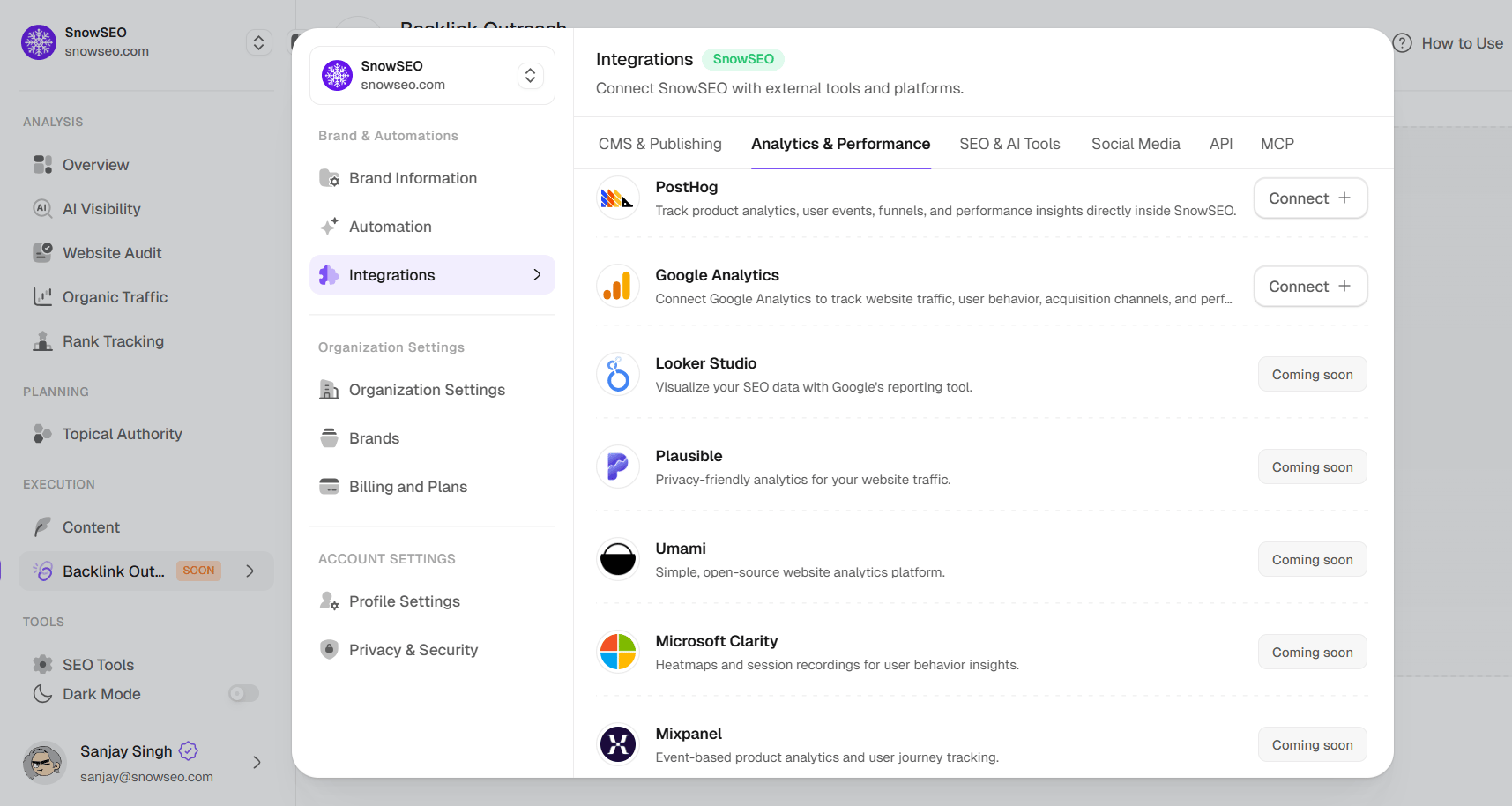
The Analytics & Performance tab connects your traffic and user-behavior tools. This gives you a single dashboard view of how your content is performing.
Connecting Google Analytics (GA4) enables the Content ROI and Website Traffic metrics on published articles. Without it, these sections show as unavailable in the content performance view.
Connect Google Analytics (GA4) to track website traffic, user behavior, and acquisition channels within your SnowSEO dashboard.
1
Click Connect + on the Google Analytics row
In SnowSEO, find Google Analytics and click Connect +.
2
Sign in with your Google account
A secure OAuth window opens. Sign in with the Google account that has access to your GA4 property and grant SnowSEO read-only permissions.
3
Select your GA4 property
If your account has access to multiple GA4 properties, choose the one corresponding to this brand. Use the dropdown in the expanded panel.
4
Confirm the connection
Status changes to Connected. SnowSEO begins pulling traffic data — you’ll see Website Traffic and Content ROI metrics on your articles.
Google Analytics data can take 24–48 hours to fully sync after initial connection. If you don’t see data immediately, check back the next day before troubleshooting.
Connect your PostHog instance to track product analytics and user engagement alongside your SEO data.
1
Click Connect + on the PostHog row
The panel expands with four fields and an inline guide card showing where to find each key.
2
Get your PostHog Host URL
Your PostHog instance URL. If you use PostHog Cloud, this is https://us.i.posthog.com (US) or https://eu.i.posthog.com (EU). For self-hosted, use your own domain.
3
Get your Project API Key
In PostHog:
Go to Project Settings → Project API Key
Copy the key — it starts with phc_
4
Get your Personal API Key
In PostHog:
Click your avatar → User Settings → User API Keys
Click Create personal API key and name it “SnowSEO”
Copy the key — it starts with phx_
5
Get your Project ID
In PostHog, your Project ID is a numeric value. You can find it in Project Settings or in the URL when you’re on a project page (e.g., app.posthog.com/project/12345 — the 12345 is your Project ID).
6
Enter all fields and connect
Back in SnowSEO, fill in all four fields and click Connect to PostHog.
PostHog requires both the Project API Key (phc_) and the Personal API Key (phx_) — they serve different purposes. The Project API Key identifies the project, while the Personal API Key allows SnowSEO to fetch data on your behalf.
SnowSEO only reads analytics data from PostHog. Your events, feature flags, and experiments are never modified or deleted.
Connect your Plausible instance to track privacy-friendly, cookieless analytics alongside your SEO data.
1
Click Connect + on the Plausible row
The panel expands with three fields and an inline guide showing where to find each value.
2
Enter your Plausible Host URL
Your Plausible instance URL. For Plausible Cloud this is https://plausible.io. For self-hosted, use your own domain (include https://, no trailing slash).
3
Create an API Key in Plausible
Access your API Key Settings, click New API Key, select Stats API as the type, give it a name (e.g., “SnowSEO”), and copy it — Plausible only shows it once.
4
Enter your Site ID
Your Site ID is the domain you registered in Plausible (e.g., yourdomain.com). You can find it on your Plausible Sites overview — it’s the domain listed under each site, without https://.
5
Click Connect to Plausible
Once all three fields are filled, click Connect to Plausible. SnowSEO validates your credentials and shows a success toast on completion.
Plausible is cookieless and privacy-first, so it doesn’t use JavaScript cookies or fingerprinting to distinguish new from returning visitors — these metrics are estimated. The data is accurate but calculated differently from GA4 or PostHog.
SnowSEO only reads analytics data from Plausible. Your site configuration, goals, and funnels are never modified or deleted.
Coming soon. Combine product-event analytics with SEO and content outcomes.
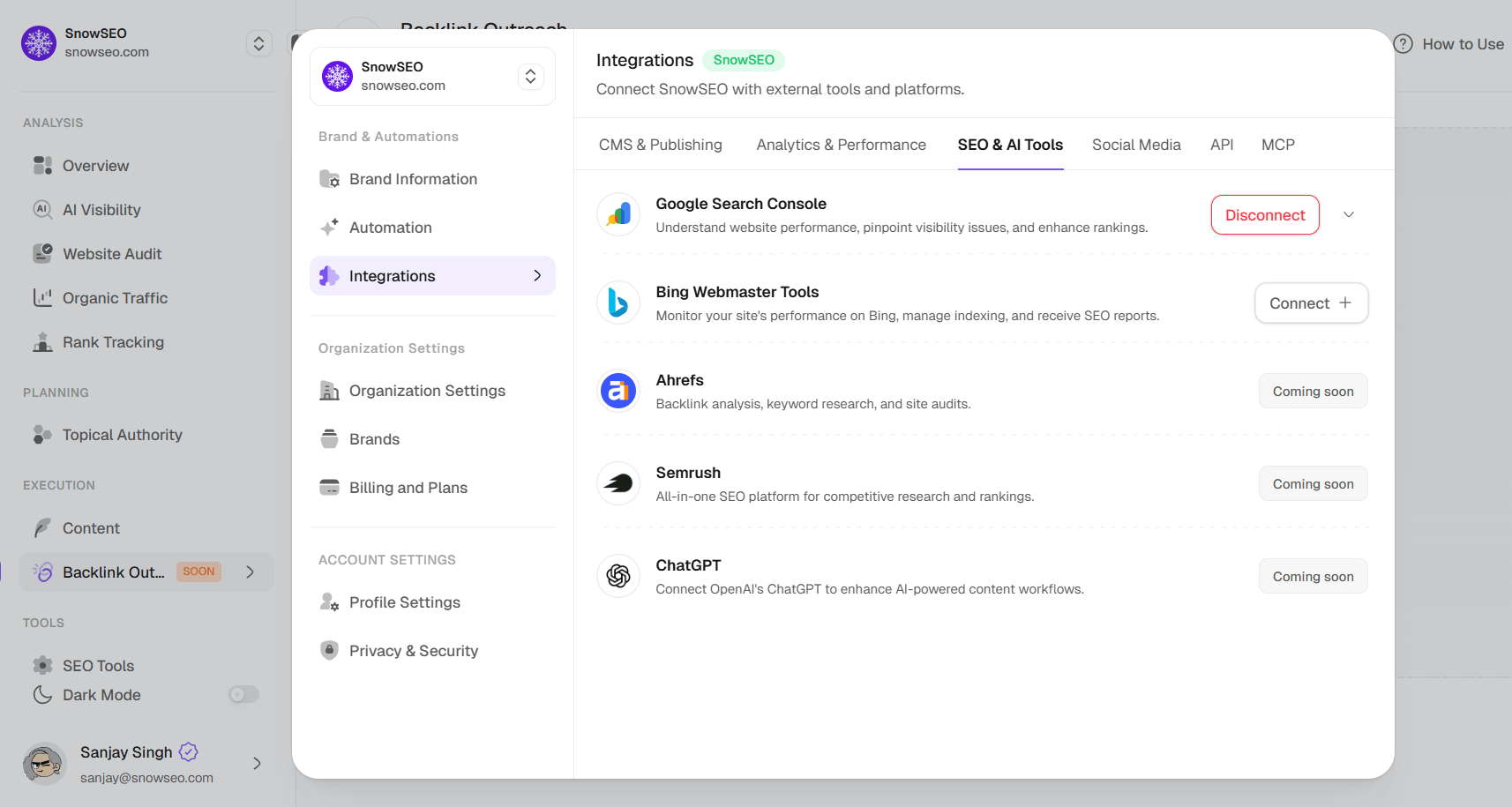
The SEO & AI Tools tab connects SnowSEO to search engines and SEO platforms. These integrations provide the real ranking data and search visibility insights that power most of SnowSEO’s analytics.
Google Search Console is the single most important integration. Without it, SnowSEO cannot display your real website traffic, historical keyword positions, or search performance data. Connect it as your very first step after adding a brand.
Unlocks real search traffic data, keyword impressions, click-through rates, and indexing status.
1
Click Connect + on the Google Search Console row
In SnowSEO, find Google Search Console and click Connect +.
2
Sign in with your Google account
A secure OAuth window opens. Sign in with the Google account that owns (or has full access to) the Search Console property for your website.
3
Select your Search Console property
Once connected, the expanded panel shows a Search Console Property dropdown. If your account manages multiple properties, select the correct one (e.g., snowseo.com — both Domain and URL prefix properties are supported). Each property shows a permission badge indicating your access level (Full, Owner, Restricted, or Unverified).
4
Data starts syncing
Status changes to Connected. SnowSEO begins syncing impressions, clicks, average position, and CTR data.
Managing Your Connection:
Action
What it does
Switch Property
Change which Search Console property data is fetched from. Use the dropdown in the expanded panel.
Reconnect
Re-authenticates the connection — useful if your access token expired or you need to switch Google accounts.
Disconnect
Removes the integration. Historical data already imported is retained, but SnowSEO stops pulling new data.
If you see “No properties found” after connecting, it means your Google account doesn’t have any verified Search Console properties. Go to Google Search Console first, add and verify your property, then reconnect SnowSEO.
Monitor your site’s performance on Bing, manage indexing, and receive SEO reports.
1
Click Connect + on the Bing Webmaster Tools row
In SnowSEO, find Bing Webmaster Tools and click Connect +.
2
Sign in with your Microsoft account
A secure OAuth window opens. Sign in with the Microsoft account that has access to your Bing Webmaster Tools property.
3
Select your site
Once connected, use the Bing Site dropdown to select the verified site that corresponds to this brand.
4
Data starts syncing
Status changes to Connected. SnowSEO begins pulling Bing search performance data.
While Google dominates search for most sites, Bing accounts for ~6–10% of desktop search in the US and Europe. If your audience skews enterprise, older demographics, or uses Microsoft Edge/Internet Explorer, Bing data can reveal meaningful traffic you’re currently blind to.
Click Get a Key and select or create a GCP project
Copy the generated API key (starts with AIzaSy)
3
Paste the API key and connect
Back in SnowSEO, paste the key into the Google API Key field and click Connect. Status changes to Active.
Your API key is stored securely. Default Google quota: 25,000 PSI requests/day per GCP project (plus ~400 per 100s).
Once connected, SnowSEO automatically refreshes stale page scores in the background. PSI audits do not consume page_audits usage — runs are limited to the default Google quota.
Connected state: Shows an Active badge and the date the API key was first connected.Disconnect: Removes the API key. Page speed data already stored is retained.
Instantly notify Bing, Yandex, and other IndexNow-compatible search engines whenever you publish or update a URL — so they re-crawl it immediately instead of waiting for their own schedule.
Requires: Active plan + owner or admin role on the brand.
Generate a new key
Use an existing key
SnowSEO generates a cryptographically random key for you.
1
Click Connect + on the IndexNow row
The panel expands with options to generate or import a key.
2
Click Generate Key
SnowSEO creates a unique {key}.txt file and shows the key.
3
Download the key file
Click Download Key File — saves {key}.txt to your computer.
4
Upload the key file to your website root
The key file must be accessible at: https://{your-domain}/{key}.txt
5
Verify the key in SnowSEO
Back in SnowSEO, click Verify. SnowSEO fetches the file to confirm it exists and contains the correct key.
6
Status updates to Connected & Verified
Once verified, the accordion shows: Verified on [date]. You can now submit URLs.
If you already have an IndexNow key deployed on your server:
1
Click Connect + → switch to Existing Key tab
The panel shows a field to paste your key.
2
Paste your key
Keys must be 8–128 characters: letters, digits, or dashes only (e.g., abc123-def456).
3
Confirm the expected file location
SnowSEO shows the expected URL: https://{host}/{key}.txt
4
Click Verify
SnowSEO fetches the file and confirms. Status changes to Connected & Verified.
The key file must stay accessible at all times. If you delete it or your server blocks the URL, future IndexNow submissions will fail with HTTP 403.
Once verified and active, you can submit URLs to Bing, Yandex, and other compatible engines in one request.Limits:
Up to 10,000 URLs per submission
All URLs must belong to the same verified host
When to submit:
After publishing a new article or blog post
After bulk content updates (e.g., refreshing 50 old posts)
After changing URL slugs — submit the new URL so engines re-crawl it
Before a major product launch or redesign
IndexNow sends one request that reaches all participating engines simultaneously. You don’t need separate integrations for Bing, Yandex, or other engines — one IndexNow key handles them all.
Managing Your Connection:
Action
What it does
Verify
Re-checks {key}.txt — use if you re-uploaded the file or want to confirm it’s still accessible
Disconnect
Removes key + host from SnowSEO. Data about past submissions is cleared.
Coming soon. AI-assisted SEO workflows directly inside SnowSEO.
Coming soon. Connect your social media profiles to track brand mentions and engagement alongside your SEO performance. X (Twitter) and LinkedIn integrations are in development.
Connect the mailbox Backlink Outreach sends from. See Sending Accounts below for the full setup.
Generate and manage SnowSEO API keys for programmatic access. Requires the Scale plan and owner/admin role. Each API key is scoped to a single brand — the key automatically carries the brand context, so you don’t need to pass teamId on API requests.
1
Click Create new key
An inline form appears for naming your key.
2
Enter a key name
Give it a descriptive name (e.g., “Production CI/CD”, “Analytics Export”).
3
Click Generate
A green success banner appears with the full key. This is the only time the full key is shown — copy it immediately and store it securely.
4
Use the key
Include it in the Authorization header of your API requests as Bearer <your-key>.
Managing Keys:
The keys table shows Name, Key prefix (last few characters), and Last used date
Click the delete icon next to any key to revoke it
A confirmation modal appears before deletion — this action is irreversible
The full API key is shown only once at generation. SnowSEO stores only a hash of the key for security. If you lose it, you must revoke the old key and generate a new one.
Connect Claude, Cursor, VS Code, Windsurf, and other AI agents to your SnowSEO data through the Model Context Protocol. The MCP server is a proxy over the Developer API — you connect by signing in through your browser (OAuth), so there’s no key to copy.
See the MCP Server guide for the endpoint, per-client setup commands, and the full list of available tools.
A sending account is the mailbox Backlink Outreach sends your pitches from. Outreach never sends from a SnowSEO address - it sends as you, so replies land in your inbox and the email reads like it came from a person.Open Settings → Integrations → Sending Accounts to connect and manage mailboxes. You can also start from the Connect button on the Outreach screen.
Any mailbox you can send from works. Two common setups:
An address on your own domain (you@yourcompany.com). You control the domain’s reputation and its email records.
A dedicated outreach address, either a second mailbox on your domain or one on a similar domain used only for outreach. Keeps cold email separate from your day-to-day mail.
The one-click Google Workspace and Outlook options say Coming soon. Until they’re ready, Gmail and Google Workspace addresses connect through Others / Custom SMTP with an app password (see below). Outlook and Microsoft 365 addresses can’t be connected yet.
Pick Gmail / Google Workspace, Zoho Mail or Fastmail in the Provider dropdown and the server settings fill themselves in. Choose Other / Custom for anything else and enter the settings your provider publishes - their help pages list them under “SMTP settings”. Every field stays editable either way.
1
Email address and sender name
The address mail goes out from, and the name shown beside it (“Jane from Acme”). The sender name is also what {{display_name}} fills in at the bottom of your emails.
2
Mail server, port and security
Picking a provider fills these in. For anything else, use what your provider publishes: usually STARTTLS on port 587 or SSL/TLS on port 465. Picking a security option sets its usual port for you.
3
Username and password
Usually your full email address and your mailbox password. Different login username is ticked at first - untick it if you sign in with your email address. If the account has two-factor authentication on, you need an app password instead - see below.
4
Keep Also read replies on
It’s on from the start, and it’s what brings replies into SnowSEO. It also lets SnowSEO spot bounced emails and protect your domain (see below). Fill in the incoming server (your provider’s “IMAP” settings), and leave its username and password blank to reuse the ones above. Switch it off only if you want replies to reach your normal email app and nowhere else.
5
Test connection, then Connect mailbox
The test checks sending and reading replies separately and tells you which one failed, so a wrong incoming setting isn’t mistaken for a bad password.
Zoho serves each account from a single data centre, and only that one accepts your login. Swap .com for .eu, .in or .com.au to match the region in your Zoho URL - the form’s Zoho region dropdown does it for you - and pick Free personal or Paid organisation, which use different hostnames.
Google rejects normal account passwords over SMTP, so you need a 16-character app password:
1
Turn on 2-Step Verification
In your Google Account, open Security and enable it. Google won’t offer app passwords otherwise.
2
Create an app password
Go straight to myaccount.google.com/apppasswords and create one named something you’ll recognise, like “SnowSEO”. That page only opens once 2-Step Verification is on, so do the step above first.
3
Paste it as the password
Google shows it once, as four groups of four characters. Paste it exactly as shown - the spaces are fine.
No App passwords option on that page? It’s almost always 2-Step Verification not being fully on yet, or a Workspace admin blocking them. This walkthrough shows the fix: How to Generate App Passwords in Google.
The password field has a How do I get an app password? link that asks Snowy for the exact steps for whichever provider you picked.
Workspace admins: if your organisation enforces 2-Step Verification but blocks app passwords, no app password can be created and the connection will keep failing. An admin has to allow them.
A brand-new address that suddenly sends lots of cold email looks like a hacked account to email providers, so SnowSEO paces each new mailbox, starting small and building up over four weeks:
When
Emails a day
Day 1
2
Around day 7
About 10
Around day 14
About 20
Day 28 onwards
30
This happens on its own. Emails over today’s allowance wait in the queue for tomorrow, and a mailbox that has been quiet for a week eases back in rather than jumping straight to full speed. 30 a day is the most any one mailbox sends - to send more, connect another mailbox and choose All mailboxes in Outreach, so each email goes from whichever mailbox has the most room. You can also set a lower daily limit on any mailbox.SnowSEO also watches for trouble so a bad list can’t damage your domain:
Too many bounces. SnowSEO notices a bounce when the “delivery failed” email comes back to your mailbox, so this only works with Also read replies on. Once a mailbox has sent 50 or more emails in the last 7 days, it keeps count. If bounces reach 10% or more, the mailbox is capped at 10 emails a day with a warning to protect your domain, rather than stopping completely. The cap lifts once the last 7 days are back under 10%. Skipping Bad address contacts is the best way to avoid this. If you turn off “Start slow and build up”, this pacing cap is also bypassed.
Missing email records. Mailboxes on your own domain work best with SPF and DMARC records, which your email host’s help pages explain how to add. Without them the mailbox is capped at 10 emails a day as a safeguard (or no cap if pacing is turned off). Once you add them, it can take up to an hour for the limit to lift. DKIM is recommended too. Gmail, Outlook.com and other free addresses don’t need this.
Open a mailbox under Sending Accounts to see how far it has built up, what it has sent today, and whether its records are in place.
Needs attention means SnowSEO can no longer sign in to send, often because the password changed. Click Reconfigure and enter the details again - you’ll need the password, since SnowSEO never shows it back to you.
Start with Google Search Console — it unlocks the majority of SnowSEO’s value by providing real search data. Next, connect your CMS (WordPress, Ghost, Webflow, or Framer) so you can publish directly. Finally, add Google Analytics for comprehensive traffic and ROI reporting.
Can I connect multiple CMS platforms to the same brand?
No — each brand can have only one active CMS integration at a time. If you need to switch (e.g., migrating from WordPress to Webflow), disconnect the current integration first, then connect the new one. Webhooks are an exception — you can have multiple webhook endpoints active simultaneously.
What happens to my data if I disconnect an integration?
Historical data already imported into SnowSEO (rankings, traffic history, published articles) is retained. However, SnowSEO will stop pulling new data from the disconnected service until you reconnect. If you reconnect later, data sync resumes — you don’t lose the time in between, but there will be a gap in your historical timeline.
My integration shows as connected but data isn't appearing — what should I do?
First, check the data sync delay:
Google Search Console: Data is updated daily (Google’s limitation). Allow up to 48 hours.
Google Analytics: Can take 24–48 hours for initial data to populate.
PostHog / Plausible / Bing: Usually available within minutes.
If it’s been longer than expected:
Click Reconnect from the expanded integration panel — this re-authenticates the connection
Verify the correct property/site is selected in the dropdown
Check that your account still has the required permissions in the external platform
If using GSC, ensure your property is verified in Google Search Console
If none of these work, disconnect and reconnect the integration.
Are my credentials safe?
Yes. SnowSEO uses OAuth 2.0 for all major integrations (Google Search Console, Google Analytics, Bing Webmaster Tools, WordPress). Your passwords are never stored — only secure, revocable access tokens are used.For integrations that require API keys or application passwords (PostHog, Ghost, Webflow, WordPress Plugin/Password methods), these are encrypted at rest and sent only when communicating with the respective service. You can revoke access at any time from either SnowSEO or the third-party platform.
Can I use OAuth, Password, and Plugin methods interchangeably for WordPress?
Yes, but each connection replaces the previous one. If you originally connected via OAuth and want to switch to the Plugin method, disconnect first, then reconnect using the new method. Wordpress.com sites must use OAuth — the Password and Plugin methods only work with self-hosted WordPress.org installations.
I'm using Cloudflare's firewall and WordPress integration keeps failing — what should I do?
This happens because Cloudflare’s WAF or Bot Fight Mode blocks SnowSEO’s requests before they reach your WordPress site. In Cloudflare, go to Security → WAF → Custom rules and create a rule that matches path /wp-json/snowseo/* where User-Agent contains SnowSEO, with action Skip (skip the relevant checks — WAF Managed Rules, Rate Limiting, and Bot Fight Mode/Super Bot Fight Mode as applicable). Make sure this rule is ordered before any rule that would Block or Challenge the request.If your firewall setup makes WAF rules impractical to manage, use the Plugin connection method instead — it still goes through the same /wp-json/snowseo/* routes, so the same Cloudflare rule applies, but the dedicated plugin can better surface which security layer (Cloudflare, Wordfence, etc.) is responsible when a connection attempt fails.
How do I switch Google Search Console properties without disconnecting?
Expand the Google Search Console integration row. There’s a Search Console Property dropdown that lists all properties your connected Google account has access to. Select a different property from the dropdown — SnowSEO will automatically start fetching data from the new property. No need to disconnect and reconnect.
My Google OAuth token expired — how do I fix it?
Click Reconnect in the expanded integration panel. This re-authenticates with Google and issues a fresh token. OAuth tokens typically expire after a few hours, but SnowSEO handles automatic refresh behind the scenes — you should only need to manually reconnect if the refresh fails (e.g., if you changed your Google password or revoked SnowSEO’s access).
PostHog shows 'Connected' but no data appears. What's wrong?
Double-check your four fields:
Host URL — Make sure it points to your actual PostHog instance (e.g., https://us.i.posthog.com not https://app.posthog.com)
Project API Key (phc_) — This is found in Project Settings, not User Settings
Personal API Key (phx_) — This is found in User Settings → User API Keys
Project ID — This is the numeric ID visible in the URL or Project Settings
The most common mistake is mixing up the two keys or using the wrong Host URL for cloud vs. self-hosted instances.
Can I integrate SnowSEO with a headless CMS or custom website?
Yes — use the Webhook integration. Set up an endpoint on your site that receives SnowSEO’s publish payloads (title, content, metadata, etc.), then write your own logic to handle the data. This works with any stack: Next.js, Nuxt, Gatsby, custom PHP, or anything else that can accept HTTPS POST requests.
What permissions does SnowSEO need for Google Search Console?
SnowSEO requests read-only access to your Search Console account. This means:
Can read: Impressions, clicks, CTR, keyword positions, indexing status, sitemaps
Cannot modify: Settings, users, properties, sitemaps, or any other data
The same applies to Google Analytics — read-only access to GA4 property data only.
I don't see the API tab — how do I get API access?
API keys are available on the Scale plan and require an owner or admin role in at least one team within the organization. If you’re on a lower plan or have a member role, the tab will show a “Scale Plan Required” message. Upgrade your plan or ask your organization owner to generate a key for you.Each key is scoped to a specific brand — if you need access to multiple brands, generate a separate key for each one.