

Running Your First Audit
1
Go to Website Audit
In the sidebar, go to Analysis → On-Page SEO → Website Audit.
2
Start the crawl
SnowSEO starts from your homepage and follows every internal link across your site - just like Google’s crawler does.
3
Review your results
Most sites finish crawling in a few minutes. Once done, you’ll see your Site Health Score and a full breakdown of issues, sorted from most to least impactful.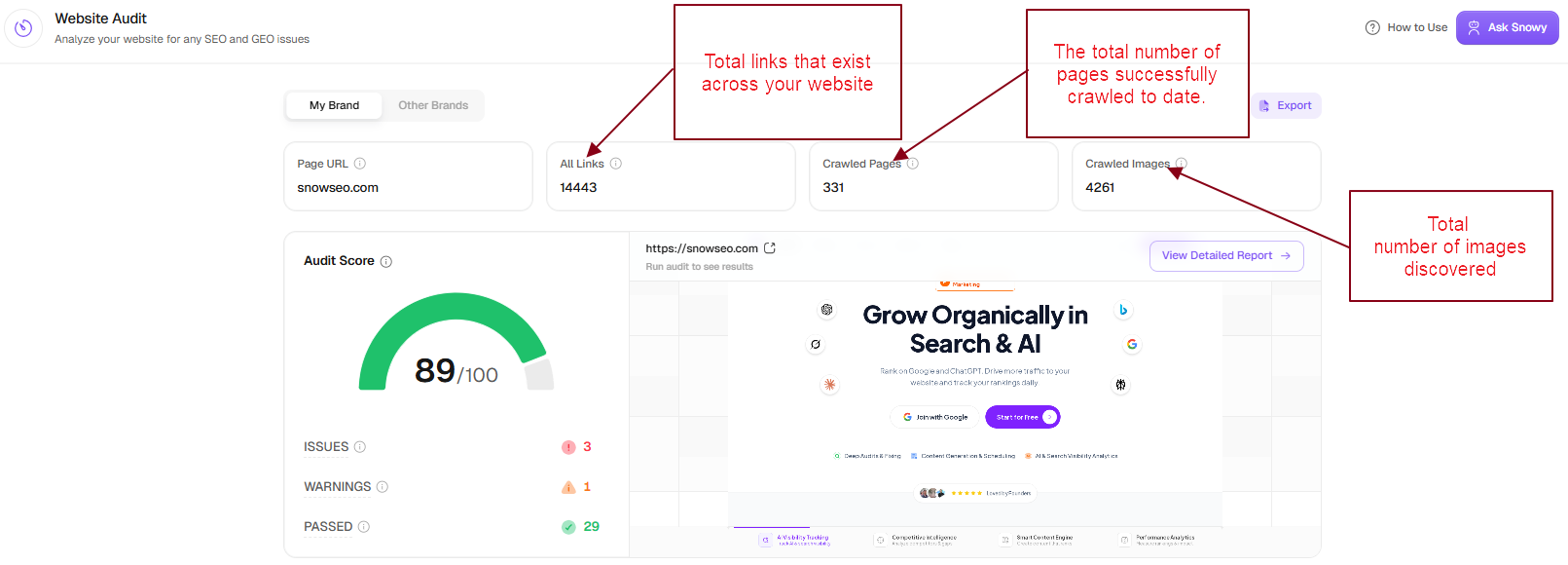
4
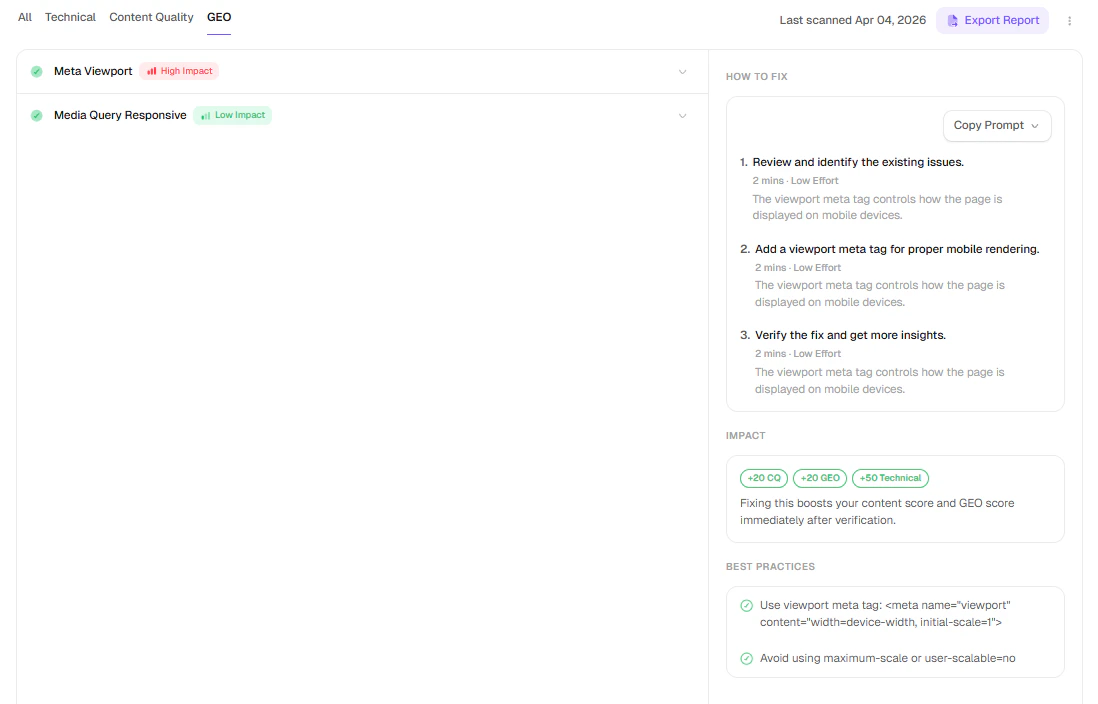
Full Audit Report
The detailed audit view breaks down your website’s performance into focused sections so you can prioritize fixes and improve rankings faster.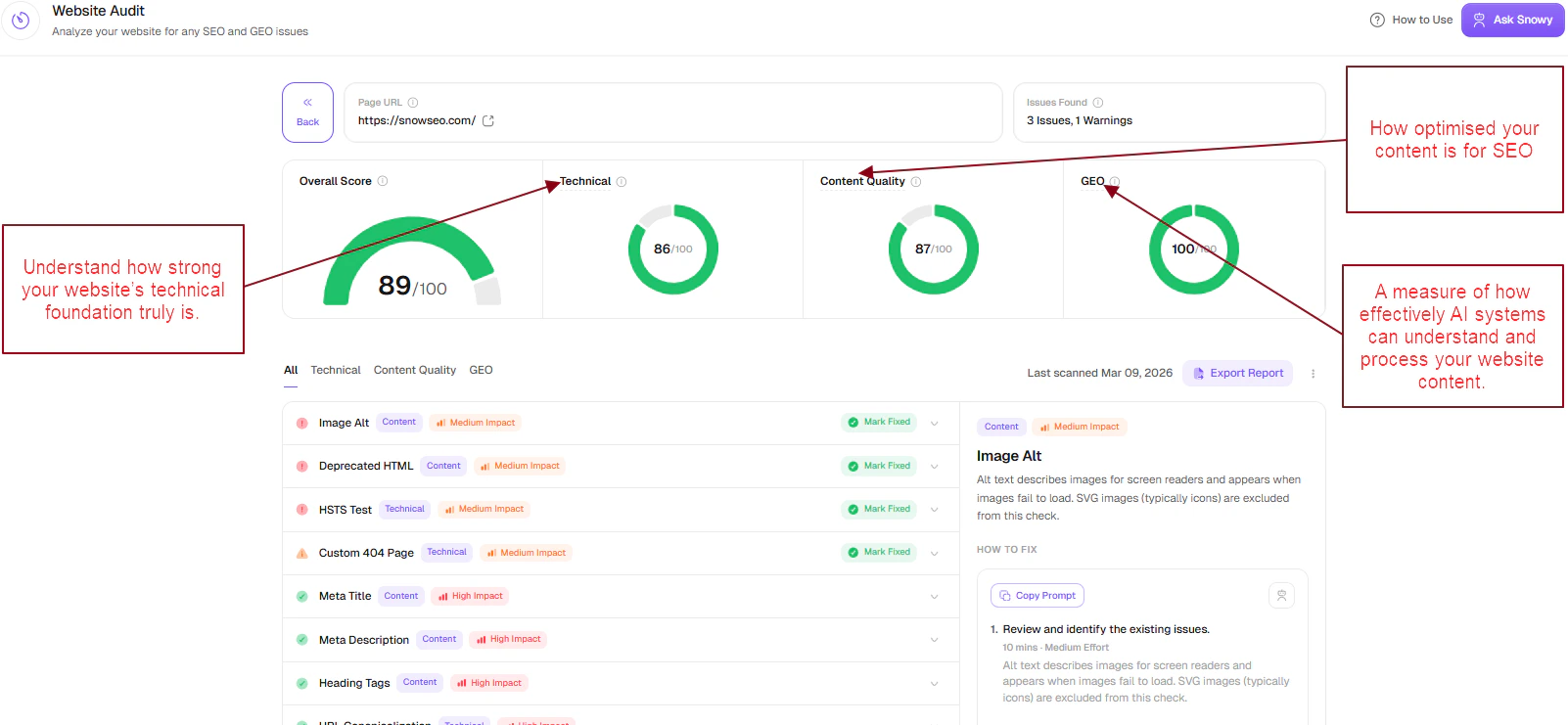
- Technical
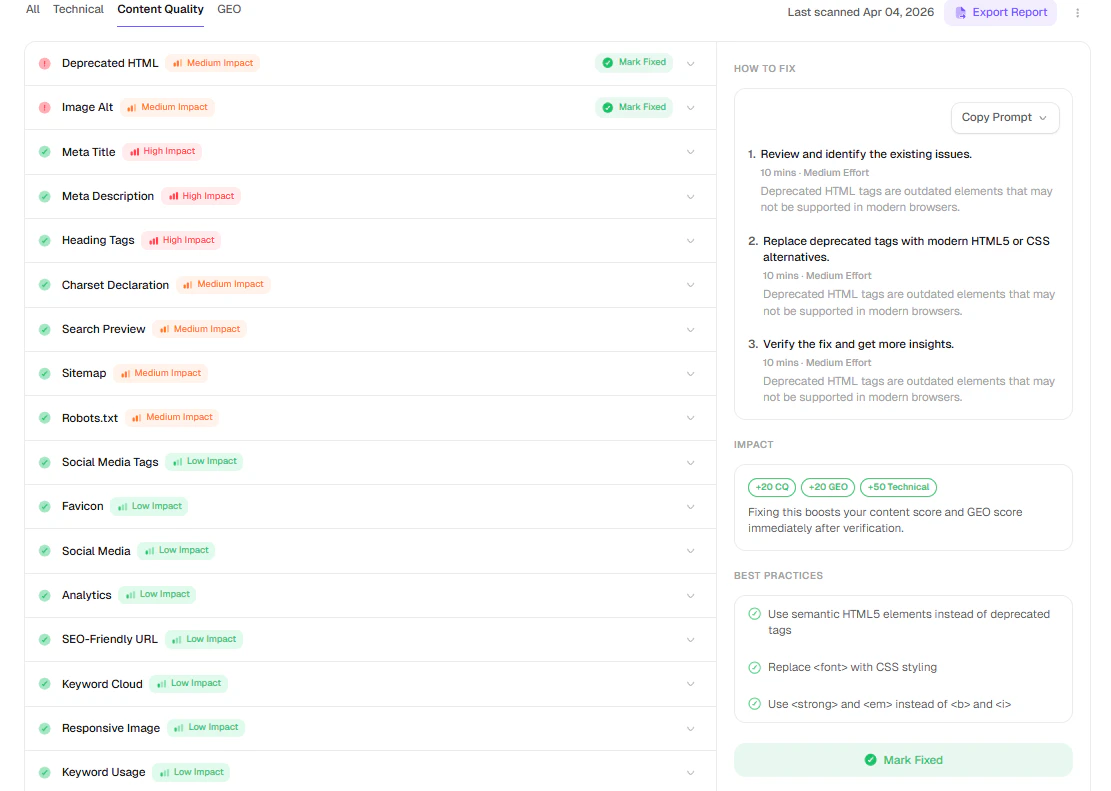
- Content Quality
- GEO
The Technical section evaluates the core infrastructure of your website, including crawlability, indexing, security (HTTPS), and overall site structure.A higher score means search engines can reliably access, understand, and index your pages without obstacles.Use this section to identify and resolve critical issues such as broken links, incorrect canonical tags, crawl restrictions, and URL errors that may impact visibility.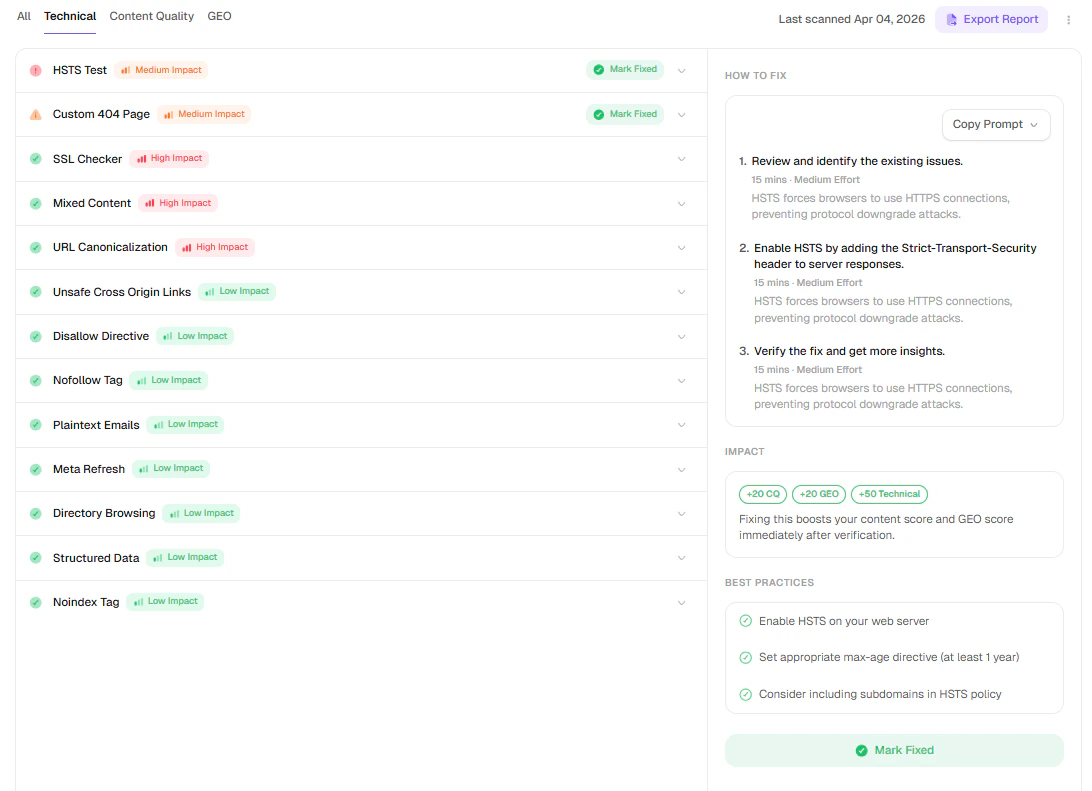
For very large sites (500,000+ pages), consider scheduling audits during low-traffic hours like early morning. The crawler is respectful of server load by default, but it’s good practice for large-scale sites.
Understanding Your Site Health Score
Your Site Health Score is a number from 0 to 100. Think of it like a report card for your website’s technical SEO health. The higher the number, the fewer issues Google will run into when crawling your site.Types of Issues Found
- 🔴 Issues (Fix First)
- 🟡 Warnings (Fix Soon)
These are serious problems that directly prevent Google from crawling or ranking your pages. Fix these before anything else.Common errors you might see:
- Broken internal links (404) - A page on your site links to a URL that no longer exists. Visitors and search engines hit a dead end.
- Server errors (5xx) - Pages that crash when loaded. Google stops crawling these.
- Important pages blocked by robots.txt - Your SEO team’s worst nightmare: a page that Google isn’t allowed to read.
- “noindex” on pages that should rank - A tag that tells Google to ignore the page, sometimes added accidentally.
- Redirect chains - When clicking one URL bounces through 3+ redirects before landing. Wastes crawl budget and slows users down.
Fixing Issues
Click on any issue in the report to get:- Which pages are affected - A clickable list of every URL with this problem.
- Why it matters - A plain-English explanation of how it impacts your rankings.
- How to fix it - Step-by-step instructions you can hand off to a developer or fix yourself.
Setting a Recurring Audit Schedule
Running audits once isn’t enough - your site changes constantly. Turn on Always-On Audit so SnowSEO re-crawls your site automatically and surfaces new issues for you. Open Settings → Automation → Audit and toggle Always-On Audit on, then choose a frequency. Options range from Every day to Every 14 days (Every day, Twice every day, Every other day, Every 3 days, Every 7 days, Every 14 days). The cadence available depends on your plan.Need to skip certain pages? In the same Settings → Automation → Audit panel, add full page URLs to the Excluded URLs list (use Bulk add to paste several at once, one per line). The crawler will skip those URLs entirely.
Page Speed Insights
Page Speed Insights is a separate page in the On-Page SEO group (tagged BETA). It runs Google PageSpeed Insights across your crawled pages and groups Lighthouse issues site-wide.To use Page Speed, you need both: (1) at least one Website Audit crawl completed, and (2) the Google PageSpeed Insights integration connected in Settings → Integrations → SEO & AI Tools.
How to Access
- In the sidebar, go to Analysis → On-Page SEO → Page Speed Insights
- Choose your strategy: Mobile or Desktop (one at a time — Desktop is the default)
What You Get
- An overall PageSpeed Score gauge with Errors / Warnings / Passed counts
- Site-level score cards for Performance, Accessibility, Best Practices, and SEO
- Core Web Vitals view for LCP, CLS, and INP
- Grouped Lighthouse issues with severity and affected-page counts
- A per-page table with a detail drawer — run a single URL on demand from its row
Running Tests
Use the Test Now dropdown to Test All Pages or Test Selected Pages. The same dropdown has an Always-On Page Speed toggle (on by default) that automatically re-runs stale pages in the background for brands with an active PageSpeed integration.Mobile vs Desktop
The strategy toggle updates all metrics and issues for the selected device class. Important: PageSpeed runs do not consumepage_audits usage.
Frequently Asked Questions
Will the audit crawler slow down my website for real visitors?
Will the audit crawler slow down my website for real visitors?
No, not meaningfully. SnowSEO sets a conservative crawl rate by default - it won’t hammer your server. The crawler is built to respect server load, so even on small shared hosting plans it won’t disrupt real visitors.
My health score dropped and I didn't change anything - why?
My health score dropped and I didn't change anything - why?
A few things can cause this without you touching the site:
- An external site you link to went down (creating a broken outbound link)
- A third-party script or image got removed, creating a missing resource error
- Our scoring weights were refined to better reflect current Google guidelines
I fixed some issues - when will my health score update?
I fixed some issues - when will my health score update?
Run a new audit! Each audit is a fresh crawl. Click Run New Audit after deploying your fixes, and your score will reflect the changes immediately.
What's the difference between a redirect chain and a redirect loop?
What's the difference between a redirect chain and a redirect loop?
A redirect chain is when URL A → B → C → D (more than one hop). This wastes Google’s crawl budget and loses some “link juice” at each step. A redirect loop is when URL A → B → A (they redirect to each other indefinitely), which means the page simply never loads.
There are 200+ issues - where do I start?
There are 200+ issues - where do I start?
Start with 🔴 Errors only, sorted by “Number of Pages Affected.” Fix the ones affecting the most pages first. Once errors are cleared, move to 🟡 Warnings. You don’t need to fix every notice - those are optional improvements.
Can I exclude certain pages from the audit?
Can I exclude certain pages from the audit?
Yes. Open Settings → Automation → Audit and add the full page URLs you want to skip to the Excluded URLs list (e.g.,
https://yoursite.com/blog/drafts/). Use Bulk add to paste several at once. The crawler will skip those URLs entirely.