

What Is Topical Authority?
Imagine you’re researching a topic you know nothing about — say, “email marketing.” You find two websites:- Site A — Has one article called “Email Marketing Tips” (800 words). No other related content.
- Site B — Has a comprehensive guide called “The Complete Guide to Email Marketing” that links to 15 detailed articles: “How to Write Welcome Emails,” “Best Email Marketing Tools,” “Email Open Rate Benchmarks,” “A/B Testing Subject Lines,” and more.
Why Random Articles Don’t Work Anymore
Publishing one-off blog posts worked 10 years ago when competition was low. Today, every topic has thousands of articles competing for the same keywords. A single 1,500-word article is no longer enough to rank — because Google has learned that the most comprehensive resources on a topic are the ones users actually want. The difference between winning and losing in SEO today:| Random Articles | Topic Clusters |
|---|---|
| Each article competes in isolation | Every article strengthens every other article |
| Thin coverage → low authority | Deep coverage → high authority |
| No internal link structure | Bidirectional internal links distribute authority |
| Target one keyword at a time | Target an entire topic area (10+ keywords) |
| Easy for competitors to outrank | Hard for competitors to replicate the depth |
How SnowSEO’s Topical Authority Works
The Topical Authority feature has two levels:- The List Page (
/dashboard/topic-clusters) — See all your topics at a glance, their scores, and trends - The Detail Page (
/dashboard/topic-clusters/[id]) — Dive into one topic to manage keywords, prompts, and track performance
The List Page
When you first open Planning → Topical Authority, you land on the list page showing every topic cluster you’ve created.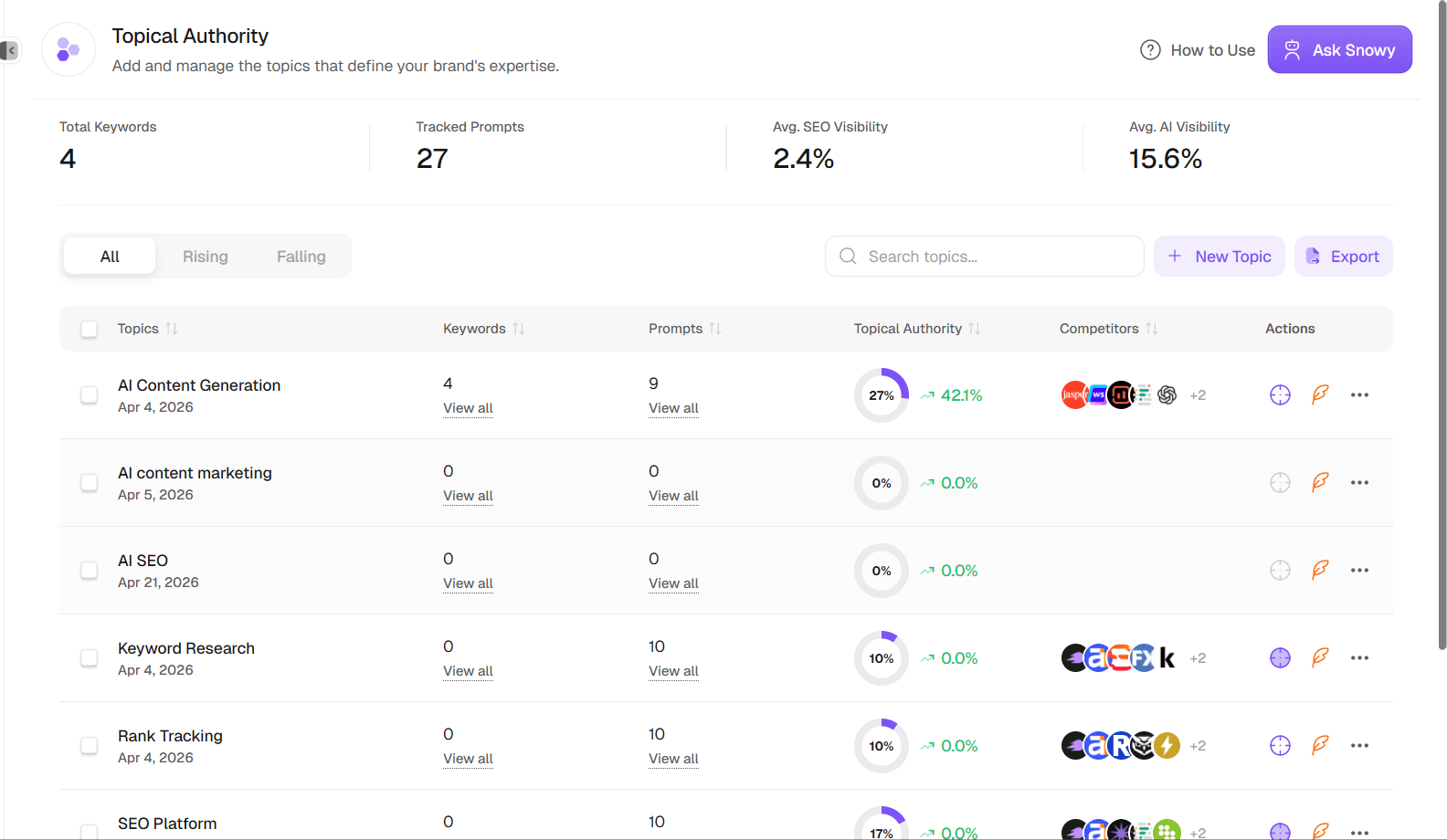
Summary Stats Bar
Four metrics at the top give you a bird’s-eye view of your entire topical strategy:| Metric | What it tells you |
|---|---|
| Total Keywords | Every keyword you’re tracking across all topics combined |
| Tracked Prompts | Every AI visibility prompt you’re tracking across all topics |
| Avg. SEO Visibility | Your average search engine visibility score across all topics |
| Avg. AI Visibility | Your average AI platform visibility score across all topics |
The Topics Table
Each row in the table represents one topic cluster you’ve created:| Column | What it tells you |
|---|---|
| Topics | The topic name + when it was created (e.g., “Jun 15, 2025”) |
| Keywords | How many keywords are in this cluster. Click “View all” to open a slide-in drawer |
| Prompts | How many AI visibility prompts are linked to this topic. Click “View all” to open a slide-in drawer |
| Topical Authority | Score out of 100 (shown as a circular progress gauge) + change % with up/down arrow. Green = improving, Red = declining |
| Competitors | Up to 5 favicon avatars of top competing brands detected in this topic’s AI responses |
- All / Rising / Falling — Segmented tabs to filter topics by their trend direction
- Search box — Type to filter topics by name
- Track/Untoggle (target icon) — Enable or disable tracking for ALL keywords and prompts in this topic at once. Only active when the topic has at least one keyword or prompt.
- Feature (quill icon) — Coming soon (AI article generation for the topic)
- More actions (⋮) — Opens a dropdown with:
- Add More Keywords — Add new keywords to this topic
- Add More Prompts — Add new AI prompts to this topic
- Rename — Change the topic name
- Delete — Permanently remove the topic and all its data
- Track All — Enable tracking for all selected topics
- Untrack All — Disable tracking for all selected topics
- Delete — Remove selected topics (coming soon)
Creating a New Topic
Click the “New Topic” button to open the creation modal. Step 1: Choose your topic- Type a topic name directly (e.g., “Email Marketing,” “Content Strategy,” “SaaS Growth”)
- OR click one of the AI-suggested topics — SnowSEO generates suggestions based on your brand’s website. These appear as clickable pills with a sparkles icon.
- SnowSEO creates the cluster and immediately navigates you to the detail page so you can start adding keywords and prompts.
The Detail Page
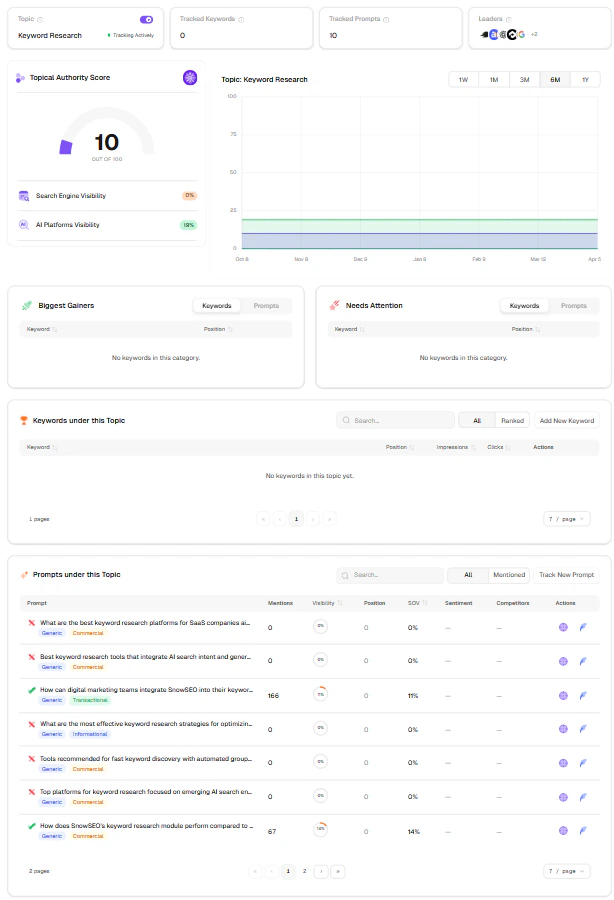
Clicking any topic from the list takes you to its detail page — your command center for managing and measuring that topic’s performance.Header Cards
Four cards at the top give you the current state of this topic:| Card | What it shows |
|---|---|
| Topic | The topic name + a tracking status indicator (green = “Tracking Actively,” orange = “Partially Tracked,” gray = “Tracking Disabled”) + a toggle switch to enable/disable tracking for the entire topic |
| Tracked Keywords | How many keywords are actively being tracked in this topic |
| Tracked Prompts | How many AI visibility prompts are actively being tracked |
| Leaders | Favicon avatars of the top competing brands detected in AI responses for this topic |

Date Range Picker
Controls the time window for all charts and data on this page. Options: This Month, Last Month, This Quarter, Last Quarter, This Year, Last Year, or a custom range (snapped to 7, 30, 90, 180, or 365 days).Topical Authority Score
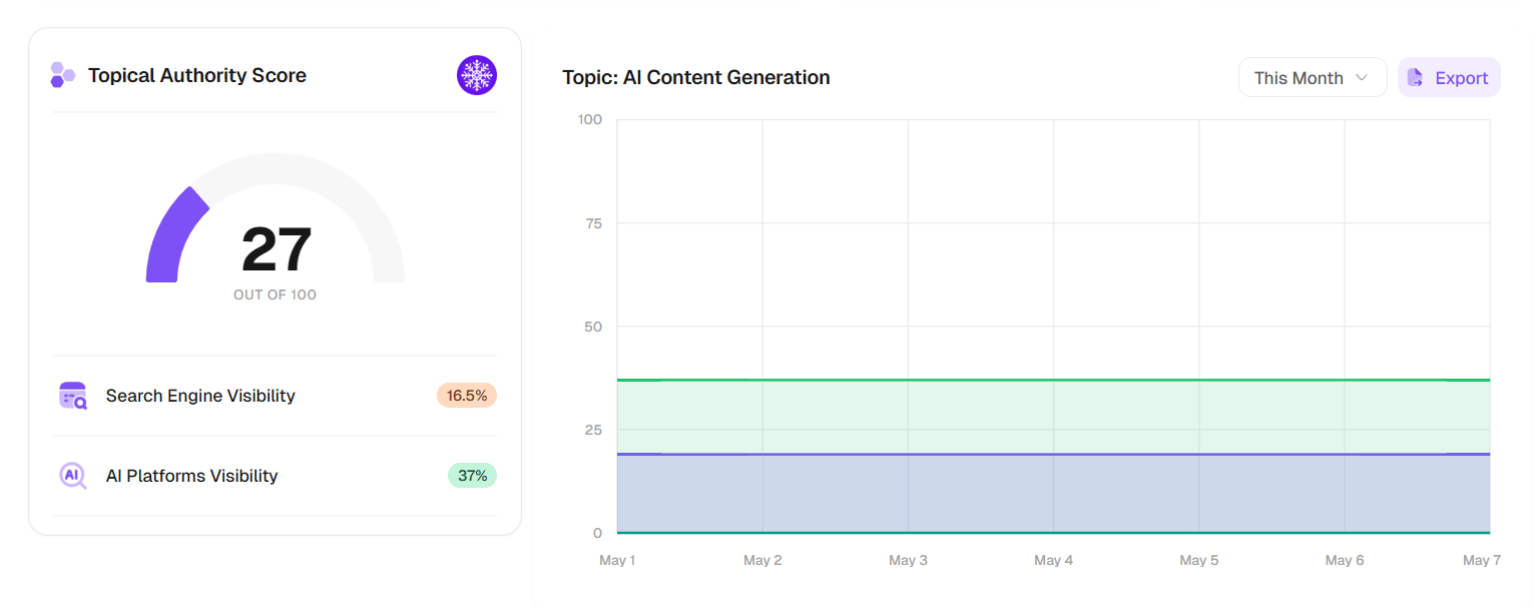
A large gauge chart showing your topic’s authority score out of 100. Below the score, two badges show your split performance:- Search Engine Visibility (orange) — Your visibility in traditional Google search for this topic’s keywords
- AI Platforms Visibility (green) — Your visibility across AI platforms (ChatGPT, Perplexity, etc.) for this topic’s prompts
Topical Authority Trend
A three-line area chart showing how your topic has performed over time:| Line | What it tracks |
|---|---|
| Topical Authority Score (primary color) | Your combined authority score trend |
| Search Visibility (chart-2 color) | Your Google search visibility for this topic |
| AI Visibility (success color) | Your AI platform visibility for this topic |
- All three lines moving up = your topical strategy is working
- Search up but AI flat = your content ranks on Google but isn’t structured well for AI citation (check your GEO Audit)
- AI up but Search flat = AI tools find you authoritative, but Google hasn’t fully recognized your topical depth yet (keep publishing)
- Both flat or declining = your topic needs attention (update content, add new cluster articles, improve internal links)
Performance Section: Biggest Gainers & Needs Attention
Two side-by-side tables that show you exactly where to focus your efforts: Biggest Gainers (green) — Keywords and prompts that are improving. These are working — double down on them. Needs Attention (red) — Keywords and prompts that are declining. These need investigation — update the content, check for new competitors, or improve internal links. Each table has a Keywords / Prompts toggle to switch between the two views. Columns show the keyword/prompt name, average position or SOV, and the delta value.Keywords Table
This table shows every keyword in your topic cluster. It’s where you manage your search strategy. Header controls:- Search — Filter keywords by text
- All / Ranked toggle — Show all keywords or only those currently ranking
- Add New Keyword — Opens a dialog to add keywords to this topic
- Generate Strategy — Coming soon (AI-powered content strategy for this topic)
| Column | What it tells you |
|---|---|
| GSC Match | Green check = this keyword has ranking pages in Google Search Console. Red X = no ranking data found. Spinner = still loading. Info icon = GSC not connected |
| Keyword | The keyword text |
| Avg. Position | Your average ranking position (#) + delta (green if improving, red if declining) |
| Impressions | How many times your pages appeared in search for this keyword |
| Clicks | How many clicks you received for this keyword |
| Actions | Track/Untrack toggle + More (⋮): “Move to another topic” / “Remove from topic” |
- Track — Enable tracking for selected keywords
- Untrack — Disable tracking
- Move — Move selected keywords to another topic
- Remove — Remove from this topic
Prompts Table
This table shows every AI visibility prompt linked to your topic. It’s where you monitor how AI tools (ChatGPT, Perplexity, Gemini, etc.) perceive your brand for this topic. Header controls:- Search — Filter prompts by text
- All / Mentioned toggle — Show all prompts or only those where your brand was mentioned
- Add New Prompt — Opens a dialog to add prompts (requires AI models to be configured in Settings)
| Column | What it tells you |
|---|---|
| Prompt | The query text + status icons (checkmark = your brand was mentioned, cross = not mentioned) + badges for status (Processing/Failed), type (Branded/Unbranded), and intent (Informational/Commercial/etc.) |
| Mentions | How many times your brand appeared in AI responses for this prompt |
| Visibility | A circular progress gauge (0–100%) showing your brand’s visibility |
| Position | Your average rank in AI responses (#) |
| SOV | Share of Voice percentage |
| Sentiment | Score with color coding (green ≥ 70, yellow ≥ 40, red < 40) |
| Competitors | Favicon avatars of top 3 competitors detected (+N more if applicable) |
| Actions | Track/Untrack toggle + More (⋮): “Move to another topic” / “Remove from topic” |
The Full Workflow: From Zero to Authority
Here’s the step-by-step process for building topical authority with SnowSEO:Phase 1: Choose Your Topics
- Go to Planning → Topical Authority
- Click “New Topic”
- Either type a topic or select from AI suggestions
- Create the topic
Phase 2: Add Keywords
- On the detail page, click “Add New Keyword” in the Keywords section
- Enter keywords your audience searches for, related to this topic
- SnowSEO will automatically check GSC to see which ones you’re already ranking for
- Keywords with a green GSC check are already working — those are your quick wins
Phase 3: Add Prompts (AI Visibility)
- Click “Add New Prompt” in the Prompts section
- Enter questions your customers would ask an AI assistant (e.g., “What’s the best CRM for small businesses”)
- Make sure AI models are enabled in Settings → AI Models
- Prompts will be processed automatically and results appear within 24–48 hours
Phase 4: Track and Optimize
- Enable tracking for the entire topic using the toggle in the header
- Check the Topical Authority Trend chart weekly
- Watch the Biggest Gainers table to see what’s working
- Investigate the Needs Attention table for declining items
- Update content, add internal links, and publish new cluster articles
Phase 5: Expand
- As your topic grows, add more keywords and prompts
- Move keywords/prompts between topics if they fit better elsewhere
- Export data periodically for reporting
Create a topic
Add your first keywords
Add AI visibility prompts
Enable tracking
What Makes a Strong Topic Cluster?
Not all topics are created equal. Here’s what separates a cluster that ranks from one that doesn’t:📏 The pillar page must be comprehensive
📏 The pillar page must be comprehensive
🎯 Each cluster page should answer one specific question
🎯 Each cluster page should answer one specific question
🔗 Links must go both directions
🔗 Links must go both directions
📅 Publish cluster articles close together
📅 Publish cluster articles close together
Frequently Asked Questions
What exactly is a topic cluster?
What exactly is a topic cluster?
How is a topic cluster different from just writing a lot of articles?
How is a topic cluster different from just writing a lot of articles?
How many keywords should I put in one topic?
How many keywords should I put in one topic?
How many cluster pages do I need to see results?
How many cluster pages do I need to see results?
How long does it take to see results from a topic cluster?
How long does it take to see results from a topic cluster?
My pillar page is already written — can I build a cluster around it?
My pillar page is already written — can I build a cluster around it?
Does SnowSEO help me find what keywords to put in my cluster?
Does SnowSEO help me find what keywords to put in my cluster?
Can I have the same keyword or page in multiple topics?
Can I have the same keyword or page in multiple topics?
What's the difference between Topical Authority Score, Search Visibility, and AI Visibility?
What's the difference between Topical Authority Score, Search Visibility, and AI Visibility?
Can I export my topic data?
Can I export my topic data?
What does the tracking toggle actually do?
What does the tracking toggle actually do?