> ## Documentation Index
> Fetch the complete documentation index at: https://snowseo.com/docs/llms.txt
> Use this file to discover all available pages before exploring further.
# Topic Clusters
> Organize your content around themes to build authority in your niche — and rank for more keywords.
## What Is Topical Authority?
Imagine you're researching a topic you know nothing about — say, "email marketing." You find two websites:
* **Site A** — Has one article called "Email Marketing Tips" (800 words). No other related content.
* **Site B** — Has a comprehensive guide called "The Complete Guide to Email Marketing" that links to 15 detailed articles: "How to Write Welcome Emails," "Best Email Marketing Tools," "Email Open Rate Benchmarks," "A/B Testing Subject Lines," and more.
Which site would you trust more? Which one looks like the expert?
Google thinks the same way. When a website covers a topic thoroughly — with multiple interlinked articles that explore every angle — Google recognizes it as an **authority on that subject**. That's **Topical Authority**.
**The one-sentence version:** Topical Authority is Google recognizing you as an expert on a whole subject, not just one page. Sites that build topical authority consistently outrank sites that publish random, disconnected articles.
***
### Why Random Articles Don't Work Anymore
Publishing one-off blog posts worked 10 years ago when competition was low. Today, every topic has thousands of articles competing for the same keywords. A single 1,500-word article is no longer enough to rank — because Google has learned that the most comprehensive resources on a topic are the ones users actually want.
The difference between winning and losing in SEO today:
| Random Articles | Topic Clusters |
| ---------------------------------- | ------------------------------------------------- |
| Each article competes in isolation | Every article strengthens every other article |
| Thin coverage → low authority | Deep coverage → high authority |
| No internal link structure | Bidirectional internal links distribute authority |
| Target one keyword at a time | Target an entire topic area (10+ keywords) |
| Easy for competitors to outrank | Hard for competitors to replicate the depth |
This isn't just theory. Studies consistently show that sites using topic clusters rank for 3–5x more keywords than sites publishing the same number of random articles. The reason is simple: Google's algorithm rewards depth and interconnected expertise.
***
 ***
## How SnowSEO's Topic Clusters Work
The Topic Clusters feature has two levels:
1. **The List Page** (`/dashboard/topic-clusters`) — See all your topics at a glance, their scores, and trends
2. **The Detail Page** (`/dashboard/topic-clusters/[id]`) — Dive into one topic to manage keywords, prompts, and track performance
***
## The List Page
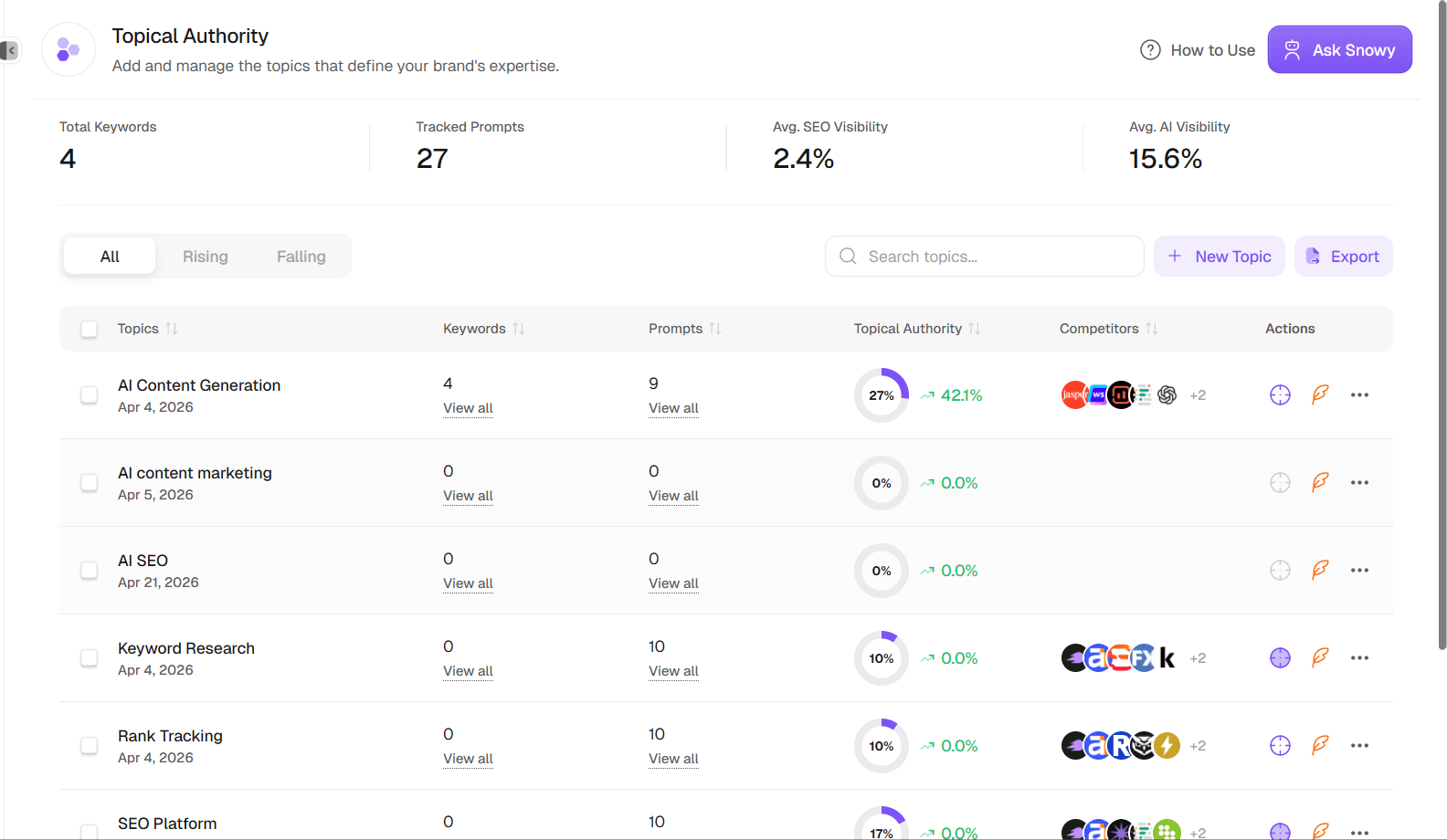
When you first open **Planning → Topic Clusters**, you land on the list page showing every topic cluster you've created.
***
## How SnowSEO's Topic Clusters Work
The Topic Clusters feature has two levels:
1. **The List Page** (`/dashboard/topic-clusters`) — See all your topics at a glance, their scores, and trends
2. **The Detail Page** (`/dashboard/topic-clusters/[id]`) — Dive into one topic to manage keywords, prompts, and track performance
***
## The List Page
When you first open **Planning → Topic Clusters**, you land on the list page showing every topic cluster you've created.
 ### Summary Stats Bar
Four metrics at the top give you a bird's-eye view of your entire topical strategy:
| Metric | What it tells you |
| ----------------------- | ------------------------------------------------------------- |
| **Total Keywords** | Every keyword you're tracking across all topics combined |
| **Tracked Prompts** | Every AI visibility prompt you're tracking across all topics |
| **Avg. SEO Visibility** | Your average search engine visibility score across all topics |
| **Avg. AI Visibility** | Your average AI platform visibility score across all topics |
These are your headline numbers. Check them weekly to see if your overall topical strategy is gaining traction.
***
### The Topics Table
Each row in the table represents one topic cluster you've created:
| Column | What it tells you |
| ------------------------ | ----------------------------------------------------------------------------------------------------------------------- |
| **Topics** | The topic name + when it was created (e.g., "Jun 15, 2025") |
| **Keywords** | How many keywords are in this cluster. Click "View all" to open a slide-in drawer |
| **Prompts** | How many AI visibility prompts are linked to this topic. Click "View all" to open a slide-in drawer |
| **Topic Clusters Score** | Score out of 100 (shown as a circular progress gauge) + change % with up/down arrow. Green = improving, Red = declining |
| **Competitors** | Up to 5 favicon avatars of top competing brands detected in this topic's AI responses |
**Filters and search:**
* **All / Rising / Falling** — Segmented tabs to filter topics by their trend direction
* **Search box** — Type to filter topics by name
**Per-row actions (three buttons):**
1. **Track/Untoggle** (target icon) — Enable or disable tracking for ALL keywords and prompts in this topic at once. Only active when the topic has at least one keyword or prompt.
2. **Feature** (quill icon) — Coming soon (AI article generation for the topic)
3. **More actions** (⋮) — Opens a dropdown with:
* **Add More Keywords** — Add new keywords to this topic
* **Add More Prompts** — Add new AI prompts to this topic
* **Rename** — Change the topic name
* **Delete** — Permanently remove the topic and all its data
**Row click** navigates to that topic's Detail Page.
**Bulk actions** (select multiple rows with checkboxes):
* **Track All** — Enable tracking for all selected topics
* **Untrack All** — Disable tracking for all selected topics
* **Delete** — Remove selected topics (coming soon)
Use the **Rising/Falling** filter to spot topics that need attention. A "Falling" topic doesn't mean your content is bad — it might just mean a competitor published something new. That's your signal to update your pillar page or add fresh cluster content.
***
### Creating a New Topic
Click the **"New Topic"** button to open the creation modal.
**Step 1: Choose your topic**
* Type a topic name directly (e.g., "Email Marketing," "Content Strategy," "SaaS Growth")
* OR click one of the **AI-suggested topics** — SnowSEO generates suggestions based on your brand's website. These appear as clickable pills with a sparkles icon.
**Step 2: Click "Create Topic"**
* SnowSEO creates the cluster and immediately navigates you to the detail page so you can start adding keywords and prompts.
A good topic is broad enough to have at least 5–10 sub-topics. "Email Marketing" is great because you can write about deliverability, subject lines, automation, tools, analytics, compliance, etc. "Best Time to Send Marketing Emails" is too narrow — that's a single cluster article, not a topic.
***
## The Detail Page
Clicking any topic from the list takes you to its detail page — your command center for managing and measuring that topic's performance.
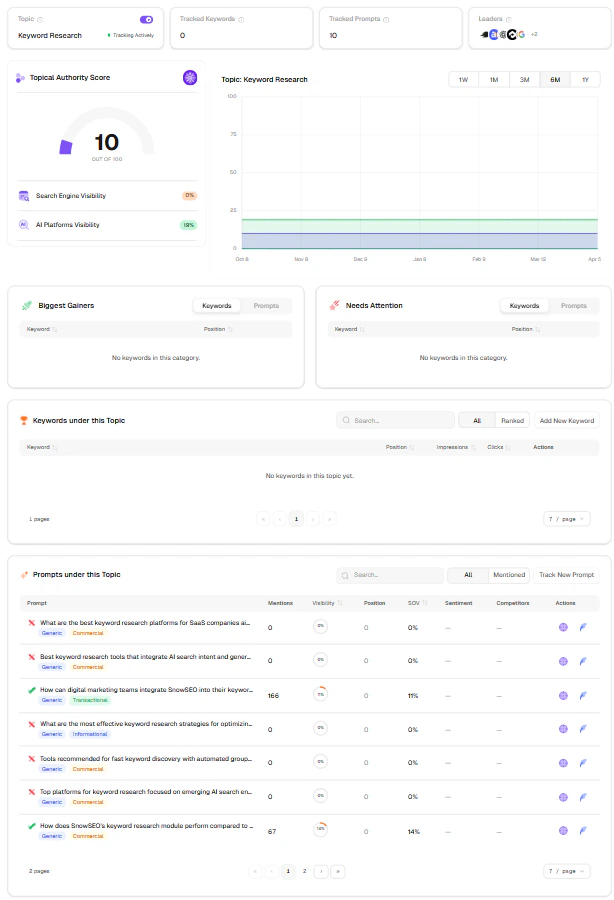
### Header Cards
Four cards at the top give you the current state of this topic:
| Card | What it shows |
| -------------------- | ------------------------------------------------------------------------------------------------------------------------------------------------------------------------------------------------------ |
| **Topic** | The topic name + a tracking status indicator (green = "Tracking Actively," orange = "Partially Tracked," gray = "Tracking Disabled") + a toggle switch to enable/disable tracking for the entire topic |
| **Tracked Keywords** | How many keywords are actively being tracked in this topic |
| **Tracked Prompts** | How many AI visibility prompts are actively being tracked |
| **Leaders** | Favicon avatars of the top competing brands detected in AI responses for this topic |
### Summary Stats Bar
Four metrics at the top give you a bird's-eye view of your entire topical strategy:
| Metric | What it tells you |
| ----------------------- | ------------------------------------------------------------- |
| **Total Keywords** | Every keyword you're tracking across all topics combined |
| **Tracked Prompts** | Every AI visibility prompt you're tracking across all topics |
| **Avg. SEO Visibility** | Your average search engine visibility score across all topics |
| **Avg. AI Visibility** | Your average AI platform visibility score across all topics |
These are your headline numbers. Check them weekly to see if your overall topical strategy is gaining traction.
***
### The Topics Table
Each row in the table represents one topic cluster you've created:
| Column | What it tells you |
| ------------------------ | ----------------------------------------------------------------------------------------------------------------------- |
| **Topics** | The topic name + when it was created (e.g., "Jun 15, 2025") |
| **Keywords** | How many keywords are in this cluster. Click "View all" to open a slide-in drawer |
| **Prompts** | How many AI visibility prompts are linked to this topic. Click "View all" to open a slide-in drawer |
| **Topic Clusters Score** | Score out of 100 (shown as a circular progress gauge) + change % with up/down arrow. Green = improving, Red = declining |
| **Competitors** | Up to 5 favicon avatars of top competing brands detected in this topic's AI responses |
**Filters and search:**
* **All / Rising / Falling** — Segmented tabs to filter topics by their trend direction
* **Search box** — Type to filter topics by name
**Per-row actions (three buttons):**
1. **Track/Untoggle** (target icon) — Enable or disable tracking for ALL keywords and prompts in this topic at once. Only active when the topic has at least one keyword or prompt.
2. **Feature** (quill icon) — Coming soon (AI article generation for the topic)
3. **More actions** (⋮) — Opens a dropdown with:
* **Add More Keywords** — Add new keywords to this topic
* **Add More Prompts** — Add new AI prompts to this topic
* **Rename** — Change the topic name
* **Delete** — Permanently remove the topic and all its data
**Row click** navigates to that topic's Detail Page.
**Bulk actions** (select multiple rows with checkboxes):
* **Track All** — Enable tracking for all selected topics
* **Untrack All** — Disable tracking for all selected topics
* **Delete** — Remove selected topics (coming soon)
Use the **Rising/Falling** filter to spot topics that need attention. A "Falling" topic doesn't mean your content is bad — it might just mean a competitor published something new. That's your signal to update your pillar page or add fresh cluster content.
***
### Creating a New Topic
Click the **"New Topic"** button to open the creation modal.
**Step 1: Choose your topic**
* Type a topic name directly (e.g., "Email Marketing," "Content Strategy," "SaaS Growth")
* OR click one of the **AI-suggested topics** — SnowSEO generates suggestions based on your brand's website. These appear as clickable pills with a sparkles icon.
**Step 2: Click "Create Topic"**
* SnowSEO creates the cluster and immediately navigates you to the detail page so you can start adding keywords and prompts.
A good topic is broad enough to have at least 5–10 sub-topics. "Email Marketing" is great because you can write about deliverability, subject lines, automation, tools, analytics, compliance, etc. "Best Time to Send Marketing Emails" is too narrow — that's a single cluster article, not a topic.
***
## The Detail Page
Clicking any topic from the list takes you to its detail page — your command center for managing and measuring that topic's performance.
### Header Cards
Four cards at the top give you the current state of this topic:
| Card | What it shows |
| -------------------- | ------------------------------------------------------------------------------------------------------------------------------------------------------------------------------------------------------ |
| **Topic** | The topic name + a tracking status indicator (green = "Tracking Actively," orange = "Partially Tracked," gray = "Tracking Disabled") + a toggle switch to enable/disable tracking for the entire topic |
| **Tracked Keywords** | How many keywords are actively being tracked in this topic |
| **Tracked Prompts** | How many AI visibility prompts are actively being tracked |
| **Leaders** | Favicon avatars of the top competing brands detected in AI responses for this topic |
 ### Date Range Picker
Controls the time window for all charts and data on this page. Options: This Month, Last Month, This Quarter, Last Quarter, This Year, Last Year, or a custom range (snapped to 7, 30, 90, 180, or 365 days).
***
### Topic Clusters Score
A large **gauge chart** showing your topic's authority score out of 100. Below the score, two badges show your split performance:
* **Search Engine Visibility** (orange) — Your visibility in traditional Google search for this topic's keywords
* **AI Platforms Visibility** (green) — Your visibility across AI platforms (ChatGPT, Perplexity, etc.) for this topic's prompts
Think of the Authority Score as your topic's "report card." A score of 70+ means you're well on your way to being seen as an authority. Below 40 means you're in the early stages — focus on adding more quality content.
### Date Range Picker
Controls the time window for all charts and data on this page. Options: This Month, Last Month, This Quarter, Last Quarter, This Year, Last Year, or a custom range (snapped to 7, 30, 90, 180, or 365 days).
***
### Topic Clusters Score
A large **gauge chart** showing your topic's authority score out of 100. Below the score, two badges show your split performance:
* **Search Engine Visibility** (orange) — Your visibility in traditional Google search for this topic's keywords
* **AI Platforms Visibility** (green) — Your visibility across AI platforms (ChatGPT, Perplexity, etc.) for this topic's prompts
Think of the Authority Score as your topic's "report card." A score of 70+ means you're well on your way to being seen as an authority. Below 40 means you're in the early stages — focus on adding more quality content.
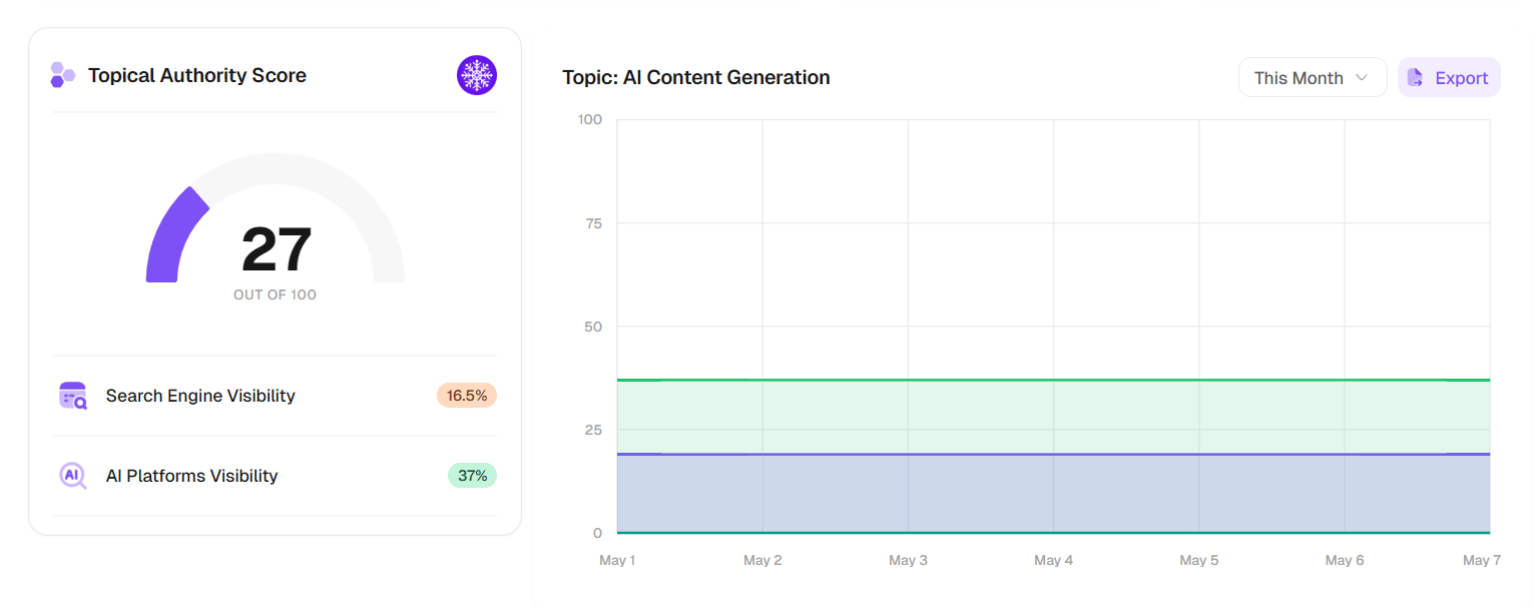 ***
### Topic Clusters Trend
A three-line area chart showing how your topic has performed over time:
| Line | What it tracks |
| ---------------------------------------- | -------------------------------------------- |
| **Topic Clusters Score** (primary color) | Your combined authority score trend |
| **Search Visibility** (chart-2 color) | Your Google search visibility for this topic |
| **AI Visibility** (success color) | Your AI platform visibility for this topic |
**How to read the chart:**
* All three lines moving up = your topical strategy is working
* Search up but AI flat = your content ranks on Google but isn't structured well for AI citation (check your GEO Audit)
* AI up but Search flat = AI tools find you authoritative, but Google hasn't fully recognized your topical depth yet (keep publishing)
* Both flat or declining = your topic needs attention (update content, add new cluster articles, improve internal links)
Hover any point on the chart to see exact values and the change from the previous period.
Don't obsess over daily fluctuations. Look at the **30-day and 90-day trends** instead. A topic that's consistently trending up over 3 months is a sign your strategy is working. Short-term dips often correlate with competitors publishing new content — respond by publishing your own updates.
***
### Performance Section: Biggest Gainers & Needs Attention
Two side-by-side tables that show you exactly where to focus your efforts:
**Biggest Gainers** (green) — Keywords and prompts that are improving. These are working — double down on them.
**Needs Attention** (red) — Keywords and prompts that are declining. These need investigation — update the content, check for new competitors, or improve internal links.
Each table has a **Keywords / Prompts** toggle to switch between the two views. Columns show the keyword/prompt name, average position or SOV, and the delta value.
A keyword in "Needs Attention" doesn't always mean your content got worse. Sometimes a competitor published something new or Google updated its algorithm. Click the keyword to open the **Ranked Pages drawer** and see exactly which pages are ranking for it — you might find that your page just needs a freshness update.
***
### Keywords Table
This table shows every keyword in your topic cluster. It's where you manage your search strategy.
**Header controls:**
* **Search** — Filter keywords by text
* **All / Ranked toggle** — Show all keywords or only those currently ranking
* **Add New Keyword** — Opens a dialog to add keywords to this topic
* **Generate Strategy** — Coming soon (AI-powered content strategy for this topic)
**Columns:**
| Column | What it tells you |
| ----------------- | ------------------------------------------------------------------------------------------------------------------------------------------------------------ |
| **GSC Match** | Green check = this keyword has ranking pages in Google Search Console. Red X = no ranking data found. Spinner = still loading. Info icon = GSC not connected |
| **Keyword** | The keyword text |
| **Avg. Position** | Your average ranking position (#) + delta (green if improving, red if declining) |
| **Impressions** | How many times your pages appeared in search for this keyword |
| **Clicks** | How many clicks you received for this keyword |
| **Actions** | Track/Untrack toggle + More (⋮): "Move to another topic" / "Remove from topic" |
**Click any row** to open the **Keyword Ranked Pages Drawer** — a slide-in panel showing exactly which of your pages are ranking for that keyword, with their positions and CTR.
**Bulk actions** (select multiple rows):
* **Track** — Enable tracking for selected keywords
* **Untrack** — Disable tracking
* **Move** — Move selected keywords to another topic
* **Remove** — Remove from this topic
Keywords with a **GSC green check** but **low position (15–30)** are your biggest opportunities. They're already being seen by Google — a targeted content update or a few new internal links can push them onto page 1. Focus on these before chasing brand-new keywords.
***
### Prompts Table
This table shows every AI visibility prompt linked to your topic. It's where you monitor how AI tools (ChatGPT, Perplexity, Gemini, etc.) perceive your brand for this topic.
**Header controls:**
* **Search** — Filter prompts by text
* **All / Mentioned toggle** — Show all prompts or only those where your brand was mentioned
* **Add New Prompt** — Opens a dialog to add prompts (requires AI platforms to be configured in Settings)
**Columns:**
| Column | What it tells you |
| --------------- | --------------------------------------------------------------------------------------------------------------------------------------------------------------------------------------------------------- |
| **Prompt** | The query text + status icons (checkmark = your brand was mentioned, cross = not mentioned) + badges for status (Processing/Failed), type (Branded/Unbranded), and intent (Informational/Commercial/etc.) |
| **Mentions** | How many times your brand appeared in AI responses for this prompt |
| **Visibility** | A circular progress gauge (0–100%) showing your brand's visibility |
| **Position** | Your average rank in AI responses (#) |
| **SOV** | Share of Voice percentage |
| **Sentiment** | Score with color coding (green ≥ 70, yellow ≥ 40, red \< 40) |
| **Competitors** | Favicon avatars of top 3 competitors detected (+N more if applicable) |
| **Actions** | Track/Untrack toggle + More (⋮): "Move to another topic" / "Remove from topic" |
**Click any prompt** to navigate to its **AI Visibility prompt detail page** for the full breakdown.
**Bulk actions:** Track, Untrack, Move, Remove — same pattern as the keywords table.
The Prompts table is where **GEO (Generative Engine Optimization)** meets topical authority. If your Authority Score is low but your keywords are ranking well, the issue is often in your prompts — AI tools aren't citing you for this topic. Add more prompts that reflect real user questions and check whether your content is structured for AI extraction (clear headings, schema markup, factual statements).
***
## The Full Workflow: From Zero to Authority
Here's the step-by-step process for building topical authority with SnowSEO:
### Phase 1: Choose Your Topics
1. Go to **Planning → Topic Clusters**
2. Click **"New Topic"**
3. Either type a topic or select from AI suggestions
4. Create the topic
### Phase 2: Add Keywords
1. On the detail page, click **"Add New Keyword"** in the Keywords section
2. Enter keywords your audience searches for, related to this topic
3. SnowSEO will automatically check GSC to see which ones you're already ranking for
4. Keywords with a green GSC check are already working — those are your quick wins
### Phase 3: Add Prompts (AI Visibility)
1. Click **"Add New Prompt"** in the Prompts section
2. Enter questions your customers would ask an AI assistant (e.g., "What's the best CRM for small businesses")
3. Make sure AI platforms are enabled in **Settings → Automation Settings → AI Visibility**
4. Prompts will be processed automatically and results appear within 24–48 hours
### Phase 4: Track and Optimize
1. Enable tracking for the entire topic using the toggle in the header
2. Check the **Topic Clusters Trend** chart weekly
3. Watch the **Biggest Gainers** table to see what's working
4. Investigate the **Needs Attention** table for declining items
5. Update content, add internal links, and publish new cluster articles
### Phase 5: Expand
1. As your topic grows, add more keywords and prompts
2. Move keywords/prompts between topics if they fit better elsewhere
3. Export data periodically for reporting
In **Planning → Topic Clusters**, click **"New Topic"**. Enter a broad topic name or pick from AI suggestions. A good topic should be wide enough to have 5+ sub-topics.
On the detail page, click **"Add New Keyword"** in the Keywords section. Start with 5–10 keywords that represent the main sub-topics you want to cover. SnowSEO will check GSC to show which ones you're already ranking for.
Click **"Add New Prompt"** in the Prompts section. Add questions your audience would ask AI assistants about this topic. These will be tracked across ChatGPT, Claude, Gemini, and other platforms.
Toggle the tracking switch in the header to "on." This activates daily rank tracking for your keywords and periodic AI prompt monitoring.
Check the **Topic Clusters Trend** chart weekly. Focus on the **Biggest Gainers** (what's working) and **Needs Attention** (what's declining). Update content and add new cluster articles based on the data.
***
## What Makes a Strong Topic Cluster?
Not all topics are created equal. Here's what separates a cluster that ranks from one that doesn't:
Your pillar page is the center of your cluster. It should be the most thorough resource on the topic — not a thin overview. Aim for **2,000–5,000 words**. It should answer the big question ("What is email marketing?") and link out to cluster pages for deeper dives on each sub-topic ("How to Write Welcome Emails," "Best Email Marketing Tools," etc.). Without a strong pillar, your cluster has no foundation.
Every cluster page should have a single, clear purpose. "How to A/B Test Subject Lines" is a focused cluster page. "Email Marketing Tips" is too broad — that's pillar territory. When each page answers one question thoroughly, Google can clearly understand its role in the cluster. If two cluster pages overlap, merge them.
The pillar links OUT to all cluster pages. Every cluster page links BACK to the pillar. This bidirectional linking is what tells Google these pages are related. Without it, Google sees them as independent articles, and you lose the authority signal. SnowSEO's linking suggestions feature will help you find missing links automatically.
For maximum impact, publish your cluster articles within a **2–4 week window**. When Google sees several related articles appearing around the same time, it's a strong signal that you're systematically building expertise on the topic. Spreading them out over 6 months dilutes the authority signal.
***
## Frequently Asked Questions
A topic cluster is a group of interlinked articles organized around one main "pillar" page. The pillar page covers a broad topic (like "Email Marketing"), and the cluster pages dive deep into specific sub-topics (like "How to Write Welcome Emails," "Best Email Marketing Tools," "Email Open Rate Benchmarks"). Every page links to each other, signaling to Google that you're an authority on the entire subject — not just one article.
Random articles don't reinforce each other — each one competes in isolation. A topic cluster is intentionally structured so every piece of content strengthens the others through internal linking. Google recognizes the collective authority of the cluster, which leads to better rankings across all the keywords, not just the one you're targeting. Think of it as building a library (cluster) vs. scattering pamphlets (random articles).
Start with **5–10 keywords** for a new topic. As you publish cluster articles and the topic gains traction, expand to **20–30 keywords**. The goal is comprehensive coverage, not keyword stuffing. A topic with 50 thin articles is weaker than a topic with 15 thorough, well-linked ones.
Most clusters start producing noticeable results with **5–10 published pages** (one pillar page + 4–9 supporting cluster articles). The more complete your cluster, the stronger your authority signals — but even a half-built cluster (pillar + 2 cluster pages) performs better than disconnected articles.
Typically **2–4 months** for new clusters to build meaningful visibility. If you already have some existing rankings for keywords in the topic, you might see movement in **4–6 weeks**. The key factors are: publishing consistently, ensuring all internal links are in place, and the competitiveness of the topic. Less competitive niches can see results faster.
Absolutely. This is actually the most common scenario. When you create the topic, add your existing pillar URL. Then add your cluster keywords — for each one, either link to an existing article you've already written, or mark it as **Planned**. SnowSEO will scan the existing pillar and cluster pages to find internal linking opportunities you might have missed.
Yes. When you add keywords, SnowSEO checks your Google Search Console data to show which ones you're already ranking for (green checkmark). This helps you prioritize: keywords you already rank for (even if low) are easier to improve than brand-new keywords. SnowSEO also surfaces AI-suggested topics when creating a new cluster, based on your brand's website content.
Yes, but use it sparingly. A keyword can belong to multiple topics if the content genuinely covers both. SnowSEO will flag it if the same URL appears in conflicting clusters, which can signal keyword cannibalization. In general, it's better to have one strong cluster per topic.
**Topic Clusters Score** (0–100) is your combined score — the overall measure of your expertise on this topic. **Search Visibility** measures how well your pages rank in Google for this topic's keywords. **AI Visibility** measures how often AI tools (ChatGPT, Perplexity, etc.) cite your brand for this topic's prompts. If your Search Visibility is high but AI Visibility is low, your content ranks on Google but isn't structured well for AI citation — focus on GEO improvements (schema markup, clear headings, factual statements).
Yes. From the list page, use the **Export** button to download a ZIP file containing a summary CSV (all topics with scores and metrics) and individual folders per topic with score, keyword, and prompt CSVs. This is useful for reporting, client presentations, or analysis in external tools.
When you enable tracking for a topic (either from the list page's action column or the detail page header), SnowSEO starts monitoring all keywords and prompts in that topic daily. Keywords get rank position updates from Google Search Console. Prompts get processed against AI platforms on their refresh schedule. Disabling tracking stops these updates but preserves all historical data — you can re-enable it anytime.
***
### Topic Clusters Trend
A three-line area chart showing how your topic has performed over time:
| Line | What it tracks |
| ---------------------------------------- | -------------------------------------------- |
| **Topic Clusters Score** (primary color) | Your combined authority score trend |
| **Search Visibility** (chart-2 color) | Your Google search visibility for this topic |
| **AI Visibility** (success color) | Your AI platform visibility for this topic |
**How to read the chart:**
* All three lines moving up = your topical strategy is working
* Search up but AI flat = your content ranks on Google but isn't structured well for AI citation (check your GEO Audit)
* AI up but Search flat = AI tools find you authoritative, but Google hasn't fully recognized your topical depth yet (keep publishing)
* Both flat or declining = your topic needs attention (update content, add new cluster articles, improve internal links)
Hover any point on the chart to see exact values and the change from the previous period.
Don't obsess over daily fluctuations. Look at the **30-day and 90-day trends** instead. A topic that's consistently trending up over 3 months is a sign your strategy is working. Short-term dips often correlate with competitors publishing new content — respond by publishing your own updates.
***
### Performance Section: Biggest Gainers & Needs Attention
Two side-by-side tables that show you exactly where to focus your efforts:
**Biggest Gainers** (green) — Keywords and prompts that are improving. These are working — double down on them.
**Needs Attention** (red) — Keywords and prompts that are declining. These need investigation — update the content, check for new competitors, or improve internal links.
Each table has a **Keywords / Prompts** toggle to switch between the two views. Columns show the keyword/prompt name, average position or SOV, and the delta value.
A keyword in "Needs Attention" doesn't always mean your content got worse. Sometimes a competitor published something new or Google updated its algorithm. Click the keyword to open the **Ranked Pages drawer** and see exactly which pages are ranking for it — you might find that your page just needs a freshness update.
***
### Keywords Table
This table shows every keyword in your topic cluster. It's where you manage your search strategy.
**Header controls:**
* **Search** — Filter keywords by text
* **All / Ranked toggle** — Show all keywords or only those currently ranking
* **Add New Keyword** — Opens a dialog to add keywords to this topic
* **Generate Strategy** — Coming soon (AI-powered content strategy for this topic)
**Columns:**
| Column | What it tells you |
| ----------------- | ------------------------------------------------------------------------------------------------------------------------------------------------------------ |
| **GSC Match** | Green check = this keyword has ranking pages in Google Search Console. Red X = no ranking data found. Spinner = still loading. Info icon = GSC not connected |
| **Keyword** | The keyword text |
| **Avg. Position** | Your average ranking position (#) + delta (green if improving, red if declining) |
| **Impressions** | How many times your pages appeared in search for this keyword |
| **Clicks** | How many clicks you received for this keyword |
| **Actions** | Track/Untrack toggle + More (⋮): "Move to another topic" / "Remove from topic" |
**Click any row** to open the **Keyword Ranked Pages Drawer** — a slide-in panel showing exactly which of your pages are ranking for that keyword, with their positions and CTR.
**Bulk actions** (select multiple rows):
* **Track** — Enable tracking for selected keywords
* **Untrack** — Disable tracking
* **Move** — Move selected keywords to another topic
* **Remove** — Remove from this topic
Keywords with a **GSC green check** but **low position (15–30)** are your biggest opportunities. They're already being seen by Google — a targeted content update or a few new internal links can push them onto page 1. Focus on these before chasing brand-new keywords.
***
### Prompts Table
This table shows every AI visibility prompt linked to your topic. It's where you monitor how AI tools (ChatGPT, Perplexity, Gemini, etc.) perceive your brand for this topic.
**Header controls:**
* **Search** — Filter prompts by text
* **All / Mentioned toggle** — Show all prompts or only those where your brand was mentioned
* **Add New Prompt** — Opens a dialog to add prompts (requires AI platforms to be configured in Settings)
**Columns:**
| Column | What it tells you |
| --------------- | --------------------------------------------------------------------------------------------------------------------------------------------------------------------------------------------------------- |
| **Prompt** | The query text + status icons (checkmark = your brand was mentioned, cross = not mentioned) + badges for status (Processing/Failed), type (Branded/Unbranded), and intent (Informational/Commercial/etc.) |
| **Mentions** | How many times your brand appeared in AI responses for this prompt |
| **Visibility** | A circular progress gauge (0–100%) showing your brand's visibility |
| **Position** | Your average rank in AI responses (#) |
| **SOV** | Share of Voice percentage |
| **Sentiment** | Score with color coding (green ≥ 70, yellow ≥ 40, red \< 40) |
| **Competitors** | Favicon avatars of top 3 competitors detected (+N more if applicable) |
| **Actions** | Track/Untrack toggle + More (⋮): "Move to another topic" / "Remove from topic" |
**Click any prompt** to navigate to its **AI Visibility prompt detail page** for the full breakdown.
**Bulk actions:** Track, Untrack, Move, Remove — same pattern as the keywords table.
The Prompts table is where **GEO (Generative Engine Optimization)** meets topical authority. If your Authority Score is low but your keywords are ranking well, the issue is often in your prompts — AI tools aren't citing you for this topic. Add more prompts that reflect real user questions and check whether your content is structured for AI extraction (clear headings, schema markup, factual statements).
***
## The Full Workflow: From Zero to Authority
Here's the step-by-step process for building topical authority with SnowSEO:
### Phase 1: Choose Your Topics
1. Go to **Planning → Topic Clusters**
2. Click **"New Topic"**
3. Either type a topic or select from AI suggestions
4. Create the topic
### Phase 2: Add Keywords
1. On the detail page, click **"Add New Keyword"** in the Keywords section
2. Enter keywords your audience searches for, related to this topic
3. SnowSEO will automatically check GSC to see which ones you're already ranking for
4. Keywords with a green GSC check are already working — those are your quick wins
### Phase 3: Add Prompts (AI Visibility)
1. Click **"Add New Prompt"** in the Prompts section
2. Enter questions your customers would ask an AI assistant (e.g., "What's the best CRM for small businesses")
3. Make sure AI platforms are enabled in **Settings → Automation Settings → AI Visibility**
4. Prompts will be processed automatically and results appear within 24–48 hours
### Phase 4: Track and Optimize
1. Enable tracking for the entire topic using the toggle in the header
2. Check the **Topic Clusters Trend** chart weekly
3. Watch the **Biggest Gainers** table to see what's working
4. Investigate the **Needs Attention** table for declining items
5. Update content, add internal links, and publish new cluster articles
### Phase 5: Expand
1. As your topic grows, add more keywords and prompts
2. Move keywords/prompts between topics if they fit better elsewhere
3. Export data periodically for reporting
In **Planning → Topic Clusters**, click **"New Topic"**. Enter a broad topic name or pick from AI suggestions. A good topic should be wide enough to have 5+ sub-topics.
On the detail page, click **"Add New Keyword"** in the Keywords section. Start with 5–10 keywords that represent the main sub-topics you want to cover. SnowSEO will check GSC to show which ones you're already ranking for.
Click **"Add New Prompt"** in the Prompts section. Add questions your audience would ask AI assistants about this topic. These will be tracked across ChatGPT, Claude, Gemini, and other platforms.
Toggle the tracking switch in the header to "on." This activates daily rank tracking for your keywords and periodic AI prompt monitoring.
Check the **Topic Clusters Trend** chart weekly. Focus on the **Biggest Gainers** (what's working) and **Needs Attention** (what's declining). Update content and add new cluster articles based on the data.
***
## What Makes a Strong Topic Cluster?
Not all topics are created equal. Here's what separates a cluster that ranks from one that doesn't:
Your pillar page is the center of your cluster. It should be the most thorough resource on the topic — not a thin overview. Aim for **2,000–5,000 words**. It should answer the big question ("What is email marketing?") and link out to cluster pages for deeper dives on each sub-topic ("How to Write Welcome Emails," "Best Email Marketing Tools," etc.). Without a strong pillar, your cluster has no foundation.
Every cluster page should have a single, clear purpose. "How to A/B Test Subject Lines" is a focused cluster page. "Email Marketing Tips" is too broad — that's pillar territory. When each page answers one question thoroughly, Google can clearly understand its role in the cluster. If two cluster pages overlap, merge them.
The pillar links OUT to all cluster pages. Every cluster page links BACK to the pillar. This bidirectional linking is what tells Google these pages are related. Without it, Google sees them as independent articles, and you lose the authority signal. SnowSEO's linking suggestions feature will help you find missing links automatically.
For maximum impact, publish your cluster articles within a **2–4 week window**. When Google sees several related articles appearing around the same time, it's a strong signal that you're systematically building expertise on the topic. Spreading them out over 6 months dilutes the authority signal.
***
## Frequently Asked Questions
A topic cluster is a group of interlinked articles organized around one main "pillar" page. The pillar page covers a broad topic (like "Email Marketing"), and the cluster pages dive deep into specific sub-topics (like "How to Write Welcome Emails," "Best Email Marketing Tools," "Email Open Rate Benchmarks"). Every page links to each other, signaling to Google that you're an authority on the entire subject — not just one article.
Random articles don't reinforce each other — each one competes in isolation. A topic cluster is intentionally structured so every piece of content strengthens the others through internal linking. Google recognizes the collective authority of the cluster, which leads to better rankings across all the keywords, not just the one you're targeting. Think of it as building a library (cluster) vs. scattering pamphlets (random articles).
Start with **5–10 keywords** for a new topic. As you publish cluster articles and the topic gains traction, expand to **20–30 keywords**. The goal is comprehensive coverage, not keyword stuffing. A topic with 50 thin articles is weaker than a topic with 15 thorough, well-linked ones.
Most clusters start producing noticeable results with **5–10 published pages** (one pillar page + 4–9 supporting cluster articles). The more complete your cluster, the stronger your authority signals — but even a half-built cluster (pillar + 2 cluster pages) performs better than disconnected articles.
Typically **2–4 months** for new clusters to build meaningful visibility. If you already have some existing rankings for keywords in the topic, you might see movement in **4–6 weeks**. The key factors are: publishing consistently, ensuring all internal links are in place, and the competitiveness of the topic. Less competitive niches can see results faster.
Absolutely. This is actually the most common scenario. When you create the topic, add your existing pillar URL. Then add your cluster keywords — for each one, either link to an existing article you've already written, or mark it as **Planned**. SnowSEO will scan the existing pillar and cluster pages to find internal linking opportunities you might have missed.
Yes. When you add keywords, SnowSEO checks your Google Search Console data to show which ones you're already ranking for (green checkmark). This helps you prioritize: keywords you already rank for (even if low) are easier to improve than brand-new keywords. SnowSEO also surfaces AI-suggested topics when creating a new cluster, based on your brand's website content.
Yes, but use it sparingly. A keyword can belong to multiple topics if the content genuinely covers both. SnowSEO will flag it if the same URL appears in conflicting clusters, which can signal keyword cannibalization. In general, it's better to have one strong cluster per topic.
**Topic Clusters Score** (0–100) is your combined score — the overall measure of your expertise on this topic. **Search Visibility** measures how well your pages rank in Google for this topic's keywords. **AI Visibility** measures how often AI tools (ChatGPT, Perplexity, etc.) cite your brand for this topic's prompts. If your Search Visibility is high but AI Visibility is low, your content ranks on Google but isn't structured well for AI citation — focus on GEO improvements (schema markup, clear headings, factual statements).
Yes. From the list page, use the **Export** button to download a ZIP file containing a summary CSV (all topics with scores and metrics) and individual folders per topic with score, keyword, and prompt CSVs. This is useful for reporting, client presentations, or analysis in external tools.
When you enable tracking for a topic (either from the list page's action column or the detail page header), SnowSEO starts monitoring all keywords and prompts in that topic daily. Keywords get rank position updates from Google Search Console. Prompts get processed against AI platforms on their refresh schedule. Disabling tracking stops these updates but preserves all historical data — you can re-enable it anytime.