> ## Documentation Index
> Fetch the complete documentation index at: https://snowseo.com/docs/llms.txt
> Use this file to discover all available pages before exploring further.
# Brands & Account Settings
> Manage your brands, organization, team members, and account preferences.
When you sign up for SnowSEO, your **Organization** is created automatically. Think of it as your company's home base — it holds all your **Brands** (websites), your **team members**, and your **settings**.
Access all settings by opening the **user menu** at the bottom-left of the dashboard and clicking **Settings**.
***
## Settings Sidebar Overview
The settings drawer is organized into three groups:
| Group | Sections |
| ------------------------- | ------------------------------------- |
| **Brand & Automations** | Brand Book, Automation, Integrations |
| **Organization Settings** | Organization & Users, Billing & Plans |
| **Account Settings** | Profile Settings, Privacy & Security |
A brand switcher at the top of the sidebar lets you switch between brands — all Brand Book and Automation settings are **per brand**.
The brand switcher at the top of the settings sidebar is the quickest way to switch context. When you pick a different brand, every settings page (Brand Book, Automation, Integrations) instantly updates — no need to close and reopen settings.
***
## What's an Organization vs a Brand?
| | Organization | Brand |
| -------------- | ----------------------------------- | --------------------------------------- |
| **What it is** | Your top-level workspace/account | One website you track |
| **Contains** | All brands + team members + billing | Keywords, audits, content, integrations |
| **Example** | "Acme Corp" | `acme.com`, `blog.acme.com` |
If you manage multiple websites, create one brand per site. Each brand has its own data — completely isolated from the others.
***
## Organization & Users
Open **Settings → Organization Settings → Organization & Users**. This panel has three tabs depending on your role:
**Owner only.** Manage your organization's details:
* **Organization Name** — Your company's display name
* **Organization Slug** — The unique URL-friendly identifier
Only users with the **Owner** role see this tab. Members and admins see just All Brands and Users.
See every brand in your organization. For each brand you can:
* View who has access (members + pending invitations)
* Invite new team members
* Remove members
* Delete the brand (if no longer needed)
If a brand has no members assigned (no owner), only you can see its data. Make sure every brand has at least one owner assigned to avoid orphaned brands.
See everyone in your organization across all brands. Use this to:
* Check who's active
* See which brands each user can access
* Change roles or remove users
***
## Inviting Team Members
Open the user menu at the bottom-left, click **Settings**, then **Organization & Users**.
Select the **All Brands** tab, find the brand you want to add someone to, and click the **Invite** button.
Type their email address. They'll get an email with a join link.
Pick what level of access they get:
* **Member** — Can view data, create content, run analytics. Cannot change settings or invite others.
* **Admin** — Can manage settings, invite members, and edit everything. Cannot handle billing.
* **Owner** — Full control. Can delete brands, change billing, manage everything.
They click the link in their email, sign in (or create a free account), and they're in.
There are **no seat limits** on any plan — invite as many team members as you need, at no extra cost.
When inviting a new member, they'll receive an email with a join link. If they don't already have a SnowSEO account, they'll create one for free during the accept flow — no separate sign-up process needed.
***
## Brand Book
Your **Brand Book** tells SnowSEO who you are, what you do, and who you're trying to reach — so every keyword suggestion, audit, and AI-generated article is tailored to your business.
Open it from **Settings → Brand Book**.
Define your brand's core identity. Every field in this tab helps SnowSEO understand, represent, and track your brand across all features.
 Fill out as many fields as you can here — the more SnowSEO knows about your brand identity, the better your AI-generated content, competitor suggestions, and visibility tracking will be. Even a short brand description makes a measurable difference in content relevance.
***
#### Brand Name
What your audience calls you — it doesn't have to match your domain. This name is used throughout the platform for reports, AI content generation, and **branded prompt classification** in AI Visibility tracking. When SnowSEO scans AI responses for mentions of your brand, the brand name is matched as a whole word or phrase boundary — not as a substring of another company name.
For example, if your brand name is "SnowSEO", the platform will detect it as a mention when AI responses reference "SnowSEO" as a distinct word, but not when they mention "SnowSEOPlatform" (a different entity).
***
#### Brand Logo
Upload a logo image (min 400×400px, PNG or JPEG). The logo appears in reports, branded assets, and featured images. When you upload a logo, SnowSEO automatically extracts brand colors from it — you can see these in the **Brand Colors** section below and fine-tune them manually.
***
#### Brand Website
Your primary domain that SnowSEO uses for all analysis, including:
* Website audits and crawling
* Rank tracking and keyword position monitoring
* Google Search Console traffic data
* AI visibility brand mention detection (cited URLs matching your domain)
**Changing your website** is restricted to once every 30 days. When you change it, SnowSEO resets all brand-specific data (articles, keywords, audits, integrations, competitors) and guides you through onboarding for the new domain. Your organization and team members are preserved.
***
#### Brand Feed Slug
Your public article feed URL, for example `/feed/snowseo-com`. This creates a shareable feed of your published articles, and automatically powers a standards-compliant [RSS feed](/docs/user-guide/others/rss-feed) at `/feed/{your-feed-slug}/rss.xml`. Only lowercase letters, numbers, and hyphens are allowed. Once set, you can copy the feed URL or visit it directly.
***
#### Brand Colors
SnowSEO can auto-detect brand colors from your logo or website favicon, or you can set them manually. Six color slots are available:
| Color Slot | Purpose |
| ----------------- | ------------------------------- |
| **Vibrant** | The most prominent brand color |
| **Muted** | A softer secondary color |
| **Dark Vibrant** | A darker accent shade |
| **Dark Muted** | Dark background or text accents |
| **Light Vibrant** | Light accent or highlight |
| **Light Muted** | Subtle background tones |
These colors are used as the palette for AI-generated featured images in your articles. You can set each color with a hex color picker, or clear individual colors. If you upload a logo or favicon, SnowSEO attempts to extract these colors automatically.
Brand colors are auto-extracted when you upload a logo or change your website favicon, but you can always override them manually. Setting all 6 slots gives AI-generated featured images a more polished, on-brand look. If you're unsure, just set Vibrant and Muted — the rest can be auto-derived.
***
#### Brand Aliases
Aliases are **alternative names** that represent your brand. They play a critical role in AI Visibility tracking — SnowSEO uses them to detect when AI responses mention your brand even when they use a variation of your official name.
There are two types of aliases, and they behave differently:
**1. Domain-shaped aliases** (contain a `.`, like `snowseo.io` or `app.snowseo.com`)
These are treated as extra hostnames/domains for your brand. SnowSEO uses them to match citation URLs and domain references in AI responses. For example, if your primary website is `snowseo.com` but you also own `snowseo.io`, adding it as an alias ensures citations to `snowseo.io` are counted as your brand.
**2. Text aliases** (no `.`, like "Snow", "Snow Platform", "The SEO platform")
These are treated as alternate brand name spellings. SnowSEO matches them as whole words only (not substrings). For example:
* If you add "Snow" as an alias, AI text mentioning "Snow" will count as a brand mention — but "Snowfall" or "Snowboard" will not.
* If you add "Snow Platform", it must appear as a distinct phrase.
**Why aliases matter for branded vs. unbranded classification:**
When SnowSEO scans AI prompts (for the AI Visibility dashboard), each tracked prompt is classified as **branded** or **unbranded**:
| Classification | Criteria | Example |
| -------------- | --------------------------------------------------------------- | --------------------------------------------------------------------------------------------- |
| **Branded** | The prompt text contains your brand name or any of your aliases | Prompt: *"What are the best SEO tools like SnowSEO?"* — contains "SnowSEO" (brand name match) |
| **Unbranded** | The prompt does **not** contain your brand name or any alias | Prompt: *"Best SEO tools for small businesses"* — no match on brand name or aliases |
This classification lets you filter your AI Visibility dashboard to see how often AI models mention your brand in **unbranded** contexts — a stronger signal of organic brand awareness. Adding aliases improves detection by catching variations. For example, if "Snow" is an alias, a prompt like *"How does Snow compare to Ahrefs?"* becomes classified as branded, giving you more accurate visibility data.
Add aliases that people commonly use to refer to your brand — abbreviations ("Snow"), alternative domains ("snowseo.io"), and common misspellings. Avoid generic single words that appear frequently in unrelated contexts.
A common mistake is setting only your domain as an alias. Domain aliases are great for citation matching, but text aliases catch the real value — mentions in AI prose where someone writes "Snow" instead of "SnowSEO". Always add both types for complete coverage.
***
#### Brand Description
A short summary (2–3 sentences) of what your brand does. This is used in several ways:
* Helps AI generate more relevant content suggestions
* Provides context for AI-powered competitor suggestions
* Improves the accuracy of brand detection in AI responses
* Used as context when SnowSEO crawls your website for analysis
If no description is provided, SnowSEO may attempt to crawl your website to infer your brand's focus when needed (e.g., for competitor suggestions).
**Limit:** 1,000 characters.
***
#### Website Screenshots
Add multiple labeled screenshots of your website. These images are used inside AI-generated articles to provide visual context. The screenshot carousel supports:
* **Upload** — Choose a PNG or JPEG file from your computer
* **Capture** — SnowSEO can automatically capture a screenshot of your website (available for the homepage entry)
* **Labels** — Each screenshot has a label (e.g., "homepage", "pricing", "about") for organization
* **Navigation** — Use the arrow buttons to browse through your screenshots
* **Editing** — Rename labels or replace images inline
* **Deletion** — Remove individual screenshots as needed
**Requirements:** Minimum 400×400px, PNG or JPEG format.
The "homepage" screenshot is special — SnowSEO can auto-capture it for you with the refresh button. For additional screenshots (pricing page, about page, feature pages), upload them manually. The labels help you organize multiple screenshots, and they're used contextually inside AI-generated articles.
Tell SnowSEO who your content is for:
* **Primary Topics** — The main themes your brand covers (comma-separated). Used for topical authority and keyword suggestions.
* **Target Audience (ICP)** — Define your ideal customer profile (e.g., "B2B SaaS founders, Marketing leads").
* **Default Language** — Primary language for content generation and analysis.
* **Target Regions** — Main regions for SEO and GEO focus. Add multiple regions (country, state, or city level). When you add a region, it automatically sets the default country.
Fill out as many fields as you can here — the more SnowSEO knows about your brand identity, the better your AI-generated content, competitor suggestions, and visibility tracking will be. Even a short brand description makes a measurable difference in content relevance.
***
#### Brand Name
What your audience calls you — it doesn't have to match your domain. This name is used throughout the platform for reports, AI content generation, and **branded prompt classification** in AI Visibility tracking. When SnowSEO scans AI responses for mentions of your brand, the brand name is matched as a whole word or phrase boundary — not as a substring of another company name.
For example, if your brand name is "SnowSEO", the platform will detect it as a mention when AI responses reference "SnowSEO" as a distinct word, but not when they mention "SnowSEOPlatform" (a different entity).
***
#### Brand Logo
Upload a logo image (min 400×400px, PNG or JPEG). The logo appears in reports, branded assets, and featured images. When you upload a logo, SnowSEO automatically extracts brand colors from it — you can see these in the **Brand Colors** section below and fine-tune them manually.
***
#### Brand Website
Your primary domain that SnowSEO uses for all analysis, including:
* Website audits and crawling
* Rank tracking and keyword position monitoring
* Google Search Console traffic data
* AI visibility brand mention detection (cited URLs matching your domain)
**Changing your website** is restricted to once every 30 days. When you change it, SnowSEO resets all brand-specific data (articles, keywords, audits, integrations, competitors) and guides you through onboarding for the new domain. Your organization and team members are preserved.
***
#### Brand Feed Slug
Your public article feed URL, for example `/feed/snowseo-com`. This creates a shareable feed of your published articles, and automatically powers a standards-compliant [RSS feed](/docs/user-guide/others/rss-feed) at `/feed/{your-feed-slug}/rss.xml`. Only lowercase letters, numbers, and hyphens are allowed. Once set, you can copy the feed URL or visit it directly.
***
#### Brand Colors
SnowSEO can auto-detect brand colors from your logo or website favicon, or you can set them manually. Six color slots are available:
| Color Slot | Purpose |
| ----------------- | ------------------------------- |
| **Vibrant** | The most prominent brand color |
| **Muted** | A softer secondary color |
| **Dark Vibrant** | A darker accent shade |
| **Dark Muted** | Dark background or text accents |
| **Light Vibrant** | Light accent or highlight |
| **Light Muted** | Subtle background tones |
These colors are used as the palette for AI-generated featured images in your articles. You can set each color with a hex color picker, or clear individual colors. If you upload a logo or favicon, SnowSEO attempts to extract these colors automatically.
Brand colors are auto-extracted when you upload a logo or change your website favicon, but you can always override them manually. Setting all 6 slots gives AI-generated featured images a more polished, on-brand look. If you're unsure, just set Vibrant and Muted — the rest can be auto-derived.
***
#### Brand Aliases
Aliases are **alternative names** that represent your brand. They play a critical role in AI Visibility tracking — SnowSEO uses them to detect when AI responses mention your brand even when they use a variation of your official name.
There are two types of aliases, and they behave differently:
**1. Domain-shaped aliases** (contain a `.`, like `snowseo.io` or `app.snowseo.com`)
These are treated as extra hostnames/domains for your brand. SnowSEO uses them to match citation URLs and domain references in AI responses. For example, if your primary website is `snowseo.com` but you also own `snowseo.io`, adding it as an alias ensures citations to `snowseo.io` are counted as your brand.
**2. Text aliases** (no `.`, like "Snow", "Snow Platform", "The SEO platform")
These are treated as alternate brand name spellings. SnowSEO matches them as whole words only (not substrings). For example:
* If you add "Snow" as an alias, AI text mentioning "Snow" will count as a brand mention — but "Snowfall" or "Snowboard" will not.
* If you add "Snow Platform", it must appear as a distinct phrase.
**Why aliases matter for branded vs. unbranded classification:**
When SnowSEO scans AI prompts (for the AI Visibility dashboard), each tracked prompt is classified as **branded** or **unbranded**:
| Classification | Criteria | Example |
| -------------- | --------------------------------------------------------------- | --------------------------------------------------------------------------------------------- |
| **Branded** | The prompt text contains your brand name or any of your aliases | Prompt: *"What are the best SEO tools like SnowSEO?"* — contains "SnowSEO" (brand name match) |
| **Unbranded** | The prompt does **not** contain your brand name or any alias | Prompt: *"Best SEO tools for small businesses"* — no match on brand name or aliases |
This classification lets you filter your AI Visibility dashboard to see how often AI models mention your brand in **unbranded** contexts — a stronger signal of organic brand awareness. Adding aliases improves detection by catching variations. For example, if "Snow" is an alias, a prompt like *"How does Snow compare to Ahrefs?"* becomes classified as branded, giving you more accurate visibility data.
Add aliases that people commonly use to refer to your brand — abbreviations ("Snow"), alternative domains ("snowseo.io"), and common misspellings. Avoid generic single words that appear frequently in unrelated contexts.
A common mistake is setting only your domain as an alias. Domain aliases are great for citation matching, but text aliases catch the real value — mentions in AI prose where someone writes "Snow" instead of "SnowSEO". Always add both types for complete coverage.
***
#### Brand Description
A short summary (2–3 sentences) of what your brand does. This is used in several ways:
* Helps AI generate more relevant content suggestions
* Provides context for AI-powered competitor suggestions
* Improves the accuracy of brand detection in AI responses
* Used as context when SnowSEO crawls your website for analysis
If no description is provided, SnowSEO may attempt to crawl your website to infer your brand's focus when needed (e.g., for competitor suggestions).
**Limit:** 1,000 characters.
***
#### Website Screenshots
Add multiple labeled screenshots of your website. These images are used inside AI-generated articles to provide visual context. The screenshot carousel supports:
* **Upload** — Choose a PNG or JPEG file from your computer
* **Capture** — SnowSEO can automatically capture a screenshot of your website (available for the homepage entry)
* **Labels** — Each screenshot has a label (e.g., "homepage", "pricing", "about") for organization
* **Navigation** — Use the arrow buttons to browse through your screenshots
* **Editing** — Rename labels or replace images inline
* **Deletion** — Remove individual screenshots as needed
**Requirements:** Minimum 400×400px, PNG or JPEG format.
The "homepage" screenshot is special — SnowSEO can auto-capture it for you with the refresh button. For additional screenshots (pricing page, about page, feature pages), upload them manually. The labels help you organize multiple screenshots, and they're used contextually inside AI-generated articles.
Tell SnowSEO who your content is for:
* **Primary Topics** — The main themes your brand covers (comma-separated). Used for topical authority and keyword suggestions.
* **Target Audience (ICP)** — Define your ideal customer profile (e.g., "B2B SaaS founders, Marketing leads").
* **Default Language** — Primary language for content generation and analysis.
* **Target Regions** — Main regions for SEO and GEO focus. Add multiple regions (country, state, or city level). When you add a region, it automatically sets the default country.
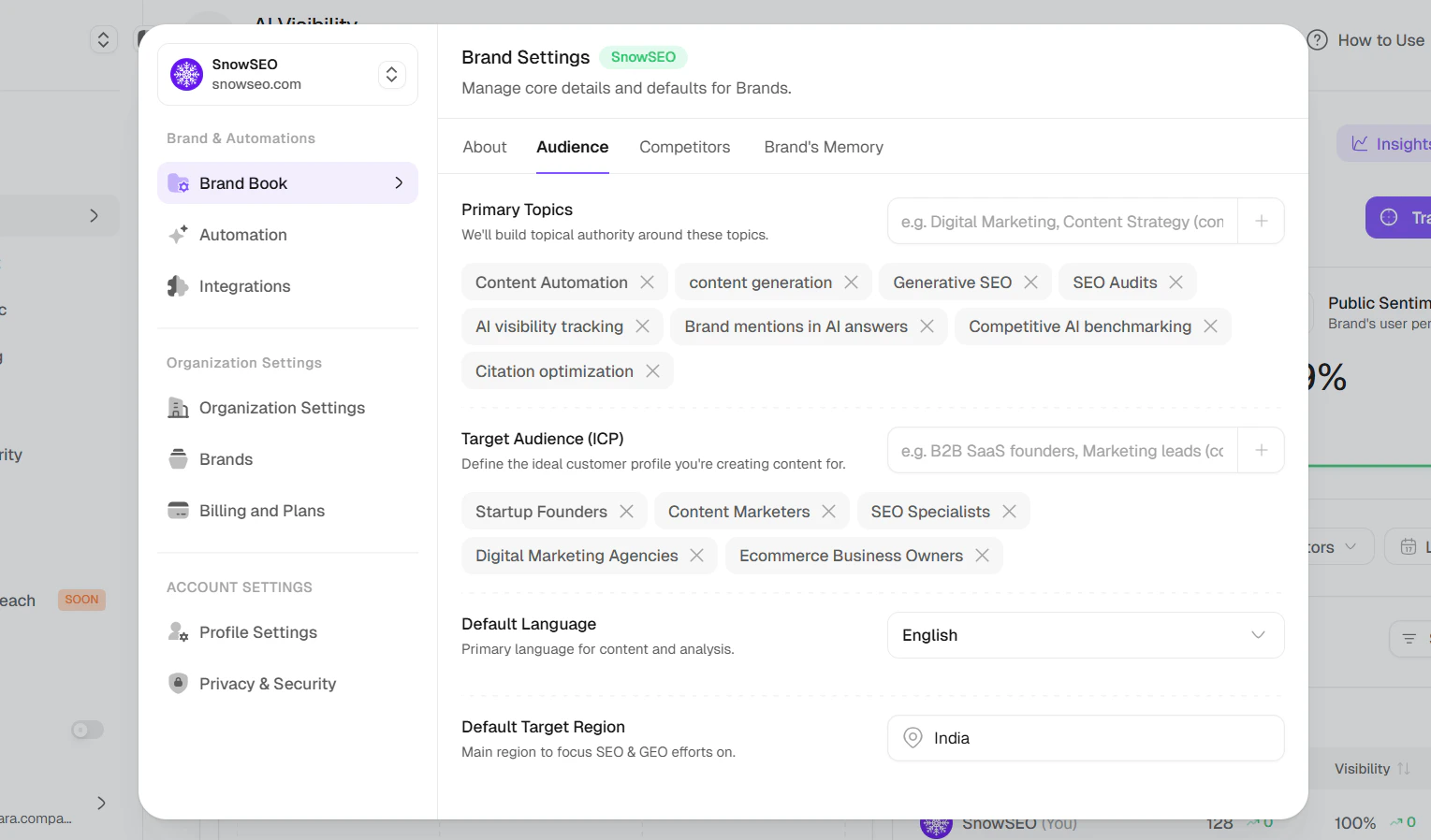 You can add up to 100 target regions. The first region becomes the default country if not explicitly set.
Your Primary Topics and Target Audience directly influence keyword suggestions and content strategy. If you're in a niche market, add specific long-tail topics — SnowSEO will generate more relevant content clusters and topical authority recommendations.
Manage who SnowSEO compares you against:
* **Active Competitors** — Used for visibility comparisons and gap analysis across all dashboards (max 8 active).
* **Discovered Competitors** — Brands that frequently appear alongside yours in AI responses — auto-detected by SnowSEO.
* **Add Competitor** — Add one manually by entering their name and domain.
* **Suggestions** — Click to get AI-powered competitor suggestions based on your industry and brand description. Rate-limited to 7 requests per day.
You can add up to 100 target regions. The first region becomes the default country if not explicitly set.
Your Primary Topics and Target Audience directly influence keyword suggestions and content strategy. If you're in a niche market, add specific long-tail topics — SnowSEO will generate more relevant content clusters and topical authority recommendations.
Manage who SnowSEO compares you against:
* **Active Competitors** — Used for visibility comparisons and gap analysis across all dashboards (max 8 active).
* **Discovered Competitors** — Brands that frequently appear alongside yours in AI responses — auto-detected by SnowSEO.
* **Add Competitor** — Add one manually by entering their name and domain.
* **Suggestions** — Click to get AI-powered competitor suggestions based on your industry and brand description. Rate-limited to 7 requests per day.
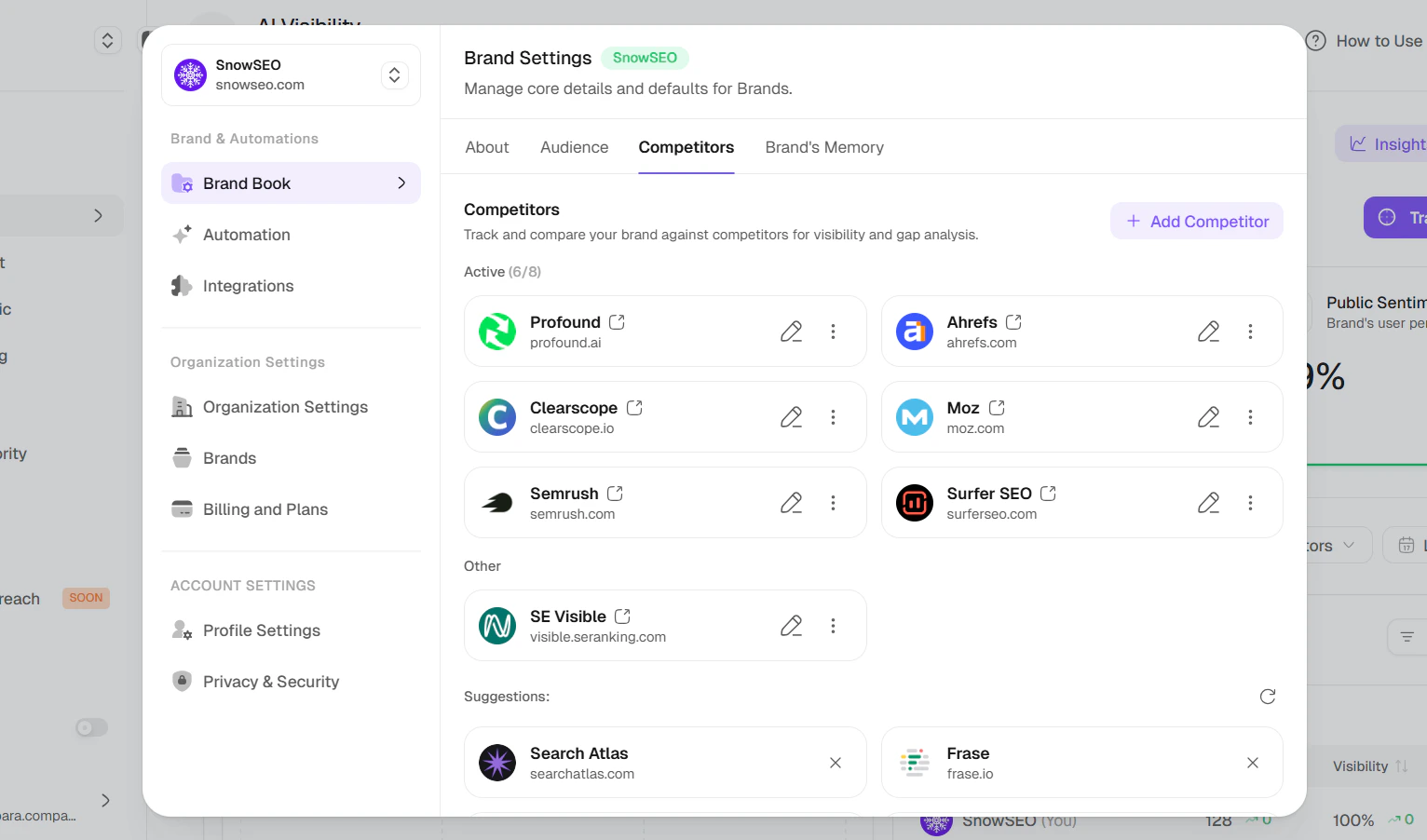 You can have up to 8 active competitors at a time. If you add more, the excess are automatically set to inactive. Use the toggle to quickly swap competitors in and out of active comparison — inactive ones are kept for reference but won't affect your dashboards.
The "Suggestions" button uses AI to analyze your brand description and website content, then recommends relevant competitors. It's rate-limited to 7 requests per day — batch your research. The "Discovered Competitors" section is different: it automatically finds brands that appear alongside yours in AI responses, even if you never search for them.
Link your brand's social profiles and review pages. SnowSEO uses these for brand monitoring and presence analysis:
* X (Twitter)
* YouTube
* Instagram
* LinkedIn
* G2
* Reddit
* Capterra
* Crunchbase
* Trustpilot
Each platform accepts a full URL to your profile or review page.
Linking review platforms (G2, Capterra, Trustpilot) lets SnowSEO track your brand's review sentiment alongside your SEO performance. Even if you don't actively manage all platforms, add them — SnowSEO can still surface citation data and backlink opportunities from linked profiles.
**Coming soon.** Upload your brand data (URLs, files, text, Q\&A) so SnowSEO can write content in your brand's tone and style. This will include:
* **Import URL** — Scrape a link and extract data
* **Upload Files** — PDF, DOCX, TXT (up to 50MB)
* **Create Text** — Paste or write content directly
* **Add Q\&A** — Custom question and answer pairs
Brand Book settings are **per brand**. If you manage multiple brands, each one has its own settings.
***
## Creating a New Brand
To add another website, click your current brand name at the top of the sidebar and select **Create a brand** (or go through onboarding). The flow is the same as onboarding:
Type your domain without `https://` — for example, `acme.com`.
Select the country where most of your audience is.
SnowSEO suggests competitors automatically. Adjust them if needed.
You'll land on your AI Visibility and GEO Audit reports for the new brand.
***
## Account Settings
Open **Settings → Account Settings** to manage your personal profile.
### Profile Settings
Manage your personal account details:
* **Profile Photo** — Upload or change your avatar (min 400×400px, PNG or JPEG). Remove it with the indicator button.
* **Username** — Your display name visible to your team contacts.
* **Email Address** — Change your email. A verification link is sent to confirm.
Changing your email sends a verification link to the new address — the change isn't applied until you click it. Make sure the new email is accessible before you initiate the change.
#### Delete Account
Permanently delete your account and all associated data. This action is irreversible.
### Privacy & Security
This section is split into three sub-tabs:
* **Password & 2FA** — Update your account password. Two-factor authentication (2FA) and backup codes are surfaced here but are **coming soon**.
* **Active Sessions** — View and revoke active login sessions across devices.
* **Privacy & Data** — Manage your privacy preferences and request a data export.
Regularly review your **Active Sessions** to spot any unrecognized logins. If you suspect someone else has access to your account, revoke all sessions and change your password immediately.
***
## Frequently Asked Questions
Yes. When you invite someone, you choose which brand(s) they can see. They won't see brands they haven't been added to. This is useful for agencies — each client's data stays private to that client's team.
No. Once the Google Search Console and Google Analytics integrations are connected (by the owner or admin), everyone on the team can see the data. Each person doesn't need their own Google permissions.
In the sidebar on the left, click the brand name at the top. A dropdown shows all your brands — click the one you want to switch to. You can also use the brand switcher inside Settings.
Yes — but only once every 30 days. Changing the domain resets your brand data (articles, keywords, audits, integrations, competitors) and redirects you to onboarding to set up the new website. Your organization and team members are preserved.
Notification preferences are managed per brand. Look for your notification settings within the dashboard or check your email preferences in your account settings. Specific notification channels (weekly reports, monthly audits, new opportunities, resource warnings) can be toggled on or off.
No, but future keyword suggestions and AI content will be tailored to your new audience profile. Existing content isn't affected.
Brand colors (Vibrant, Muted, Dark Vibrant, Dark Muted, Light Vibrant, Light Muted) are used as the color palette for AI-generated featured images in your articles. You can set them manually in Brand Book → About, or let SnowSEO auto-detect them from your logo or website favicon.
A prompt is classified as **branded** if it contains your brand name or any of your brand aliases. It's **unbranded** if it doesn't. For example, *"How does SnowSEO compare to Ahrefs?"* is branded because it includes "SnowSEO". *"Best SEO tools for small businesses"* is unbranded.
The AI Visibility dashboard lets you filter by branded/unbranded to understand how often AI models mention your brand in contexts where the model wasn't explicitly asked about you — this is a stronger signal of organic brand awareness.
Add names that people commonly use to refer to your brand. Aliases come in two types:
* **Domain aliases** (e.g., `snowseo.io` if you own it) — these add extra hostnames that SnowSEO matches when scanning citation URLs in AI responses.
* **Text aliases** (e.g., "Snow", "Snow Platform") — these are matched as whole words in AI response text. "Snow" will match the word "Snow" but not "Snowfall" or "Snowboard".
Good candidates: abbreviations, alternative domains, common misspellings, or your brand name in a different language. Avoid generic single words that appear frequently in unrelated contexts.
Yes — if an alias contains a `.` (like `snowseo.io`), SnowSEO treats it as an extra domain for your brand. This means citations to that domain in AI responses will be counted as your brand. Only add domains that you actually own or that legitimately represent your brand.
You can have up to 8 active competitors at a time. If you add more, the excess are automatically set to inactive. Use the toggle to quickly swap competitors in and out of active comparison — inactive ones are kept for reference but won't affect your dashboards.
The "Suggestions" button uses AI to analyze your brand description and website content, then recommends relevant competitors. It's rate-limited to 7 requests per day — batch your research. The "Discovered Competitors" section is different: it automatically finds brands that appear alongside yours in AI responses, even if you never search for them.
Link your brand's social profiles and review pages. SnowSEO uses these for brand monitoring and presence analysis:
* X (Twitter)
* YouTube
* Instagram
* LinkedIn
* G2
* Reddit
* Capterra
* Crunchbase
* Trustpilot
Each platform accepts a full URL to your profile or review page.
Linking review platforms (G2, Capterra, Trustpilot) lets SnowSEO track your brand's review sentiment alongside your SEO performance. Even if you don't actively manage all platforms, add them — SnowSEO can still surface citation data and backlink opportunities from linked profiles.
**Coming soon.** Upload your brand data (URLs, files, text, Q\&A) so SnowSEO can write content in your brand's tone and style. This will include:
* **Import URL** — Scrape a link and extract data
* **Upload Files** — PDF, DOCX, TXT (up to 50MB)
* **Create Text** — Paste or write content directly
* **Add Q\&A** — Custom question and answer pairs
Brand Book settings are **per brand**. If you manage multiple brands, each one has its own settings.
***
## Creating a New Brand
To add another website, click your current brand name at the top of the sidebar and select **Create a brand** (or go through onboarding). The flow is the same as onboarding:
Type your domain without `https://` — for example, `acme.com`.
Select the country where most of your audience is.
SnowSEO suggests competitors automatically. Adjust them if needed.
You'll land on your AI Visibility and GEO Audit reports for the new brand.
***
## Account Settings
Open **Settings → Account Settings** to manage your personal profile.
### Profile Settings
Manage your personal account details:
* **Profile Photo** — Upload or change your avatar (min 400×400px, PNG or JPEG). Remove it with the indicator button.
* **Username** — Your display name visible to your team contacts.
* **Email Address** — Change your email. A verification link is sent to confirm.
Changing your email sends a verification link to the new address — the change isn't applied until you click it. Make sure the new email is accessible before you initiate the change.
#### Delete Account
Permanently delete your account and all associated data. This action is irreversible.
### Privacy & Security
This section is split into three sub-tabs:
* **Password & 2FA** — Update your account password. Two-factor authentication (2FA) and backup codes are surfaced here but are **coming soon**.
* **Active Sessions** — View and revoke active login sessions across devices.
* **Privacy & Data** — Manage your privacy preferences and request a data export.
Regularly review your **Active Sessions** to spot any unrecognized logins. If you suspect someone else has access to your account, revoke all sessions and change your password immediately.
***
## Frequently Asked Questions
Yes. When you invite someone, you choose which brand(s) they can see. They won't see brands they haven't been added to. This is useful for agencies — each client's data stays private to that client's team.
No. Once the Google Search Console and Google Analytics integrations are connected (by the owner or admin), everyone on the team can see the data. Each person doesn't need their own Google permissions.
In the sidebar on the left, click the brand name at the top. A dropdown shows all your brands — click the one you want to switch to. You can also use the brand switcher inside Settings.
Yes — but only once every 30 days. Changing the domain resets your brand data (articles, keywords, audits, integrations, competitors) and redirects you to onboarding to set up the new website. Your organization and team members are preserved.
Notification preferences are managed per brand. Look for your notification settings within the dashboard or check your email preferences in your account settings. Specific notification channels (weekly reports, monthly audits, new opportunities, resource warnings) can be toggled on or off.
No, but future keyword suggestions and AI content will be tailored to your new audience profile. Existing content isn't affected.
Brand colors (Vibrant, Muted, Dark Vibrant, Dark Muted, Light Vibrant, Light Muted) are used as the color palette for AI-generated featured images in your articles. You can set them manually in Brand Book → About, or let SnowSEO auto-detect them from your logo or website favicon.
A prompt is classified as **branded** if it contains your brand name or any of your brand aliases. It's **unbranded** if it doesn't. For example, *"How does SnowSEO compare to Ahrefs?"* is branded because it includes "SnowSEO". *"Best SEO tools for small businesses"* is unbranded.
The AI Visibility dashboard lets you filter by branded/unbranded to understand how often AI models mention your brand in contexts where the model wasn't explicitly asked about you — this is a stronger signal of organic brand awareness.
Add names that people commonly use to refer to your brand. Aliases come in two types:
* **Domain aliases** (e.g., `snowseo.io` if you own it) — these add extra hostnames that SnowSEO matches when scanning citation URLs in AI responses.
* **Text aliases** (e.g., "Snow", "Snow Platform") — these are matched as whole words in AI response text. "Snow" will match the word "Snow" but not "Snowfall" or "Snowboard".
Good candidates: abbreviations, alternative domains, common misspellings, or your brand name in a different language. Avoid generic single words that appear frequently in unrelated contexts.
Yes — if an alias contains a `.` (like `snowseo.io`), SnowSEO treats it as an extra domain for your brand. This means citations to that domain in AI responses will be counted as your brand. Only add domains that you actually own or that legitimately represent your brand.