> ## Documentation Index
> Fetch the complete documentation index at: https://snowseo.com/docs/llms.txt
> Use this file to discover all available pages before exploring further.
# Onboarding
> Get started with SnowSEO by creating and setting up your first Brand — your dedicated workspace for tracking and optimizing a website.
This guide walks you through the onboarding process in SnowSEO — from creating your account to setting up your first **Brand**.
In SnowSEO, a **Brand** represents a single website or domain. All your data — including keywords, audits, traffic, and content — is organized within that Brand, ensuring a structured and isolated workspace for each site you manage.
If you manage multiple websites (for example, as an agency or an organization with regional domains), you should create a separate Brand for each one. Every Brand maintains its own integrations, settings, and dataset.
***
## Creating Your First Brand
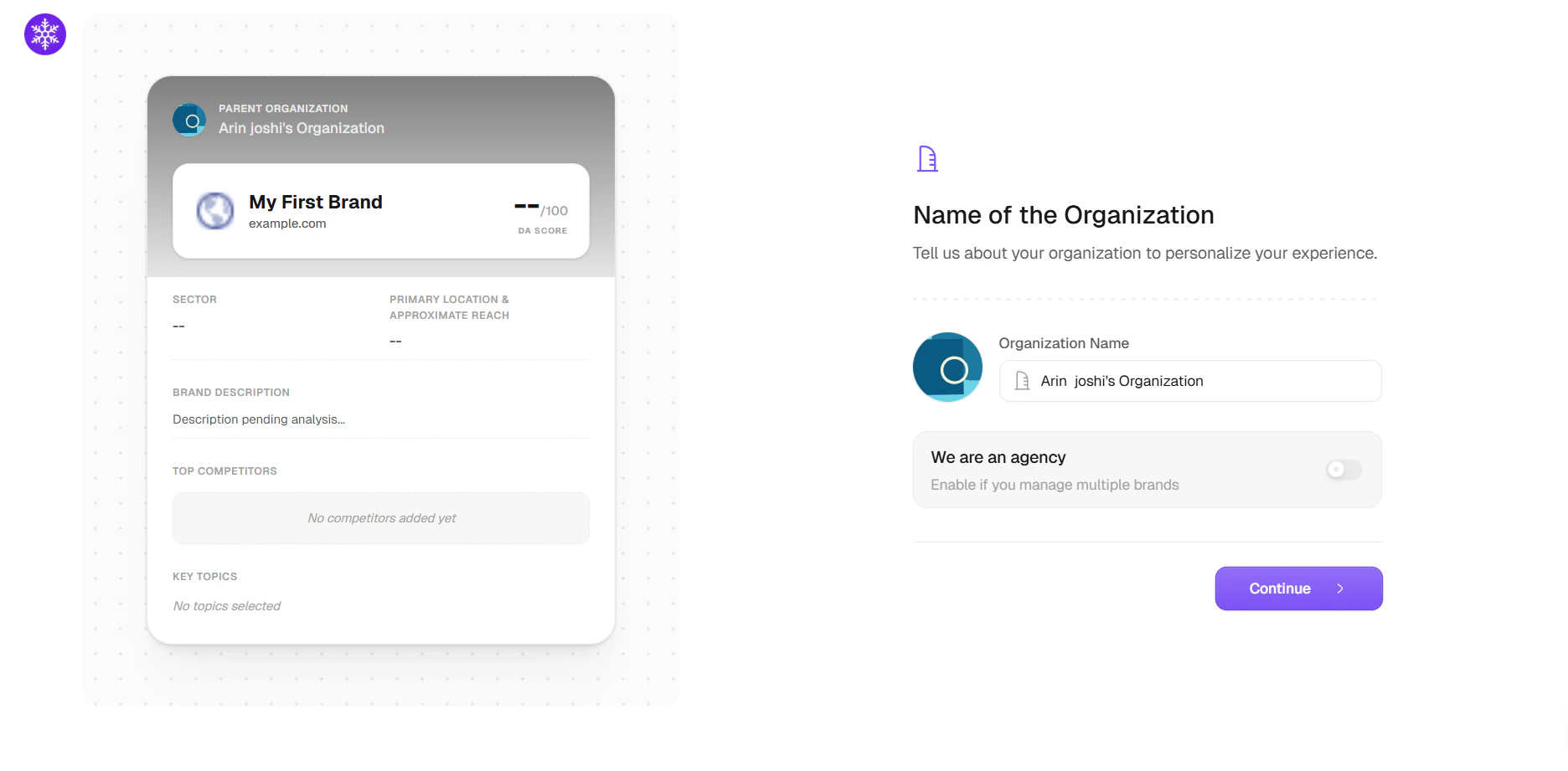
Once your account is created, SnowSEO automatically initializes your organization with a default name in the format: ` Organisation.`
 Enter the root domain of your website without including the protocol — for example, `acme.com` or `www.acme.com`.
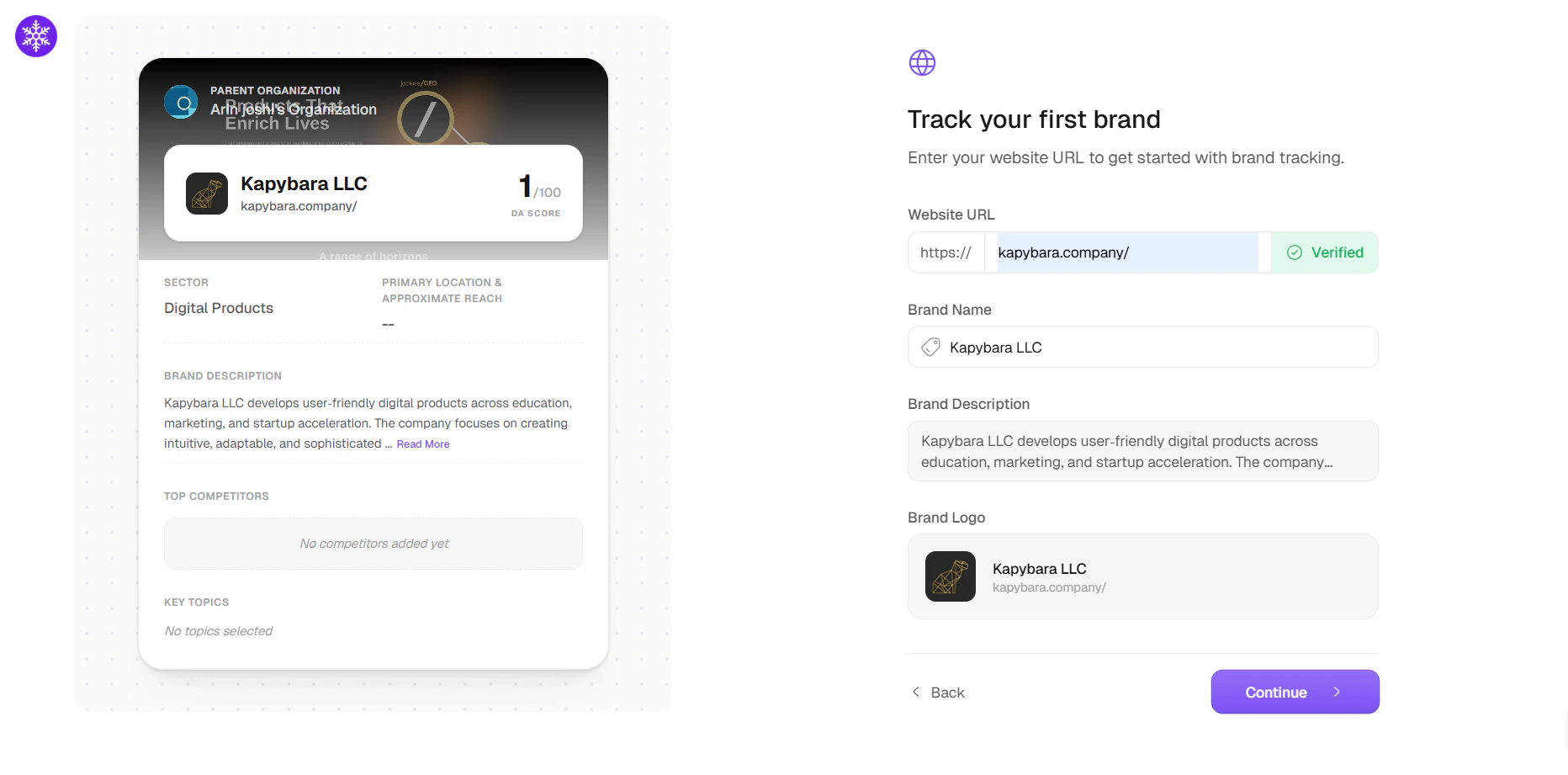 SnowSEO automatically handles the `https://` protocol, so there is no need to include it. However, include `www.` if it is part of your primary domain, as search engines treat `acme.com` and `www.acme.com` as separate properties.
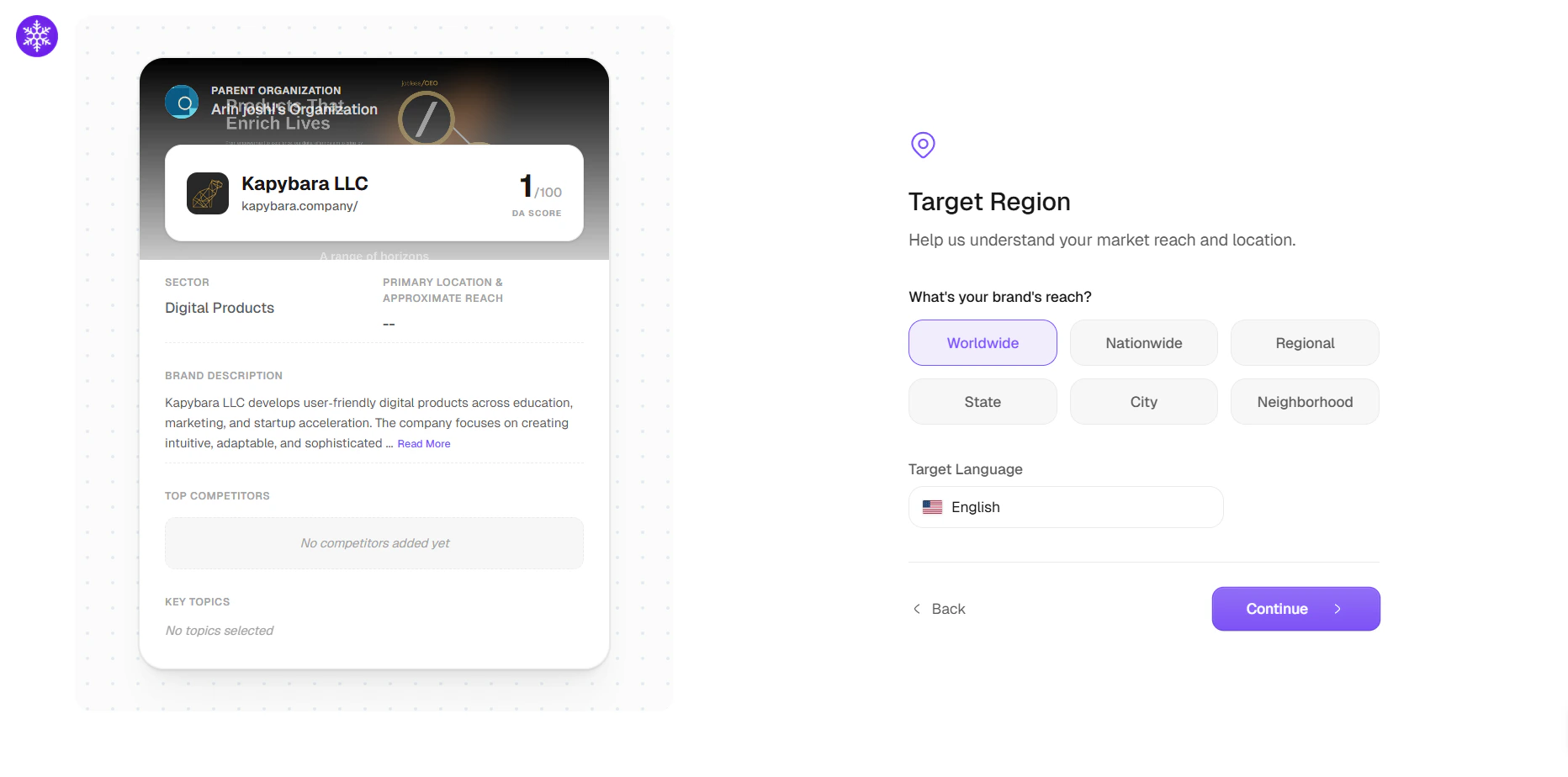
Select the primary regions where your audience is located — you can choose more than one. This determines which regional Google index is used for rank tracking (for example, Google US vs. Google UK results), and the first region becomes your default country.
SnowSEO automatically handles the `https://` protocol, so there is no need to include it. However, include `www.` if it is part of your primary domain, as search engines treat `acme.com` and `www.acme.com` as separate properties.
Select the primary regions where your audience is located — you can choose more than one. This determines which regional Google index is used for rank tracking (for example, Google US vs. Google UK results), and the first region becomes your default country.
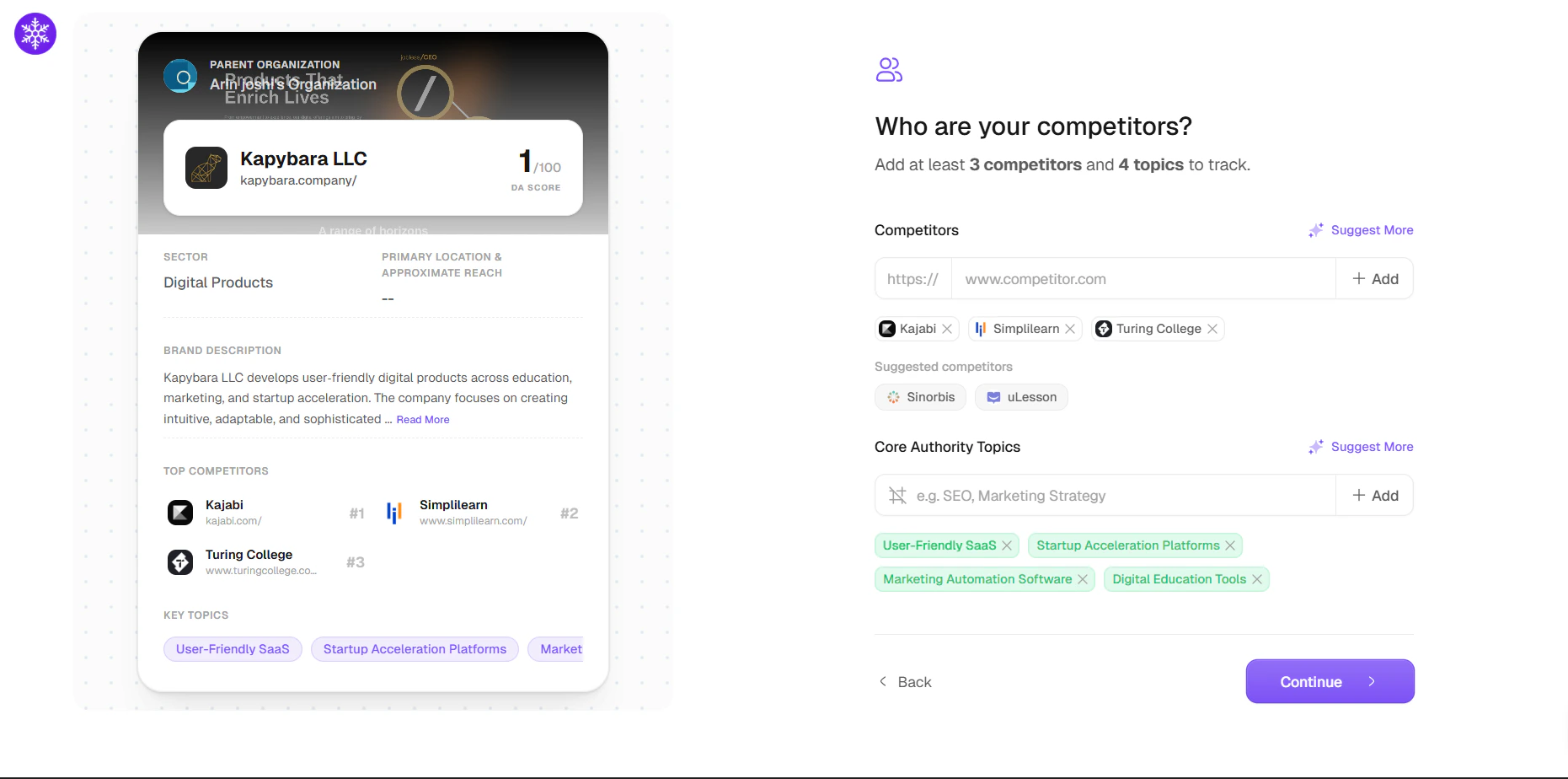
 SnowSEO automatically identifies your top competitors and suggests the main topics you should cover, based on your domain. You can add or adjust both as needed.
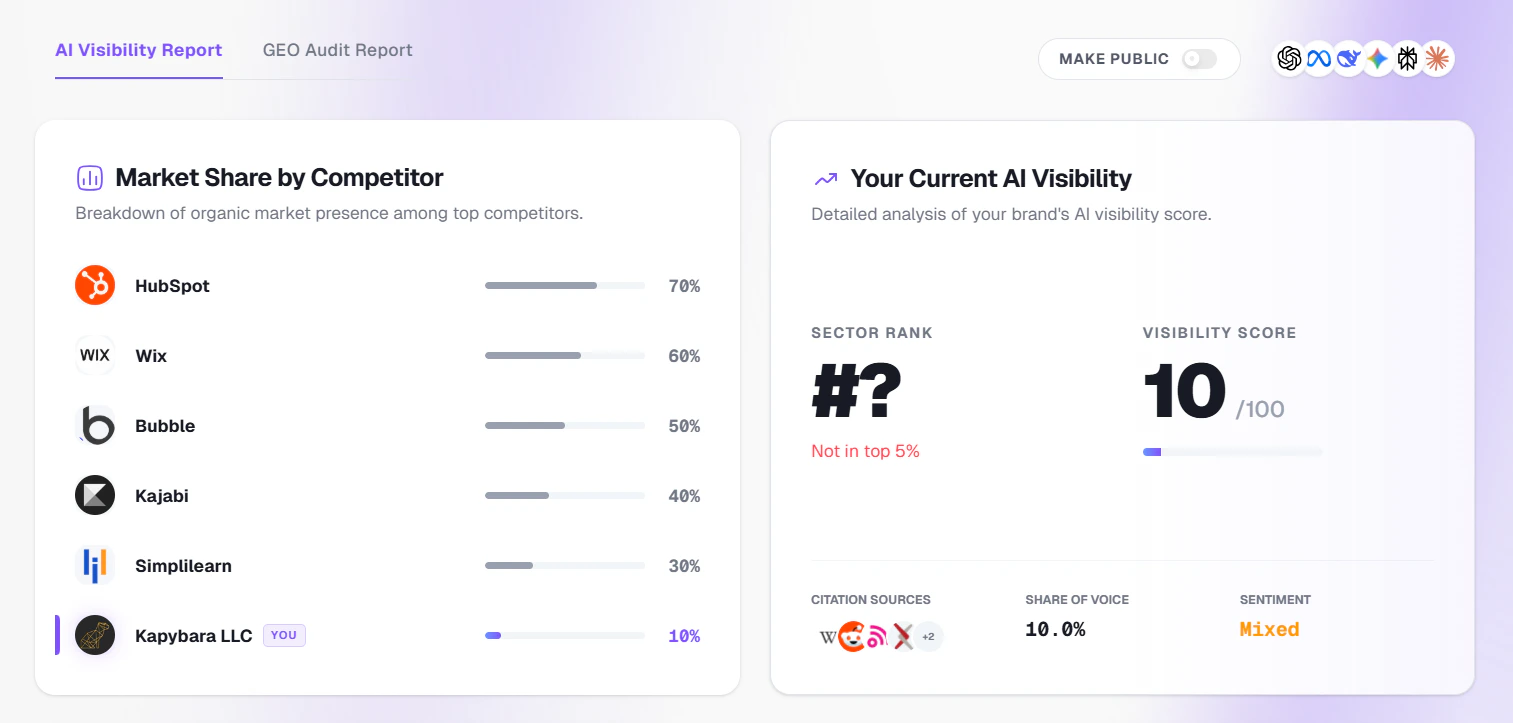
 The AI Visibility Report provides a high-level overview of your brand’s presence across AI platforms. It helps you evaluate how your brand compares against competitors and how frequently it appears in AI-generated responses.\
It answers key questions such as: *“How visible is my brand?”* and *“Where do I stand within the competitive landscape?”*
The AI Visibility Report provides a high-level overview of your brand’s presence across AI platforms. It helps you evaluate how your brand compares against competitors and how frequently it appears in AI-generated responses.\
It answers key questions such as: *“How visible is my brand?”* and *“Where do I stand within the competitive landscape?”*
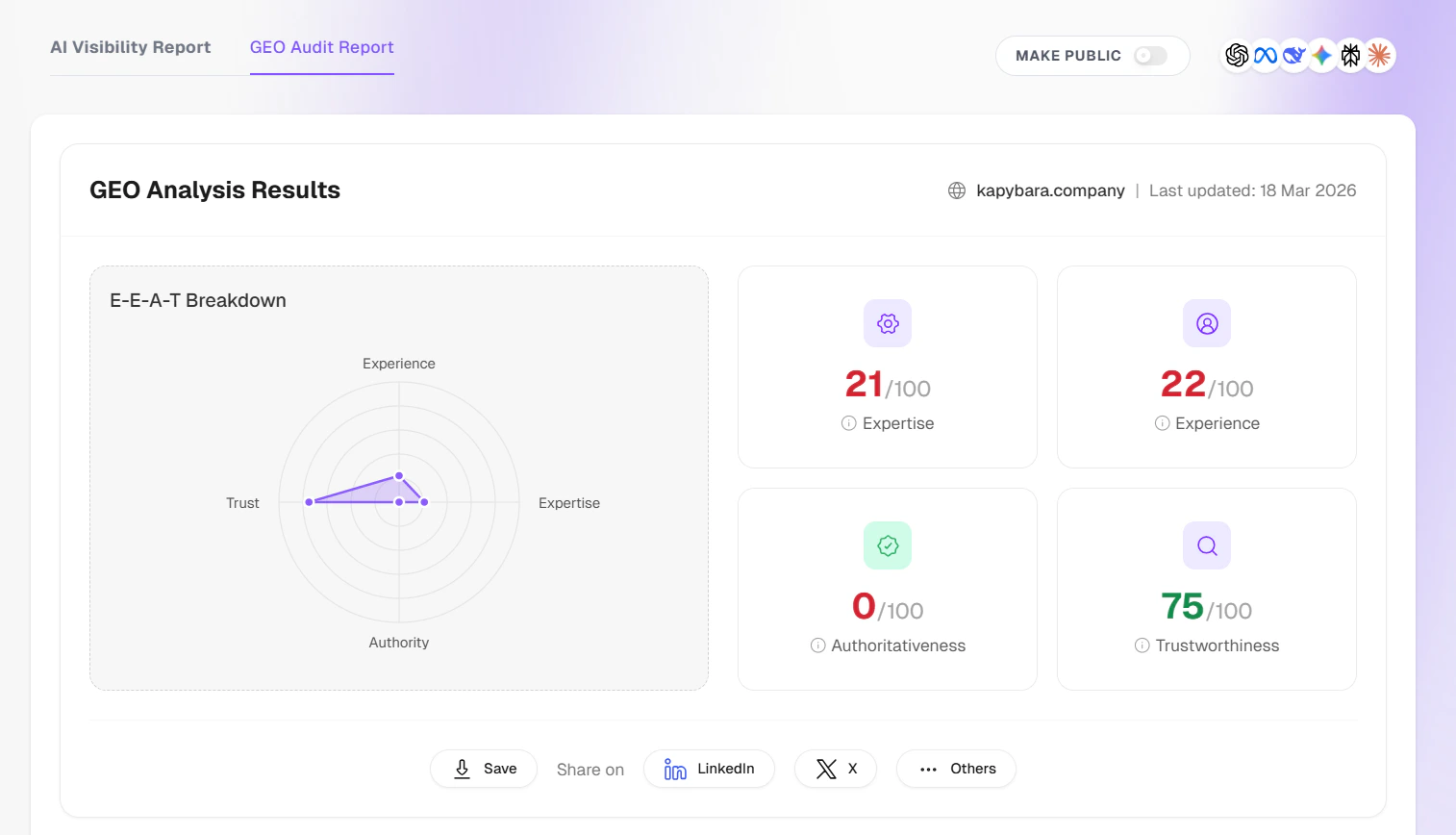
 The GEO Audit Report evaluates how effectively your content is optimized for AI systems. It provides a detailed breakdown based on E-E-A-T principles (Experience, Expertise, Authoritativeness, and Trustworthiness).\
In essence, the GEO Audit Report identifies areas of improvement to enhance your performance in AI-driven search.
The GEO Audit Report evaluates how effectively your content is optimized for AI systems. It provides a detailed breakdown based on E-E-A-T principles (Experience, Expertise, Authoritativeness, and Trustworthiness).\
In essence, the GEO Audit Report identifies areas of improvement to enhance your performance in AI-driven search.
 After your initial stats, onboarding wraps up by showing your **topical authority map**, a suggested **content strategy** to act on, and your **plan** options — then drops you into the dashboard.
## Brand Settings Reference
| Setting | What it controls |
| ------------------ | --------------------------------------------------------------------------------------------------------------------------------------------------------------------------------------------------------------------------------------------- |
| **Domain** | The root URL being tracked. You can change it later from **Brand Book**, but only once every 30 days — changing it resets the brand's data (articles, keywords, audits, integrations, competitors) and re-runs onboarding for the new domain. |
| **Target Region** | The Google data center used for rank tracking. Changing this setting will impact historical ranking data. |
| **Crawl Schedule** | How often automated site audits run. Configured under **Settings → Automation → Audit** with the **Always-On Audit** toggle and a frequency (Every day through Every 14 days, depending on your plan). |
| **GSC Property** | The Google Search Console property associated with this Brand. |
| **GA4 Property** | The Google Analytics 4 property used for tracking traffic and session data. |
***
## Frequently Asked Questions
Yes. You can create a separate Brand for each website. Each Brand includes its own keyword tracking, audits, content workflows, and integrations — all accessible within a single account. You can switch between Brands using the sidebar.
Yes, but only once every 30 days. Changing your domain resets the brand's data (articles, keywords, audits, integrations, competitors) and walks you through onboarding for the new domain. Your organization and team members are preserved. If you'd rather keep the existing data, create a separate Brand for the new domain instead.
The number of Brands depends on your subscription plan. Starter plans include a limited number of Brands, while Pro and Scale plans support a higher limit. You can review your plan details in **Account Settings → Billing**.
Yes. Once integrations such as GSC and GA4 are connected, all invited team members can access the same Brand data. Individual authentication is not required for each user.
There are no seat limits on any plan — you can invite as many team members as needed at no additional cost.
Ensure you are signed in with a Google account that has access to the desired GSC property (at least "Restricted" permission). If the issue persists, try disconnecting and reconnecting your Google account in Brand Settings.
After your initial stats, onboarding wraps up by showing your **topical authority map**, a suggested **content strategy** to act on, and your **plan** options — then drops you into the dashboard.
## Brand Settings Reference
| Setting | What it controls |
| ------------------ | --------------------------------------------------------------------------------------------------------------------------------------------------------------------------------------------------------------------------------------------- |
| **Domain** | The root URL being tracked. You can change it later from **Brand Book**, but only once every 30 days — changing it resets the brand's data (articles, keywords, audits, integrations, competitors) and re-runs onboarding for the new domain. |
| **Target Region** | The Google data center used for rank tracking. Changing this setting will impact historical ranking data. |
| **Crawl Schedule** | How often automated site audits run. Configured under **Settings → Automation → Audit** with the **Always-On Audit** toggle and a frequency (Every day through Every 14 days, depending on your plan). |
| **GSC Property** | The Google Search Console property associated with this Brand. |
| **GA4 Property** | The Google Analytics 4 property used for tracking traffic and session data. |
***
## Frequently Asked Questions
Yes. You can create a separate Brand for each website. Each Brand includes its own keyword tracking, audits, content workflows, and integrations — all accessible within a single account. You can switch between Brands using the sidebar.
Yes, but only once every 30 days. Changing your domain resets the brand's data (articles, keywords, audits, integrations, competitors) and walks you through onboarding for the new domain. Your organization and team members are preserved. If you'd rather keep the existing data, create a separate Brand for the new domain instead.
The number of Brands depends on your subscription plan. Starter plans include a limited number of Brands, while Pro and Scale plans support a higher limit. You can review your plan details in **Account Settings → Billing**.
Yes. Once integrations such as GSC and GA4 are connected, all invited team members can access the same Brand data. Individual authentication is not required for each user.
There are no seat limits on any plan — you can invite as many team members as needed at no additional cost.
Ensure you are signed in with a Google account that has access to the desired GSC property (at least "Restricted" permission). If the issue persists, try disconnecting and reconnecting your Google account in Brand Settings.