> ## Documentation Index
> Fetch the complete documentation index at: https://snowseo.com/docs/llms.txt
> Use this file to discover all available pages before exploring further.
# Content
> Write, optimize, and publish high-ranking SEO content without ever leaving SnowSEO.
The **Article Editor** is where your keyword research turns into published content. It combines a clean writing environment with a built-in SEO coach that scores your article in real time — so every piece you publish is optimized before it goes live.
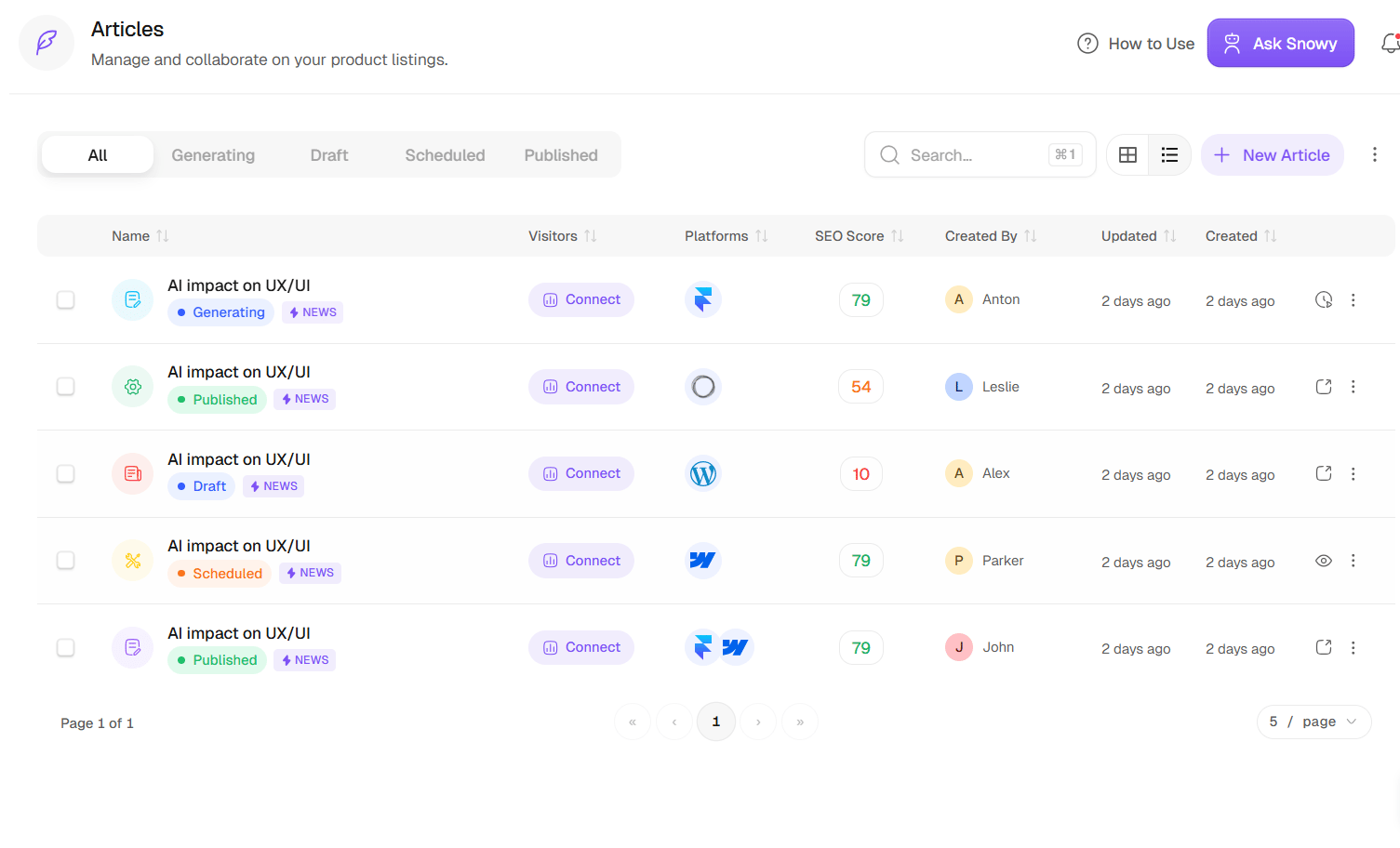 The **Content** workspace (**Execution → Content**) has four views: **Articles** (the list of everything you've created), **Calendar**, **Mindmap**, and **Kanban** *(coming soon)*. Most of your work happens in the **Articles** list and the article editor, covered first below.
## The Three-Stage Workflow
Every article follows a simple path from blank page to published post:
Use AI to generate an outline and draft sections in seconds — no blank-page paralysis.
Fix real-time SEO suggestions and watch your score climb into the green zone.
Push directly to your connected CMS, or schedule for a future date.
***
## Creating a New Article
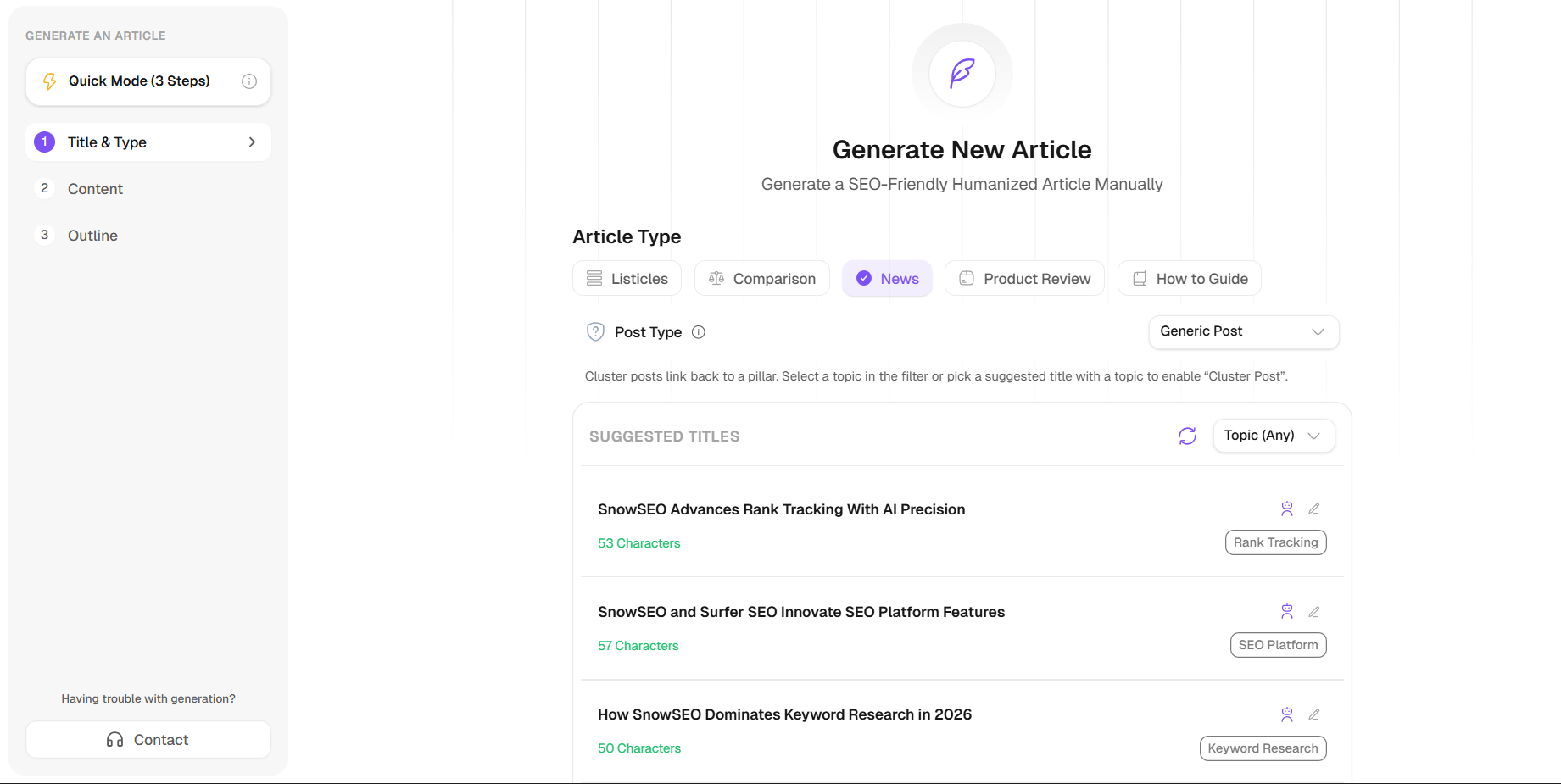
In **Execution → Content**, click **+ New Article** to open the generator.
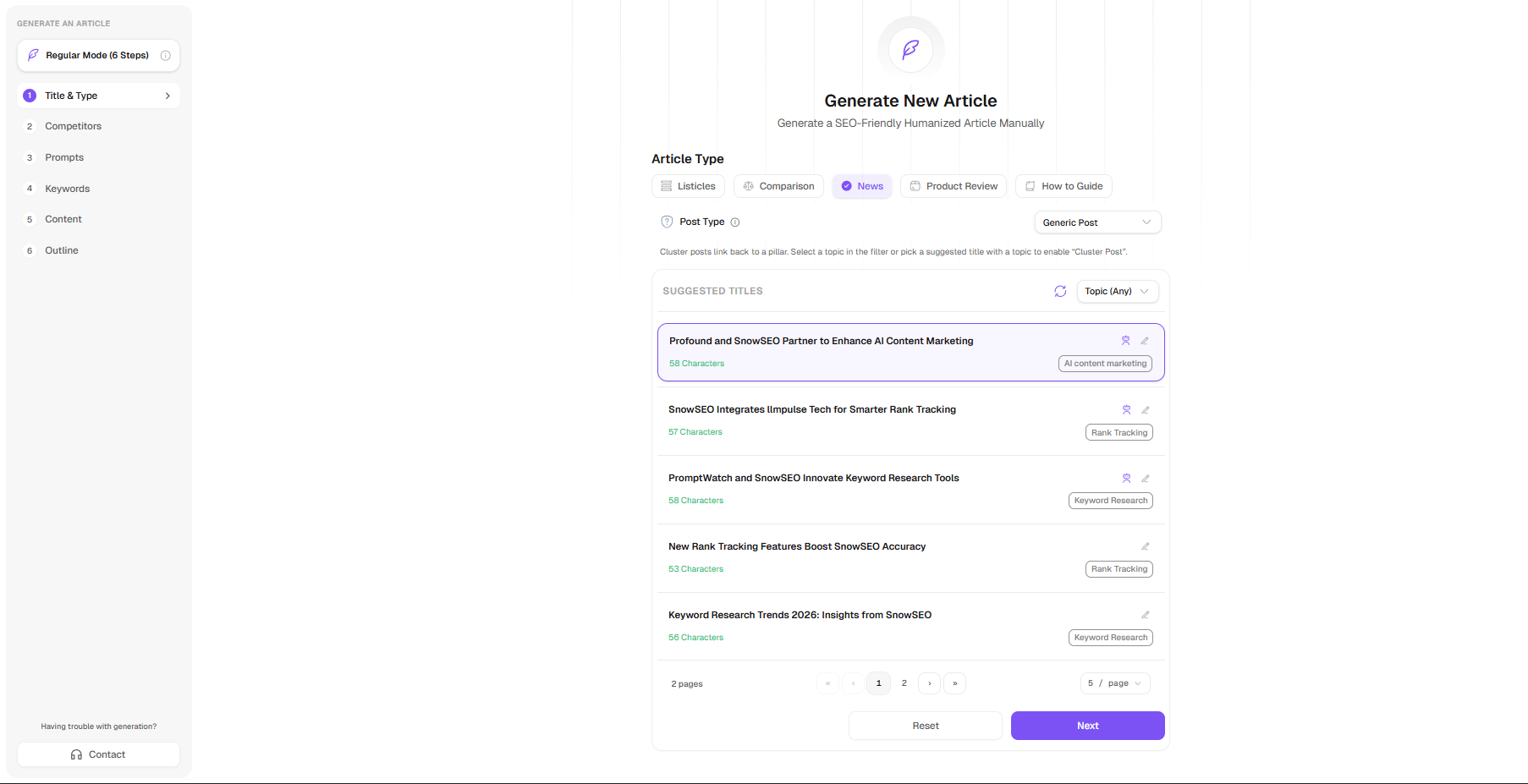
In Quick Mode, SnowSEO runs competitor analysis, prompt research, and keyword research **automatically in the background**, then drops you into a short 3-step flow.
Start by defining your article topic and selecting the article format (for example: Listicles, Comparison, News, Review, or Guide).
**Options include:**
* Listicles (e.g., "Top 10 tools...")
* Comparison (e.g., "Which option wins?")
* News (e.g., "Industry report reveals risks")
* Review (e.g., "Best value tools tested for 2026")
* Guide (e.g., "How to run an audit for better visibility")
SnowSEO suggests SEO-friendly titles and shows character counts so you can choose a title with strong ranking and click potential.
The **Content** workspace (**Execution → Content**) has four views: **Articles** (the list of everything you've created), **Calendar**, **Mindmap**, and **Kanban** *(coming soon)*. Most of your work happens in the **Articles** list and the article editor, covered first below.
## The Three-Stage Workflow
Every article follows a simple path from blank page to published post:
Use AI to generate an outline and draft sections in seconds — no blank-page paralysis.
Fix real-time SEO suggestions and watch your score climb into the green zone.
Push directly to your connected CMS, or schedule for a future date.
***
## Creating a New Article
In **Execution → Content**, click **+ New Article** to open the generator.
In Quick Mode, SnowSEO runs competitor analysis, prompt research, and keyword research **automatically in the background**, then drops you into a short 3-step flow.
Start by defining your article topic and selecting the article format (for example: Listicles, Comparison, News, Review, or Guide).
**Options include:**
* Listicles (e.g., "Top 10 tools...")
* Comparison (e.g., "Which option wins?")
* News (e.g., "Industry report reveals risks")
* Review (e.g., "Best value tools tested for 2026")
* Guide (e.g., "How to run an audit for better visibility")
SnowSEO suggests SEO-friendly titles and shows character counts so you can choose a title with strong ranking and click potential.
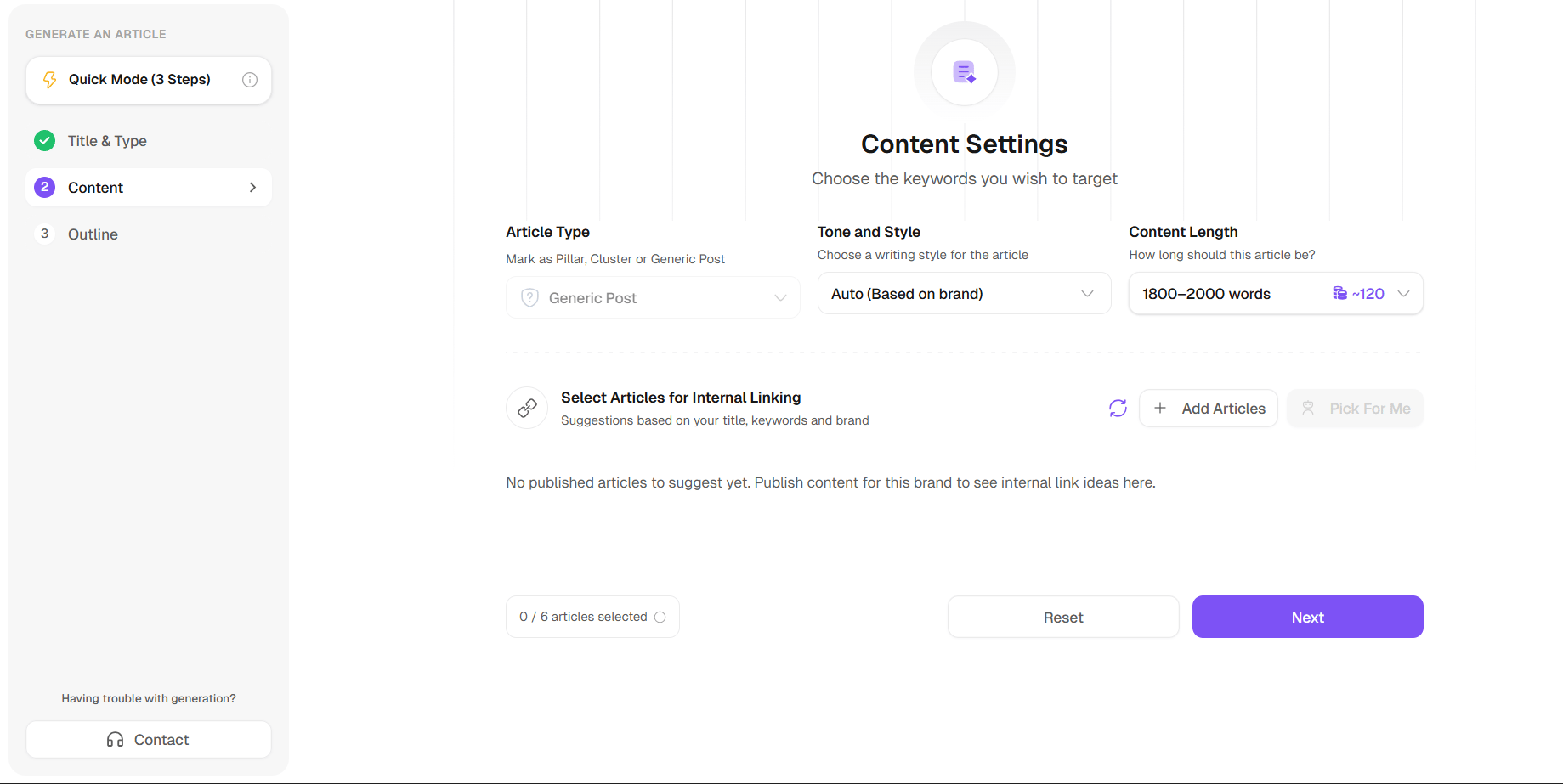
 Configure how the article will be written — choose the **post type**, **tone**, length, and internal links. (SnowSEO has already researched competitors, prompts, and keywords for you in the background.)
**Post Type**
* **Pillar Post**: Comprehensive overviews of broad topics that act as the main authority page.
* **Cluster Post**: Deep dives into specific subtopics that link back to a pillar page.
* **Generic Post**: Standalone articles that do not belong to a structured topical cluster.
**Tone and Style**
* Auto (Based on brand)
* Professional
* Conversational
* Expert
* Casual
* Academic
* Creative
* Custom
**Internal Linking**
Internal links strengthen topical relevance, improve crawl flow, and help distribute authority across your content. You can manually add related articles with **+ Add Articles**, or use **Pick For Me** to let SnowSEO choose the best internal-link candidates for you.
Configure how the article will be written — choose the **post type**, **tone**, length, and internal links. (SnowSEO has already researched competitors, prompts, and keywords for you in the background.)
**Post Type**
* **Pillar Post**: Comprehensive overviews of broad topics that act as the main authority page.
* **Cluster Post**: Deep dives into specific subtopics that link back to a pillar page.
* **Generic Post**: Standalone articles that do not belong to a structured topical cluster.
**Tone and Style**
* Auto (Based on brand)
* Professional
* Conversational
* Expert
* Casual
* Academic
* Creative
* Custom
**Internal Linking**
Internal links strengthen topical relevance, improve crawl flow, and help distribute authority across your content. You can manually add related articles with **+ Add Articles**, or use **Pick For Me** to let SnowSEO choose the best internal-link candidates for you.
 Finalize the outline before generation. Review the proposed H2/H3 structure, adjust section order, and keep or remove optional sections such as CTA, FAQ, and Conclusion.
Once the outline matches your intent, generate the article.
**What this step does:**
You define the topic of your article and the type of content you want to create.
**Post Type**
* **Pillar Post**: Comprehensive overviews of broad topics that act as the main authority page.
* **Cluster Post**: Deep dives into specific subtopics that link back to a pillar page.
* **Generic Post**: Standalone articles that do not belong to a structured topical cluster.
**Suggested Titles**
* Topic(Any)
* Rank Tracking
* Keyword Research
* AI Content Generation
* SEO Platform
* AI Content Marketing
**What SnowSEO does for you:**
* Suggests SEO-friendly titles
* Shows character count (to optimize for search results)
**Why this matters:** Your title determines what keywords you rank for and whether users click your article.
Finalize the outline before generation. Review the proposed H2/H3 structure, adjust section order, and keep or remove optional sections such as CTA, FAQ, and Conclusion.
Once the outline matches your intent, generate the article.
**What this step does:**
You define the topic of your article and the type of content you want to create.
**Post Type**
* **Pillar Post**: Comprehensive overviews of broad topics that act as the main authority page.
* **Cluster Post**: Deep dives into specific subtopics that link back to a pillar page.
* **Generic Post**: Standalone articles that do not belong to a structured topical cluster.
**Suggested Titles**
* Topic(Any)
* Rank Tracking
* Keyword Research
* AI Content Generation
* SEO Platform
* AI Content Marketing
**What SnowSEO does for you:**
* Suggests SEO-friendly titles
* Shows character count (to optimize for search results)
**Why this matters:** Your title determines what keywords you rank for and whether users click your article.
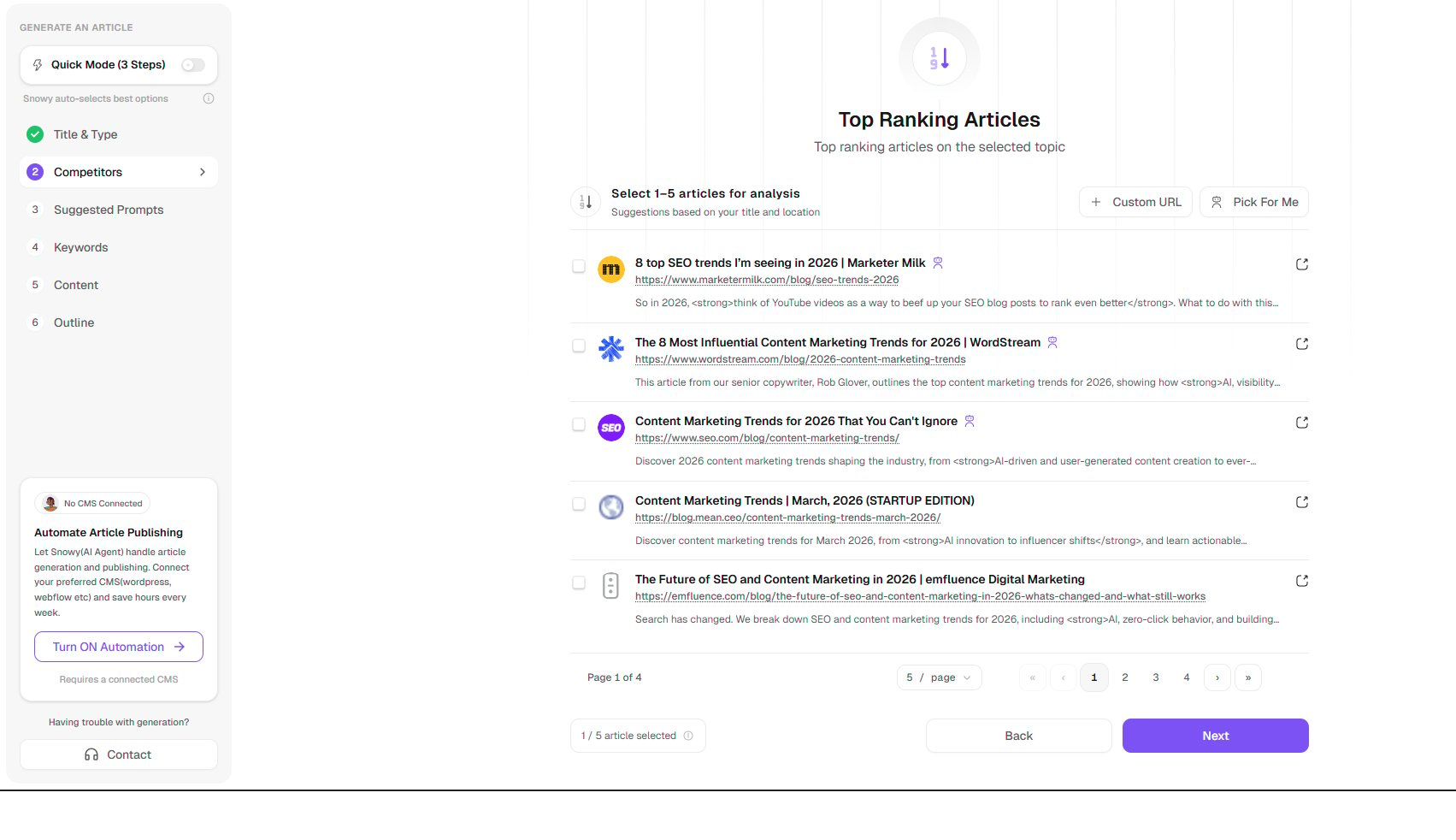
 **What this step does:**
You select top-ranking articles related to your topic.
You can also add your competitor URL from the **+ Custom URL** or use **Pick For Me** to let SnowSEO choose the best Competitors for you.
**What SnowSEO does:**
* Finds articles already ranking on Google
* Lets you pick 1-5 competitors
**Why this matters:** These articles represent what currently works. SnowSEO uses them to understand structure, identify gaps, and improve your content.
**What this step does:**
You select top-ranking articles related to your topic.
You can also add your competitor URL from the **+ Custom URL** or use **Pick For Me** to let SnowSEO choose the best Competitors for you.
**What SnowSEO does:**
* Finds articles already ranking on Google
* Lets you pick 1-5 competitors
**Why this matters:** These articles represent what currently works. SnowSEO uses them to understand structure, identify gaps, and improve your content.
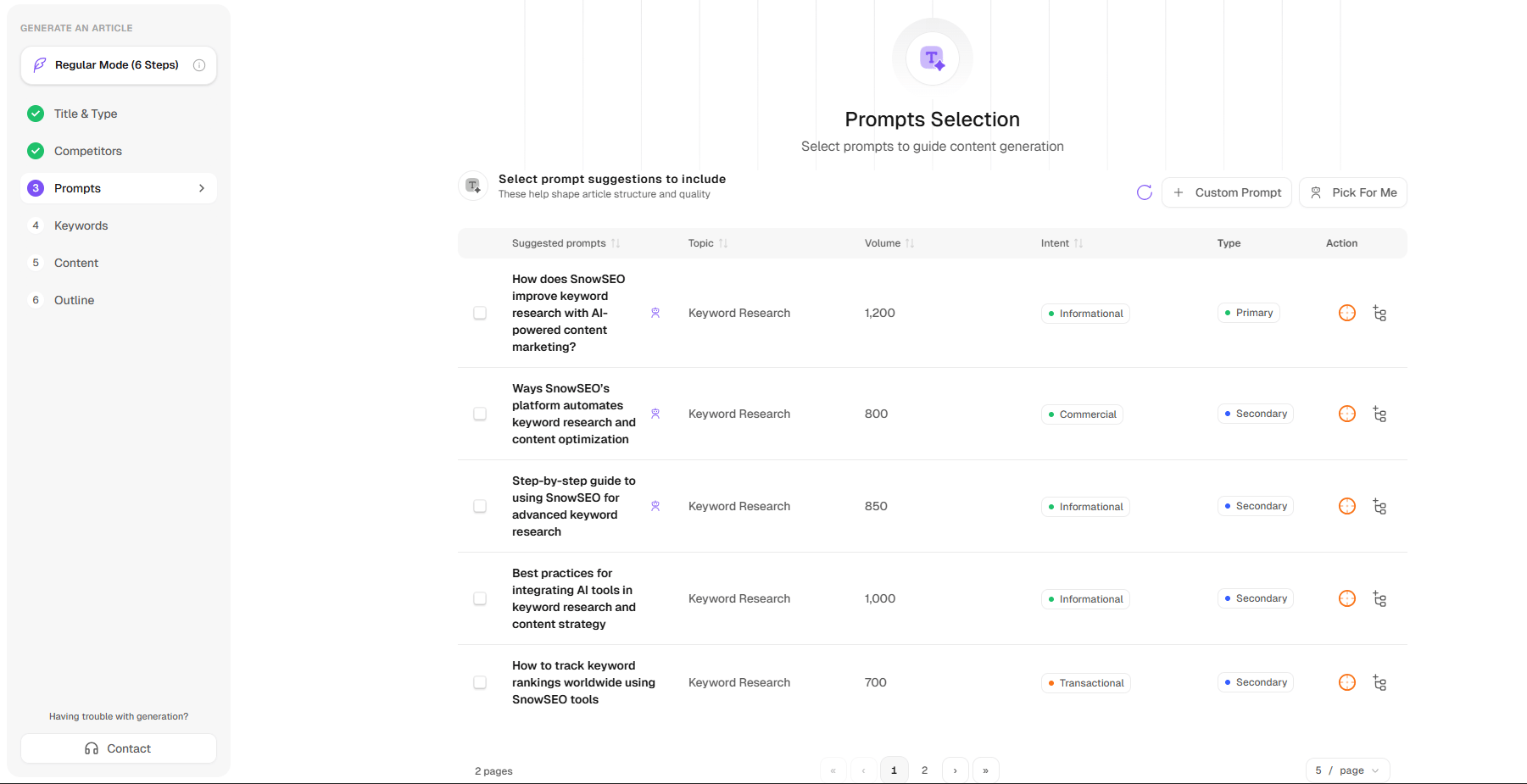
 **What this step does:**
SnowSEO generates prompt suggestions in a structured table so you can choose the best angles before content generation.
**What you do:**
Review each prompt row, select the best-fit prompts, and use **+ Custom Prompt** or **Pick For Me** when needed.
**Understanding the prompt table headers:**
* **Topic**: The core topical bucket (for example, `Keyword Research`) the prompt belongs to.
* **Volume**: Estimated search demand for that prompt angle; higher values usually indicate broader traffic potential.
* **Intent**: The search intent behind the prompt, such as **Informational**, **Commercial**, or **Transactional**.
* **Type**: Prompt priority in your article plan, typically **Primary** (main focus) or **Secondary** (supporting coverage).
* **Action**: Quick controls to include/exclude or adjust a prompt before generation.
**Why this matters:** Choosing prompts by intent, volume, and type helps you build an article that matches real user needs while balancing reach and relevance.
**What this step does:**
SnowSEO generates prompt suggestions in a structured table so you can choose the best angles before content generation.
**What you do:**
Review each prompt row, select the best-fit prompts, and use **+ Custom Prompt** or **Pick For Me** when needed.
**Understanding the prompt table headers:**
* **Topic**: The core topical bucket (for example, `Keyword Research`) the prompt belongs to.
* **Volume**: Estimated search demand for that prompt angle; higher values usually indicate broader traffic potential.
* **Intent**: The search intent behind the prompt, such as **Informational**, **Commercial**, or **Transactional**.
* **Type**: Prompt priority in your article plan, typically **Primary** (main focus) or **Secondary** (supporting coverage).
* **Action**: Quick controls to include/exclude or adjust a prompt before generation.
**Why this matters:** Choosing prompts by intent, volume, and type helps you build an article that matches real user needs while balancing reach and relevance.
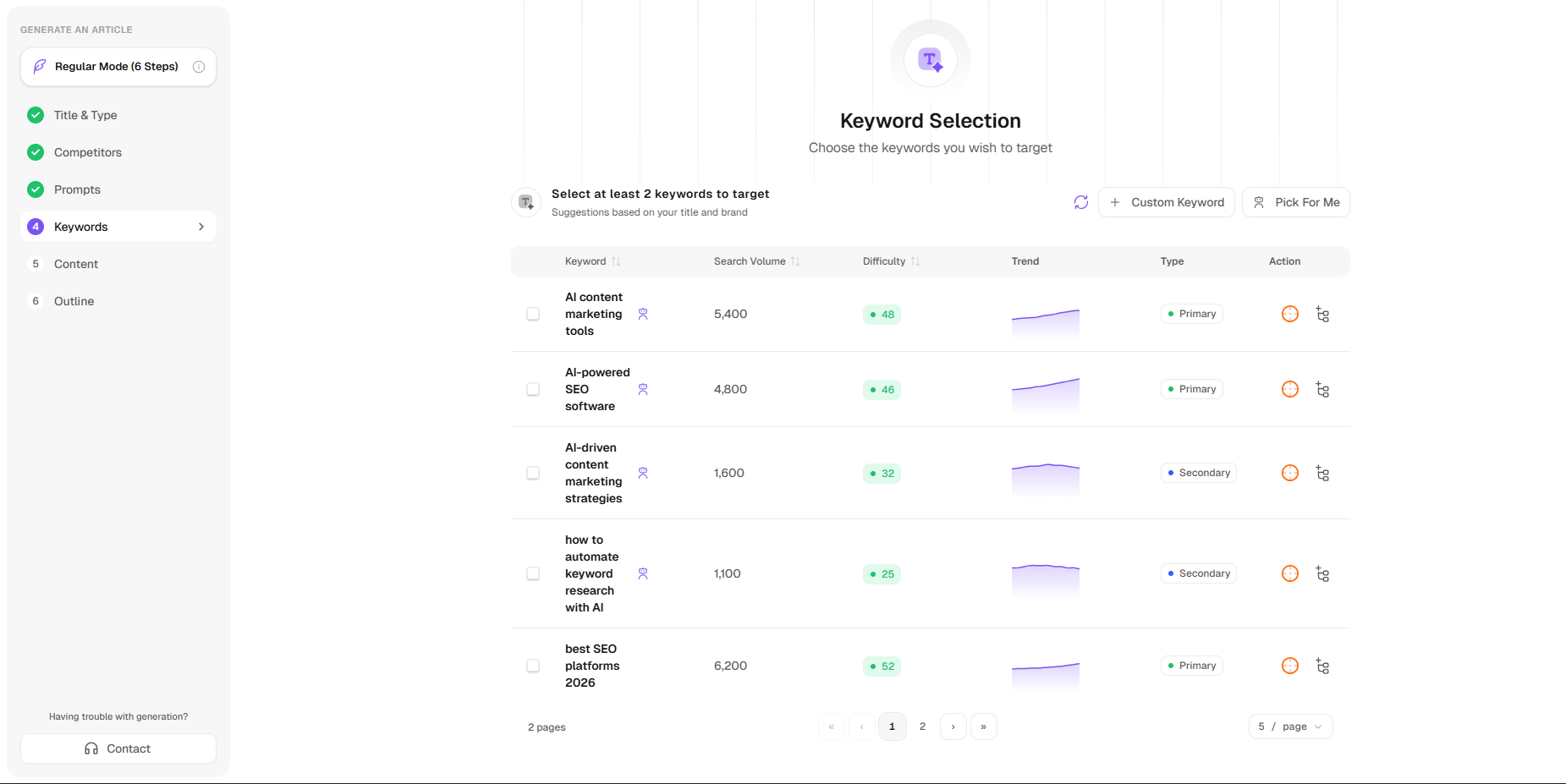
 **What this step does:**
You choose the keywords your article should rank for from the keyword selection table.
**What you do:**
* Select your primary keyword (main focus)
* Select your secondary keywords (supporting topics)
**Understanding the keyword table headers:**
* **Search Volume**: Estimated monthly searches for the keyword. Higher volume means higher potential reach.
* **Difficulty**: Relative ranking difficulty score. Higher values usually require stronger domain authority and better content quality.
* **Trend**: A mini trend graph showing recent demand direction (rising, stable, or softening).
* **Type**: Keyword role in the article, usually **Primary** (core target) or **Secondary** (supporting relevance).
* **Action**: Quick controls to include/exclude or adjust keyword assignment before moving to content generation.
**Why this matters:** Prioritizing keywords using volume, difficulty, and trend helps you target terms that are both attainable and valuable.
**What this step does:**
You choose the keywords your article should rank for from the keyword selection table.
**What you do:**
* Select your primary keyword (main focus)
* Select your secondary keywords (supporting topics)
**Understanding the keyword table headers:**
* **Search Volume**: Estimated monthly searches for the keyword. Higher volume means higher potential reach.
* **Difficulty**: Relative ranking difficulty score. Higher values usually require stronger domain authority and better content quality.
* **Trend**: A mini trend graph showing recent demand direction (rising, stable, or softening).
* **Type**: Keyword role in the article, usually **Primary** (core target) or **Secondary** (supporting relevance).
* **Action**: Quick controls to include/exclude or adjust keyword assignment before moving to content generation.
**Why this matters:** Prioritizing keywords using volume, difficulty, and trend helps you target terms that are both attainable and valuable.
 **What this step does:**
You define how the article will be written.
**Article Type**
* **Pillar Post**: Comprehensive overviews of broad topics that act as the main authority page.
* **Cluster Post**: Deep dives into specific subtopics that link back to a pillar page.
* **Generic Post**: Standalone articles that do not belong to a structured topical cluster.
**Tone and Style**
* Auto (Based on brand)
* Professional
* Conversational
* Expert
* Casual
* Academic
* Creative
* Custom
**Internal Linking**
Internal links strengthen topical relevance, improve crawl flow, and help distribute authority across your content. You can manually add related articles with **+ Add Articles**, or use **Pick For Me** to let SnowSEO choose the best internal-link candidates for you.
**Why this matters:** It controls readability, SEO depth, and site structure.
**What this step does:**
SnowSEO generates a structured outline for your article.
Finalize the outline before generation. Review the proposed H2/H3 structure, adjust section order, and keep or remove optional sections such as CTA, FAQ, and Conclusion.
Once the outline matches your intent, generate the article.
**What you can do:**
Review and edit the outline before final generation.
**Why this matters:** A strong outline improves both ranking potential and readability.
***
## Ask AI
Stuck on where to start? The editor has a built-in AI assistant. Open it inline by selecting text or starting on a new empty line — the menu placeholder reads **"Ask AI anything..."**
### Refine any selection
Highlight any paragraph or sentence to reveal the inline AI menu:
| Action | What it does |
| -------------------------- | -------------------------------------------------------- |
| **Improve writing** | Fixes awkward phrasing and makes the text clearer |
| **Make longer** | Adds more depth and detail to a thin paragraph |
| **Make shorter** | Cuts filler words while keeping the core message |
| **Simplify language** | Converts technical jargon into plain, easy-to-read prose |
| **Fix spelling & grammar** | Cleans up typos and grammatical errors |
| **Emojify** | Adds tasteful emojis to liven up the text |
| **Comment** | Leaves an inline comment on the selection |
### Write from scratch
On an empty line, open the menu to **Continue writing**, **Add a summary**, or **Explain** — handy for drafting a section quickly before editing it yourself.
***
## Real-Time Content Score
The editor's **right panel** scores your content as you write, with an overall score from **0 to 100**. It's organized into three tabs — **Overview**, **Metadata**, and **Audit** — and breaks your score down across several dimensions:
How well your content targets its keyword across the title, headings, and body — and whether you've avoided over-optimization.
How completely your article covers the subtopics and questions readers expect for this keyword.
How well your content is structured for AI engines to extract and cite it — your GEO readiness.
Internal and external linking — whether you've linked to related pages on your site and to credible external sources.
Readability and writing-quality signals like reading level, complex words, and long sentences.
## The Content Calendar
If you're publishing multiple articles across different topics, it's easy to lose track of what's going live and when. The **Content Calendar** gives you a bird's-eye view of your entire publishing schedule — every planned, drafted, and published article, organized by date.
Think of the Content Calendar as your editorial command center. Instead of juggling spreadsheets, Trello boards, or sticky notes, everything lives here — synced with your articles automatically.
**What this step does:**
You define how the article will be written.
**Article Type**
* **Pillar Post**: Comprehensive overviews of broad topics that act as the main authority page.
* **Cluster Post**: Deep dives into specific subtopics that link back to a pillar page.
* **Generic Post**: Standalone articles that do not belong to a structured topical cluster.
**Tone and Style**
* Auto (Based on brand)
* Professional
* Conversational
* Expert
* Casual
* Academic
* Creative
* Custom
**Internal Linking**
Internal links strengthen topical relevance, improve crawl flow, and help distribute authority across your content. You can manually add related articles with **+ Add Articles**, or use **Pick For Me** to let SnowSEO choose the best internal-link candidates for you.
**Why this matters:** It controls readability, SEO depth, and site structure.
**What this step does:**
SnowSEO generates a structured outline for your article.
Finalize the outline before generation. Review the proposed H2/H3 structure, adjust section order, and keep or remove optional sections such as CTA, FAQ, and Conclusion.
Once the outline matches your intent, generate the article.
**What you can do:**
Review and edit the outline before final generation.
**Why this matters:** A strong outline improves both ranking potential and readability.
***
## Ask AI
Stuck on where to start? The editor has a built-in AI assistant. Open it inline by selecting text or starting on a new empty line — the menu placeholder reads **"Ask AI anything..."**
### Refine any selection
Highlight any paragraph or sentence to reveal the inline AI menu:
| Action | What it does |
| -------------------------- | -------------------------------------------------------- |
| **Improve writing** | Fixes awkward phrasing and makes the text clearer |
| **Make longer** | Adds more depth and detail to a thin paragraph |
| **Make shorter** | Cuts filler words while keeping the core message |
| **Simplify language** | Converts technical jargon into plain, easy-to-read prose |
| **Fix spelling & grammar** | Cleans up typos and grammatical errors |
| **Emojify** | Adds tasteful emojis to liven up the text |
| **Comment** | Leaves an inline comment on the selection |
### Write from scratch
On an empty line, open the menu to **Continue writing**, **Add a summary**, or **Explain** — handy for drafting a section quickly before editing it yourself.
***
## Real-Time Content Score
The editor's **right panel** scores your content as you write, with an overall score from **0 to 100**. It's organized into three tabs — **Overview**, **Metadata**, and **Audit** — and breaks your score down across several dimensions:
How well your content targets its keyword across the title, headings, and body — and whether you've avoided over-optimization.
How completely your article covers the subtopics and questions readers expect for this keyword.
How well your content is structured for AI engines to extract and cite it — your GEO readiness.
Internal and external linking — whether you've linked to related pages on your site and to credible external sources.
Readability and writing-quality signals like reading level, complex words, and long sentences.
## The Content Calendar
If you're publishing multiple articles across different topics, it's easy to lose track of what's going live and when. The **Content Calendar** gives you a bird's-eye view of your entire publishing schedule — every planned, drafted, and published article, organized by date.
Think of the Content Calendar as your editorial command center. Instead of juggling spreadsheets, Trello boards, or sticky notes, everything lives here — synced with your articles automatically.
 ***
### What You See on the Calendar
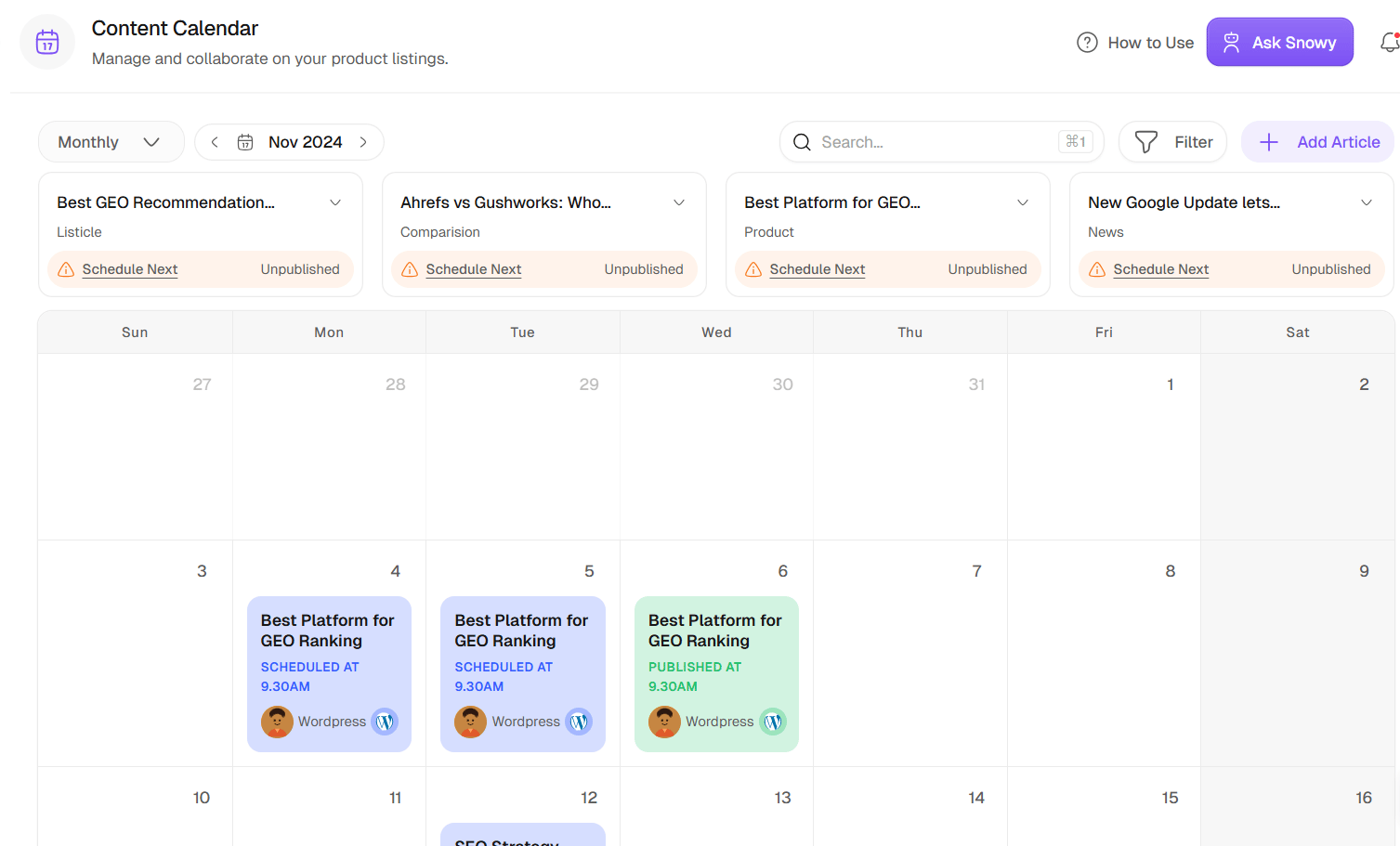
Each article appears as a card on its scheduled date, showing:
* **Article Title** — Click it to open the editor and make changes.
* **Category Badge** — Shows the article format: **Listicles**, **Comparison**, **News**, **Review**, **Guide**, and more.
* **Status** — The article's status badge: **Draft**, **Generated**, **Scheduled**, or **Published**.
* **Publish Date** — When it's scheduled to go live. Overdue articles are highlighted.
***
### Filtering the Calendar
Use the dropdown to show only what you need:
* **All** — everything in your content pipeline
* **Draft** — articles you're still working on
* **Scheduled** — articles with a future publish date
* **Published** — articles already live on your site
You can also use the date selector to jump to a specific month or week.
***
### Scheduling & Rescheduling
**To schedule a new article:** When you create an article in the editor, set a publish date. It automatically appears on the calendar for that date.
**To reschedule:** Open the article, update the publish date — the card moves to the new date automatically.
**To track progress:** Look ahead at the next 7 days to prepare. If a week looks light, plan new articles. If it looks overloaded, spread things out.
***
### Quick Tips
* **Plan 2–4 weeks ahead.** The best content teams work ahead, not week-to-week.
* **Mix your content types.** A healthy calendar has a balance of listicles, guides, comparisons, and news.
* **Align with topic clusters.** Publish cluster articles within a 2–4 week window for maximum authority impact.
* **Be realistic.** Two well-optimized articles per week beats five rushed ones.
## Mindmap View
The **Mindmap** view visualizes your content as a connected graph — pillar articles at the center with their cluster articles branching out. It's a quick way to see how your articles relate to each other and to spot gaps in a topic.
## Kanban View
The **Kanban** view is **coming soon**. It will let you manage your articles on a visual board with columns for **In Progress**, **Draft**, **Scheduled**, and **Published** — drag and drop to move an article between stages.
***
## Tracking Performance After Publishing
Once an article goes live, SnowSEO switches from writing tool to performance tracker. From the **Articles** list you can see each article's **Visitors** (from GA4 or PostHog) and **SEO Score**, while ranking movement flows into **Rank Tracking**:
Daily position updates for the article's target keyword. Rankings are updated once per day — not in real time.
Total clicks, impressions, and sessions from Google — pulled from your Search Console and GA4 connections.
Estimates the advertising cost equivalent of your website traffic. If your article gets 500 clicks/month for a keyword with a $3 CPC, the ROI is $1,500/month in traffic value — for free.
New articles typically take **3–6 months** to reach their peak ranking potential. Don't judge an article's success in the first 30 days — evaluate at 90-day and 180-day intervals instead.
***
## Frequently Asked Questions
Yes — if you've connected your CMS (WordPress, Webflow, Ghost, and others) via **Settings → Integrations**, clicking "Publish Now" sends the formatted article directly to your live site. If you prefer to review before publishing, choose "Save as Draft in CMS" instead.
We recommend **70 or above**. Below 70, the article likely has keyword gaps, structural issues, or missing technical signals that will hurt its ranking potential. The analyzer's checklist tells you exactly what's missing.
You can paste existing content directly into the editor. The SEO Analyzer will immediately score it and surface suggestions for improvement, so you can optimize existing work just as easily as new drafts.
Both are possible. You can generate a full draft from an outline and then edit it yourself, or use the inline AI tools section-by-section to draft specific parts while writing the rest manually. Most teams find a hybrid approach gives the best results — AI for speed, human for voice and accuracy.
No. Google's guidelines penalize **low-quality** content, not AI content. If the content is helpful, well-structured, and accurate, it can rank — regardless of how it was written. We recommend reviewing every AI-generated draft before publishing to catch any factual errors and add your own insights.
Collaborative real-time editing (like Google Docs) isn't available yet — it's on our roadmap. For now, anyone on your team with access to the brand can open and edit the same articles.
There's no bulk CSV import yet. You can bring existing content in by pasting it straight into the article editor — the score panel analyzes it immediately — and create new pieces with Quick or Regular mode. Bulk import is on our roadmap.
A content brief is a research document that tells a writer exactly what to cover in an article to rank well. It includes the target keyword, recommended headings, related terms to include, competitor analysis, and word count targets. Without a brief, writers guess at what to cover — often missing key topics that would help the article rank.
No — the calendar works fully without GA4. But to see **website traffic and Content ROI** data on published articles, you'll need both Google Search Console and GA4 connected in **Settings → Integrations**. Without them, the performance section will show as unavailable.
Yes. Each article card is independent — you can have 3 articles in Drafting, 2 in Review, and 1 in Scheduled simultaneously. There's no limit on how many articles can be in each stage.
Not yet — but it's on our roadmap. Currently, the best workflow is to manage your schedule in SnowSEO and export the CSV for sharing with external tools. A two-way Notion sync is planned for a future release.
Content ROI is the estimated dollar value of your website traffic, calculated using the CPC (cost-per-click) of your keywords. For example: if an article ranks for a keyword with a $5 CPC and drives 400 visitors/month, that's $2,000/month in traffic value. It doesn't mean you earned that money — it's how much you'd have paid in Google Ads to get the same visitors.
***
### What You See on the Calendar
Each article appears as a card on its scheduled date, showing:
* **Article Title** — Click it to open the editor and make changes.
* **Category Badge** — Shows the article format: **Listicles**, **Comparison**, **News**, **Review**, **Guide**, and more.
* **Status** — The article's status badge: **Draft**, **Generated**, **Scheduled**, or **Published**.
* **Publish Date** — When it's scheduled to go live. Overdue articles are highlighted.
***
### Filtering the Calendar
Use the dropdown to show only what you need:
* **All** — everything in your content pipeline
* **Draft** — articles you're still working on
* **Scheduled** — articles with a future publish date
* **Published** — articles already live on your site
You can also use the date selector to jump to a specific month or week.
***
### Scheduling & Rescheduling
**To schedule a new article:** When you create an article in the editor, set a publish date. It automatically appears on the calendar for that date.
**To reschedule:** Open the article, update the publish date — the card moves to the new date automatically.
**To track progress:** Look ahead at the next 7 days to prepare. If a week looks light, plan new articles. If it looks overloaded, spread things out.
***
### Quick Tips
* **Plan 2–4 weeks ahead.** The best content teams work ahead, not week-to-week.
* **Mix your content types.** A healthy calendar has a balance of listicles, guides, comparisons, and news.
* **Align with topic clusters.** Publish cluster articles within a 2–4 week window for maximum authority impact.
* **Be realistic.** Two well-optimized articles per week beats five rushed ones.
## Mindmap View
The **Mindmap** view visualizes your content as a connected graph — pillar articles at the center with their cluster articles branching out. It's a quick way to see how your articles relate to each other and to spot gaps in a topic.
## Kanban View
The **Kanban** view is **coming soon**. It will let you manage your articles on a visual board with columns for **In Progress**, **Draft**, **Scheduled**, and **Published** — drag and drop to move an article between stages.
***
## Tracking Performance After Publishing
Once an article goes live, SnowSEO switches from writing tool to performance tracker. From the **Articles** list you can see each article's **Visitors** (from GA4 or PostHog) and **SEO Score**, while ranking movement flows into **Rank Tracking**:
Daily position updates for the article's target keyword. Rankings are updated once per day — not in real time.
Total clicks, impressions, and sessions from Google — pulled from your Search Console and GA4 connections.
Estimates the advertising cost equivalent of your website traffic. If your article gets 500 clicks/month for a keyword with a $3 CPC, the ROI is $1,500/month in traffic value — for free.
New articles typically take **3–6 months** to reach their peak ranking potential. Don't judge an article's success in the first 30 days — evaluate at 90-day and 180-day intervals instead.
***
## Frequently Asked Questions
Yes — if you've connected your CMS (WordPress, Webflow, Ghost, and others) via **Settings → Integrations**, clicking "Publish Now" sends the formatted article directly to your live site. If you prefer to review before publishing, choose "Save as Draft in CMS" instead.
We recommend **70 or above**. Below 70, the article likely has keyword gaps, structural issues, or missing technical signals that will hurt its ranking potential. The analyzer's checklist tells you exactly what's missing.
You can paste existing content directly into the editor. The SEO Analyzer will immediately score it and surface suggestions for improvement, so you can optimize existing work just as easily as new drafts.
Both are possible. You can generate a full draft from an outline and then edit it yourself, or use the inline AI tools section-by-section to draft specific parts while writing the rest manually. Most teams find a hybrid approach gives the best results — AI for speed, human for voice and accuracy.
No. Google's guidelines penalize **low-quality** content, not AI content. If the content is helpful, well-structured, and accurate, it can rank — regardless of how it was written. We recommend reviewing every AI-generated draft before publishing to catch any factual errors and add your own insights.
Collaborative real-time editing (like Google Docs) isn't available yet — it's on our roadmap. For now, anyone on your team with access to the brand can open and edit the same articles.
There's no bulk CSV import yet. You can bring existing content in by pasting it straight into the article editor — the score panel analyzes it immediately — and create new pieces with Quick or Regular mode. Bulk import is on our roadmap.
A content brief is a research document that tells a writer exactly what to cover in an article to rank well. It includes the target keyword, recommended headings, related terms to include, competitor analysis, and word count targets. Without a brief, writers guess at what to cover — often missing key topics that would help the article rank.
No — the calendar works fully without GA4. But to see **website traffic and Content ROI** data on published articles, you'll need both Google Search Console and GA4 connected in **Settings → Integrations**. Without them, the performance section will show as unavailable.
Yes. Each article card is independent — you can have 3 articles in Drafting, 2 in Review, and 1 in Scheduled simultaneously. There's no limit on how many articles can be in each stage.
Not yet — but it's on our roadmap. Currently, the best workflow is to manage your schedule in SnowSEO and export the CSV for sharing with external tools. A two-way Notion sync is planned for a future release.
Content ROI is the estimated dollar value of your website traffic, calculated using the CPC (cost-per-click) of your keywords. For example: if an article ranks for a keyword with a $5 CPC and drives 400 visitors/month, that's $2,000/month in traffic value. It doesn't mean you earned that money — it's how much you'd have paid in Google Ads to get the same visitors.