> ## Documentation Index
> Fetch the complete documentation index at: https://snowseo.com/docs/llms.txt
> Use this file to discover all available pages before exploring further.
# AI Visibility
> Track how often AI tools like ChatGPT, Perplexity, and Google Gemini cite your brand as a trusted source.
Ranking #1 on Google used to be the ultimate goal. But today, a growing number of users skip Google entirely and go straight to **ChatGPT, Perplexity, or Google's AI Overviews** for answers. If these AI tools don't reference your brand, you're invisible to those users — regardless of your Google ranking.
**AI Visibility** measures exactly that: how often AI-generated answers use your website as a source, and how you compare to competitors for the same topics.
You can rank #1 in traditional Google search and still be completely ignored by AI. SnowSEO helps you close that gap.
***
## Setting Up AI Visibility Tracking
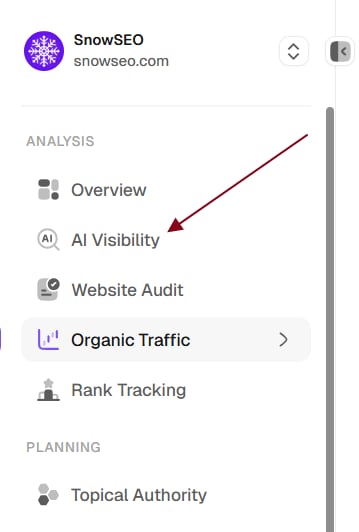 In the sidebar, go to **Analysis → AI Visibility** and confirm you're inside the correct Brand workspace. If you manage multiple sites, switch to the right Brand first.
Before you can track prompts, your team needs at least one AI platform enabled. Go to **Settings → Automation Settings → AI Visibility** and enable the platforms you want to use (ChatGPT, Claude, Gemini, Perplexity, etc.). Without active platforms, the "Add Prompts" button will show a "No AI Providers Enabled" prompt.
Go to the **Prompts** tab and click **Add Prompts → Single prompt** or **Bulk import**. Enter search queries that your potential customers would ask — for example:
* "What's the best CRM for small businesses"
* "How to improve website traffic"
* "\[Your brand name] vs \[competitor]"
Prompts that mention your brand will be automatically classified as **Branded**; others are **Unbranded**.
Each prompt is processed against every enabled AI platform. Processing time depends on the number of prompts and platforms — typically **24–48 hours** for initial data. You can check progress in the Prompts table (processing prompts show a spinner).
Once processing completes, note your **AI Visibility score**, **Share of Voice**, **Citations**, and **Sentiment** on the Overview tab. These are your baselines for measuring progress. Use the date range filter to see how metrics change over time.
Open the **Competitors** tab to see all detected competitors, their visibility scores, and your Share of Voice. Use the **Citations** tab to understand which of your pages are being cited most often by AI.
Prompts refresh automatically based on your plan's refresh interval (default 15 days). Check the **Competitors** and **Citations** tabs weekly to monitor trends and identify new competitors or citation opportunities.
New projects usually need **24–48 hours** for initial data population. After that, metrics refresh on each prompt's scheduled cycle.
Don't just track generic industry queries — add prompts that include competitor brand names. For example, if you're a CRM company, track prompts like "HubSpot vs \[your brand]" or "best CRM for startups \[competitor]." This reveals exactly how AI positions you against specific rivals and uncovers visibility gaps you wouldn't see from generic prompts alone.
***
## How AI Visibility Tracking Works
SnowSEO tracks your brand's presence across AI platforms by regularly running **tracked prompts** — search queries relevant to your industry — against multiple AI platforms. Each time a prompt runs, SnowSEO:
1. Sends the prompt to your activated AI platforms (ChatGPT, Claude, Gemini, Perplexity, Grok, DeepSeek, Meta Llama)
2. Collects the raw AI response text
3. Extracts every brand mentioned, their position in the response, sentiment, and cited sources
4. Computes visibility metrics based on how prominently your brand appears compared to competitors
This process runs automatically on a refresh cycle (configurable per plan, default 15 days) so your data stays current without manual intervention.
In the sidebar, go to **Analysis → AI Visibility** and confirm you're inside the correct Brand workspace. If you manage multiple sites, switch to the right Brand first.
Before you can track prompts, your team needs at least one AI platform enabled. Go to **Settings → Automation Settings → AI Visibility** and enable the platforms you want to use (ChatGPT, Claude, Gemini, Perplexity, etc.). Without active platforms, the "Add Prompts" button will show a "No AI Providers Enabled" prompt.
Go to the **Prompts** tab and click **Add Prompts → Single prompt** or **Bulk import**. Enter search queries that your potential customers would ask — for example:
* "What's the best CRM for small businesses"
* "How to improve website traffic"
* "\[Your brand name] vs \[competitor]"
Prompts that mention your brand will be automatically classified as **Branded**; others are **Unbranded**.
Each prompt is processed against every enabled AI platform. Processing time depends on the number of prompts and platforms — typically **24–48 hours** for initial data. You can check progress in the Prompts table (processing prompts show a spinner).
Once processing completes, note your **AI Visibility score**, **Share of Voice**, **Citations**, and **Sentiment** on the Overview tab. These are your baselines for measuring progress. Use the date range filter to see how metrics change over time.
Open the **Competitors** tab to see all detected competitors, their visibility scores, and your Share of Voice. Use the **Citations** tab to understand which of your pages are being cited most often by AI.
Prompts refresh automatically based on your plan's refresh interval (default 15 days). Check the **Competitors** and **Citations** tabs weekly to monitor trends and identify new competitors or citation opportunities.
New projects usually need **24–48 hours** for initial data population. After that, metrics refresh on each prompt's scheduled cycle.
Don't just track generic industry queries — add prompts that include competitor brand names. For example, if you're a CRM company, track prompts like "HubSpot vs \[your brand]" or "best CRM for startups \[competitor]." This reveals exactly how AI positions you against specific rivals and uncovers visibility gaps you wouldn't see from generic prompts alone.
***
## How AI Visibility Tracking Works
SnowSEO tracks your brand's presence across AI platforms by regularly running **tracked prompts** — search queries relevant to your industry — against multiple AI platforms. Each time a prompt runs, SnowSEO:
1. Sends the prompt to your activated AI platforms (ChatGPT, Claude, Gemini, Perplexity, Grok, DeepSeek, Meta Llama)
2. Collects the raw AI response text
3. Extracts every brand mentioned, their position in the response, sentiment, and cited sources
4. Computes visibility metrics based on how prominently your brand appears compared to competitors
This process runs automatically on a refresh cycle (configurable per plan, default 15 days) so your data stays current without manual intervention.
 ***
## Global Filters
At the top of every AI Visibility tab, a **filter bar** lets you scope the data:
| Filter | Options | What it does |
| -------------- | --------------------------------------------------------------------------------------------------------------------------------------- | ----------------------------------------------------------------------------------------------------------------------------------------- |
| **Platform** | All Platforms, plus any AI provider your team has enabled (ChatGPT, Claude, Gemini, Perplexity, Grok, DeepSeek, Meta Llama, and others) | Filter data to a specific AI provider. The list is built from the platforms you've activated, so it changes as you enable or disable them |
| **Competitor** | All Competitors, or a specific competitor brand | Compare against one competitor |
| **Country** | All Countries, or a specific country | Regional search context |
| **Date range** | This Week, Last Week, 7d, 30d, 90d, 180d, 365d, Custom | Time window for response data |
Inside the **Filter** dropdown, a **Type** group also lets you scope the data to **All**, **Branded**, or **Unbranded** prompts only.
***
## Global Filters
At the top of every AI Visibility tab, a **filter bar** lets you scope the data:
| Filter | Options | What it does |
| -------------- | --------------------------------------------------------------------------------------------------------------------------------------- | ----------------------------------------------------------------------------------------------------------------------------------------- |
| **Platform** | All Platforms, plus any AI provider your team has enabled (ChatGPT, Claude, Gemini, Perplexity, Grok, DeepSeek, Meta Llama, and others) | Filter data to a specific AI provider. The list is built from the platforms you've activated, so it changes as you enable or disable them |
| **Competitor** | All Competitors, or a specific competitor brand | Compare against one competitor |
| **Country** | All Countries, or a specific country | Regional search context |
| **Date range** | This Week, Last Week, 7d, 30d, 90d, 180d, 365d, Custom | Time window for response data |
Inside the **Filter** dropdown, a **Type** group also lets you scope the data to **All**, **Branded**, or **Unbranded** prompts only.
 ***
## AI Visibility Tabs
The AI Visibility dashboard has four tabs, accessed from **Analysis → AI Visibility** in the sidebar: **Overview**, **Competitors**, **Citations**, and **Prompts**.
The **Overview** tab is your at-a-glance summary of how your brand is performing across AI platforms — visibility, share of voice, citations, sentiment, and how you stack up against competitors. Everything here respects the global filters at the top of the page.
### Top Metric Cards
Three summary cards headline the tab, each with a sparkline and a change indicator versus the previous period:
Your overall AI Visibility score for the selected period.
How much of the AI conversation your brand owns versus everyone else.
How often your brand is cited with a source URL in AI responses.
***
### Visibility Overview
Two side-by-side widgets:
* **Brand Visibility** — a multi-brand line chart of visibility over time. Use the brand/segment filter to choose which brands to compare (up to 5 at once), and pin your own brand to keep it in view.
* **Leaderboard** — a ranked table of brands by visibility, with columns for **Brand**, **Mentions**, **Visibility**, **DR** (Ahrefs Domain Rating, 0–100), and **Position** (average rank, color-coded by tier).
***
### Share of Voice
* **Share of Voice Over Time** — a stacked area chart showing how SOV shifts between brands over the period (compare up to 11 brands).
* **Share of Voice** — a donut chart of the current SOV split with a clickable brand legend.
***
### Citations
A compact breakdown of your citations by **page type** and **domain category**. Click **View Details** to jump to the full **Citations** tab.
***
### AI Platforms
A per-platform breakdown of how each AI provider mentions and cites your brand — toggle between mention counts and average position.
***
### Sentiments
* **Sentiment Distribution** — a bubble chart of Positive / Neutral / Negative mentions with the percentage split and change.
* **Sentiments Over Time** — a stacked area chart tracking how sentiment moves across the period.
***
### Competitors
* **Brand VS Competitors** — a radar chart comparing your brand against a selected competitor across **Visibility**, **Mentions**, **Citations**, **Sentiment**, and **Share of Voice**.
* **Performance Comparison** — a table with the same five metrics for your brand, the chosen competitor (or the average competitor), and the difference.
Click **View All** to open the full **Competitors** tab.
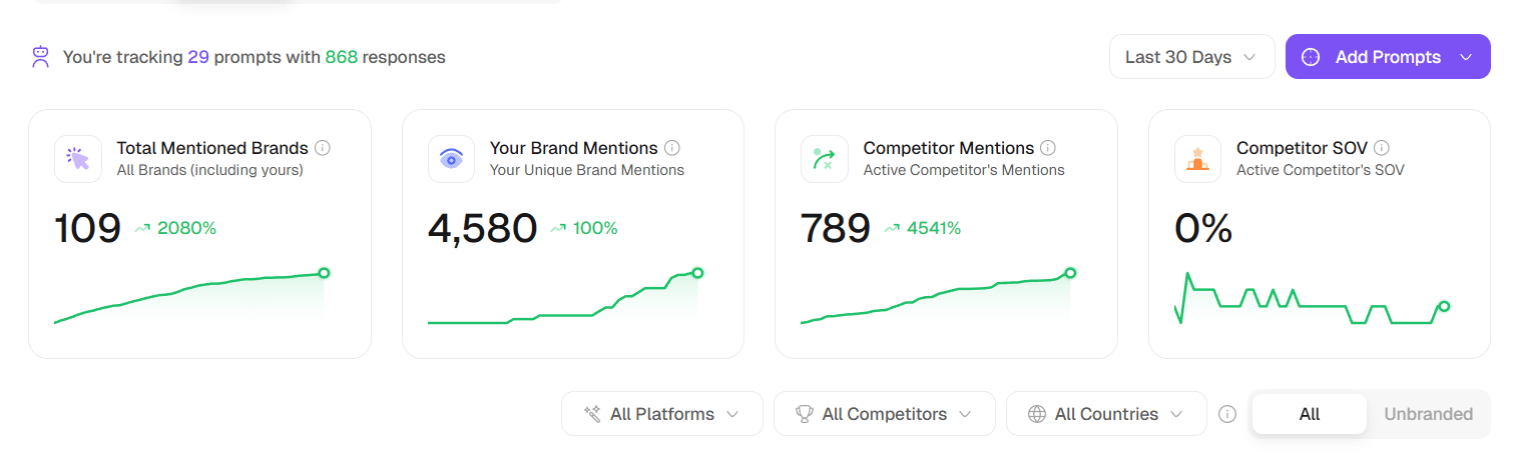
The **Competitors** tab gives you a competitive intelligence view — it shows every brand detected in AI responses and how they stack up against each other.
### Top Metric Cards
The total number of unique brands detected across all AI responses for your tracked prompts.
How many times your own brand was mentioned across all AI responses.
Total mentions across all active competitors you've configured.
***
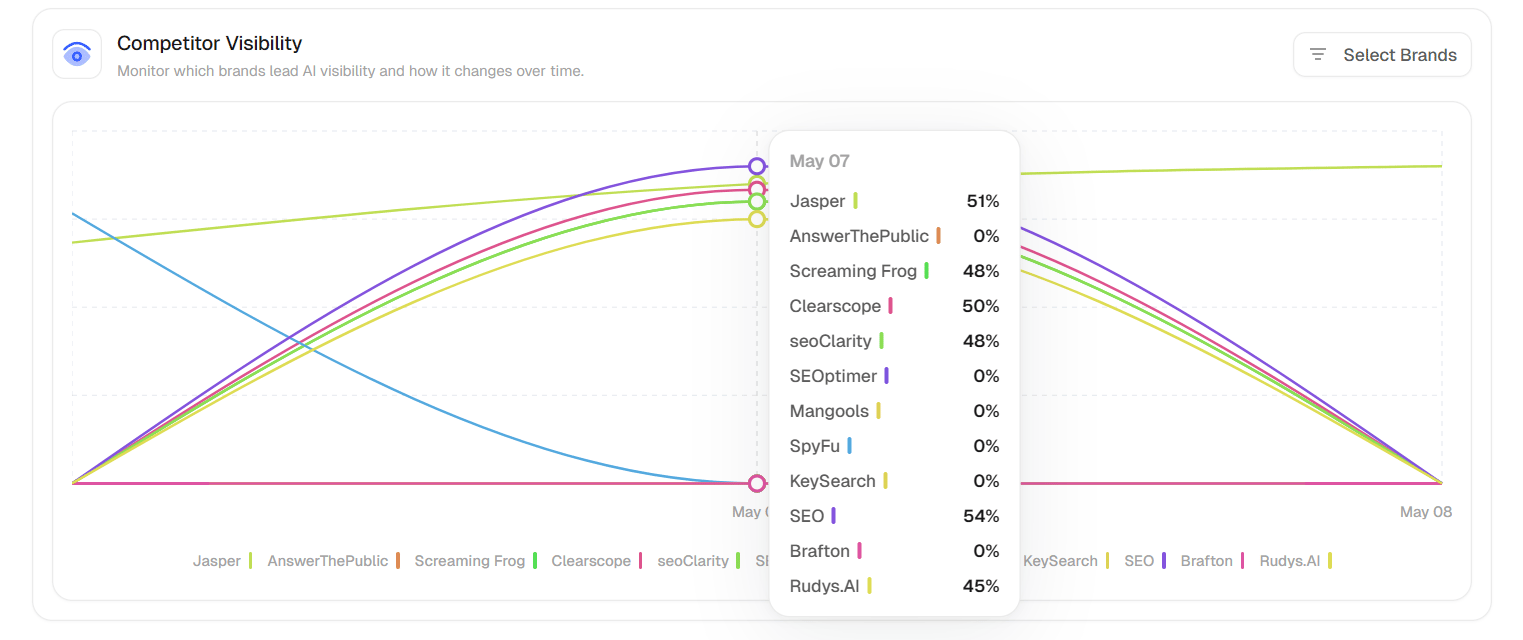
### Competitor Visibility
A line chart comparing visibility trends over time for selected brands. Use the filter panel (All / Segments tabs) to choose which brands to compare. You can select up to 12 brands at once.
***
## AI Visibility Tabs
The AI Visibility dashboard has four tabs, accessed from **Analysis → AI Visibility** in the sidebar: **Overview**, **Competitors**, **Citations**, and **Prompts**.
The **Overview** tab is your at-a-glance summary of how your brand is performing across AI platforms — visibility, share of voice, citations, sentiment, and how you stack up against competitors. Everything here respects the global filters at the top of the page.
### Top Metric Cards
Three summary cards headline the tab, each with a sparkline and a change indicator versus the previous period:
Your overall AI Visibility score for the selected period.
How much of the AI conversation your brand owns versus everyone else.
How often your brand is cited with a source URL in AI responses.
***
### Visibility Overview
Two side-by-side widgets:
* **Brand Visibility** — a multi-brand line chart of visibility over time. Use the brand/segment filter to choose which brands to compare (up to 5 at once), and pin your own brand to keep it in view.
* **Leaderboard** — a ranked table of brands by visibility, with columns for **Brand**, **Mentions**, **Visibility**, **DR** (Ahrefs Domain Rating, 0–100), and **Position** (average rank, color-coded by tier).
***
### Share of Voice
* **Share of Voice Over Time** — a stacked area chart showing how SOV shifts between brands over the period (compare up to 11 brands).
* **Share of Voice** — a donut chart of the current SOV split with a clickable brand legend.
***
### Citations
A compact breakdown of your citations by **page type** and **domain category**. Click **View Details** to jump to the full **Citations** tab.
***
### AI Platforms
A per-platform breakdown of how each AI provider mentions and cites your brand — toggle between mention counts and average position.
***
### Sentiments
* **Sentiment Distribution** — a bubble chart of Positive / Neutral / Negative mentions with the percentage split and change.
* **Sentiments Over Time** — a stacked area chart tracking how sentiment moves across the period.
***
### Competitors
* **Brand VS Competitors** — a radar chart comparing your brand against a selected competitor across **Visibility**, **Mentions**, **Citations**, **Sentiment**, and **Share of Voice**.
* **Performance Comparison** — a table with the same five metrics for your brand, the chosen competitor (or the average competitor), and the difference.
Click **View All** to open the full **Competitors** tab.
The **Competitors** tab gives you a competitive intelligence view — it shows every brand detected in AI responses and how they stack up against each other.
### Top Metric Cards
The total number of unique brands detected across all AI responses for your tracked prompts.
How many times your own brand was mentioned across all AI responses.
Total mentions across all active competitors you've configured.
***
### Competitor Visibility
A line chart comparing visibility trends over time for selected brands. Use the filter panel (All / Segments tabs) to choose which brands to compare. You can select up to 12 brands at once.
 ***
### Brand vs Competitors
Select a specific competitor from the dropdown to see a benchmark bar chart comparing your brand against them across **Mentions**, **Citations**, **Share of Voice**, and **Sentiment**. The tooltip shows the exact gap value.
***
### Competitor Share of Voice
Toggle between **Chart View** (bar chart showing SOV distribution) and **Table View** (sortable table with columns: Brand, Share of Voice, Mentions, Analysed Responses, Top Platform, SOV Change).
Each row shows a **Growing** or **Declining** badge so you can instantly see which brands are gaining or losing AI mindshare. Pin your brand to keep it fixed at the top.
***
### Brand vs Competitors
Select a specific competitor from the dropdown to see a benchmark bar chart comparing your brand against them across **Mentions**, **Citations**, **Share of Voice**, and **Sentiment**. The tooltip shows the exact gap value.
***
### Competitor Share of Voice
Toggle between **Chart View** (bar chart showing SOV distribution) and **Table View** (sortable table with columns: Brand, Share of Voice, Mentions, Analysed Responses, Top Platform, SOV Change).
Each row shows a **Growing** or **Declining** badge so you can instantly see which brands are gaining or losing AI mindshare. Pin your brand to keep it fixed at the top.
 ***
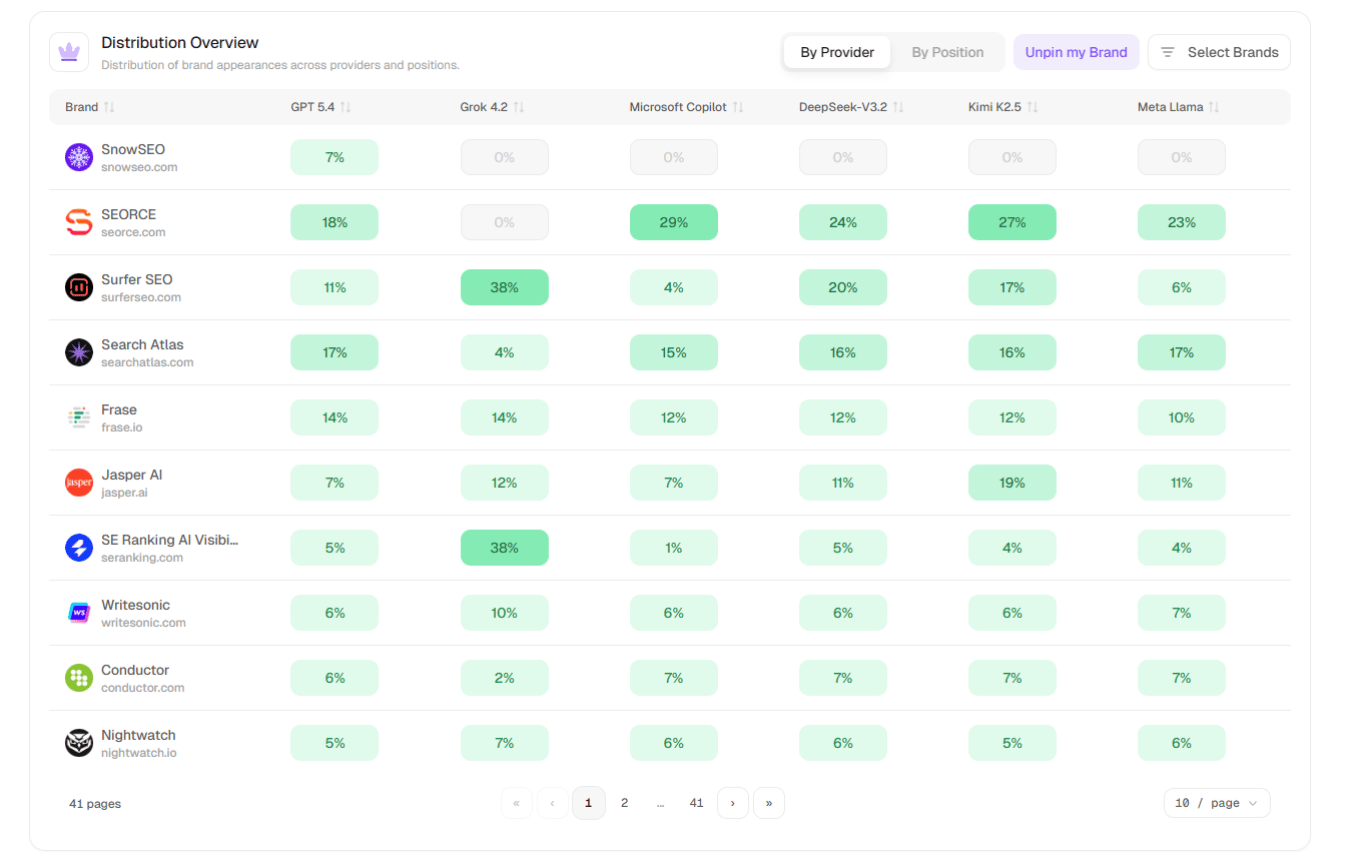
### Distribution Overview
Toggle between **By Provider** and **By Position** views. A color-coded data table shows the percentage share each brand has per AI provider or per position rank (#1 through #5+). Hover any cell to see the exact brand name and share value.
***
### Distribution Overview
Toggle between **By Provider** and **By Position** views. A color-coded data table shows the percentage share each brand has per AI provider or per position rank (#1 through #5+). Hover any cell to see the exact brand name and share value.
 ***
### All Mentioned Brands
A comprehensive table of every brand detected across your prompts. Filter by segment tabs: **All**, **Competitors**, **Leaders**, **Challengers**, or **Emerging**.
| Column | What it tells you |
| ------------------ | -------------------------------------------------- |
| **Brand** | Brand name, favicon, and website |
| **Visibility** | Score with trend arrow |
| **Mentions** | Count with trend arrow |
| **Citations** | Count with trend arrow |
| **Sentiment** | Icon + score |
| **Share of Voice** | Segment badge (Leader, Emerging, Challenger, etc.) |
Brands are segmented using quartile distribution based on a composite score: **40% SOV + 30% mentions + 30% visibility**. Momentum badges like "Growing" and "Declining" help you spot movers.
Keep an eye on the **Emerging** segment filter — these brands are gaining traction in AI responses but aren't yet dominant. An emerging competitor today could be your biggest AI visibility threat next quarter. Check this filter monthly to spot rising rivals before they become established names in your space.
Click any row to open the **Brand Summary** sidebar.
***
### All Mentioned Brands
A comprehensive table of every brand detected across your prompts. Filter by segment tabs: **All**, **Competitors**, **Leaders**, **Challengers**, or **Emerging**.
| Column | What it tells you |
| ------------------ | -------------------------------------------------- |
| **Brand** | Brand name, favicon, and website |
| **Visibility** | Score with trend arrow |
| **Mentions** | Count with trend arrow |
| **Citations** | Count with trend arrow |
| **Sentiment** | Icon + score |
| **Share of Voice** | Segment badge (Leader, Emerging, Challenger, etc.) |
Brands are segmented using quartile distribution based on a composite score: **40% SOV + 30% mentions + 30% visibility**. Momentum badges like "Growing" and "Declining" help you spot movers.
Keep an eye on the **Emerging** segment filter — these brands are gaining traction in AI responses but aren't yet dominant. An emerging competitor today could be your biggest AI visibility threat next quarter. Check this filter monthly to spot rising rivals before they become established names in your space.
Click any row to open the **Brand Summary** sidebar.
 The **Citations** tab shows exactly how and where your brand is being cited in AI responses — which pages, which domains, and which AI platforms.
### Top Metric Cards
The total number of times your brand was cited with a source URL across all AI responses.
The number of unique competitor brands also being cited in your tracked prompts.
The percentage of AI responses that cited your brand. Higher means more consistent citation.
The **Citations** tab shows exactly how and where your brand is being cited in AI responses — which pages, which domains, and which AI platforms.
### Top Metric Cards
The total number of times your brand was cited with a source URL across all AI responses.
The number of unique competitor brands also being cited in your tracked prompts.
The percentage of AI responses that cited your brand. Higher means more consistent citation.
 ***
### You vs Top Cited Domains
Toggle between **Chart View** (line chart comparing citation frequency over time for top domains) and **List View** (sortable table with columns: Source, Citation Share, Citations, Type).
***
### You vs Top Cited Domains
Toggle between **Chart View** (line chart comparing citation frequency over time for top domains) and **List View** (sortable table with columns: Source, Citation Share, Citations, Type).
 ***
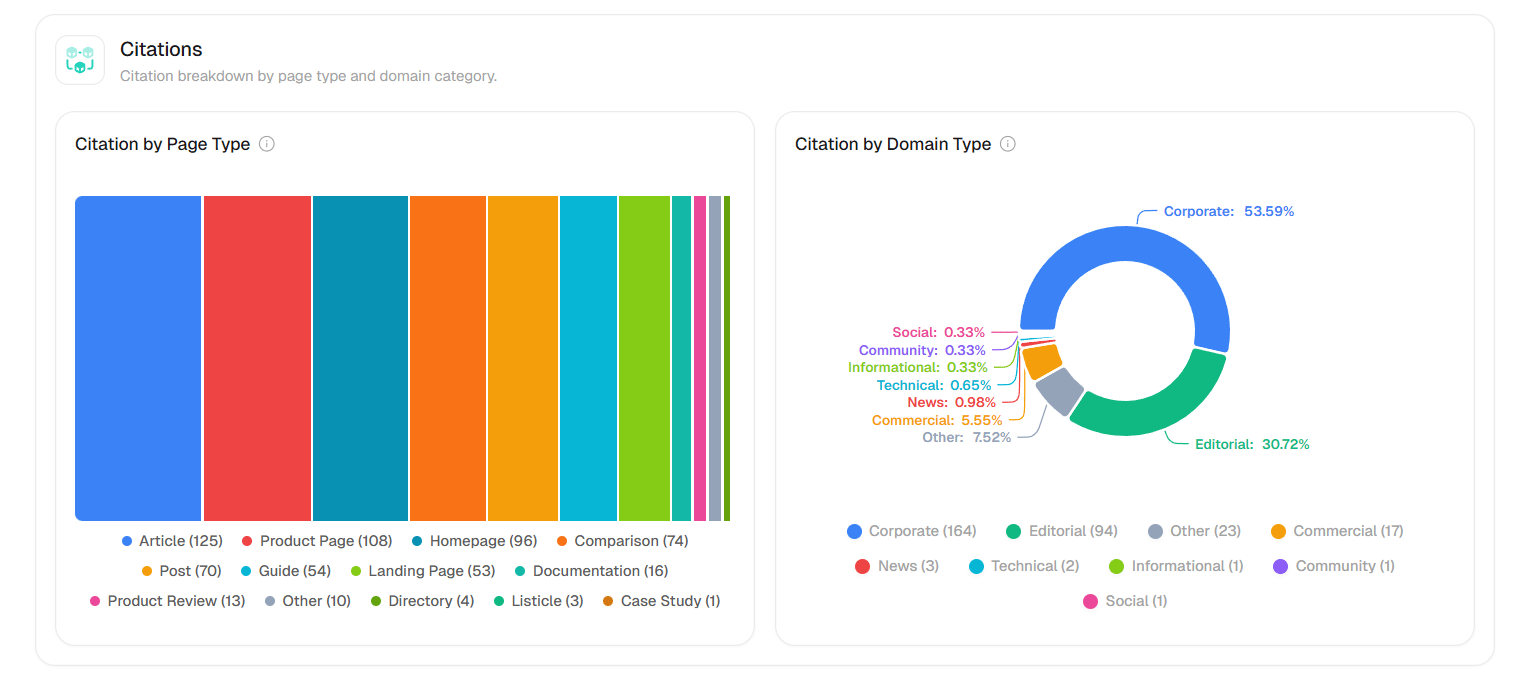
### Citations by Content Type
Two charts showing what kind of content gets cited:
* **Citation by Page Type** — A treemap showing the distribution of cited content types: article, listicle, guide, comparison, news, post, product page, how-to, review, and more (20+ types inferred from URL patterns).
* **Citation by Domain Type** — A donut chart showing source domain categories: corporate, editorial, news, community, social, government, educational, and more (15+ types inferred from hostname patterns).
Use the **Citation by Page Type** treemap as your content roadmap. If AI is citing mostly "how-to" guides and your site mainly has blog posts, pivot your content strategy toward structured, step-by-step guides. The formats AI cites most in your industry are a direct signal of what to create next.
***
### Citations by Content Type
Two charts showing what kind of content gets cited:
* **Citation by Page Type** — A treemap showing the distribution of cited content types: article, listicle, guide, comparison, news, post, product page, how-to, review, and more (20+ types inferred from URL patterns).
* **Citation by Domain Type** — A donut chart showing source domain categories: corporate, editorial, news, community, social, government, educational, and more (15+ types inferred from hostname patterns).
Use the **Citation by Page Type** treemap as your content roadmap. If AI is citing mostly "how-to" guides and your site mainly has blog posts, pivot your content strategy toward structured, step-by-step guides. The formats AI cites most in your industry are a direct signal of what to create next.
 ***
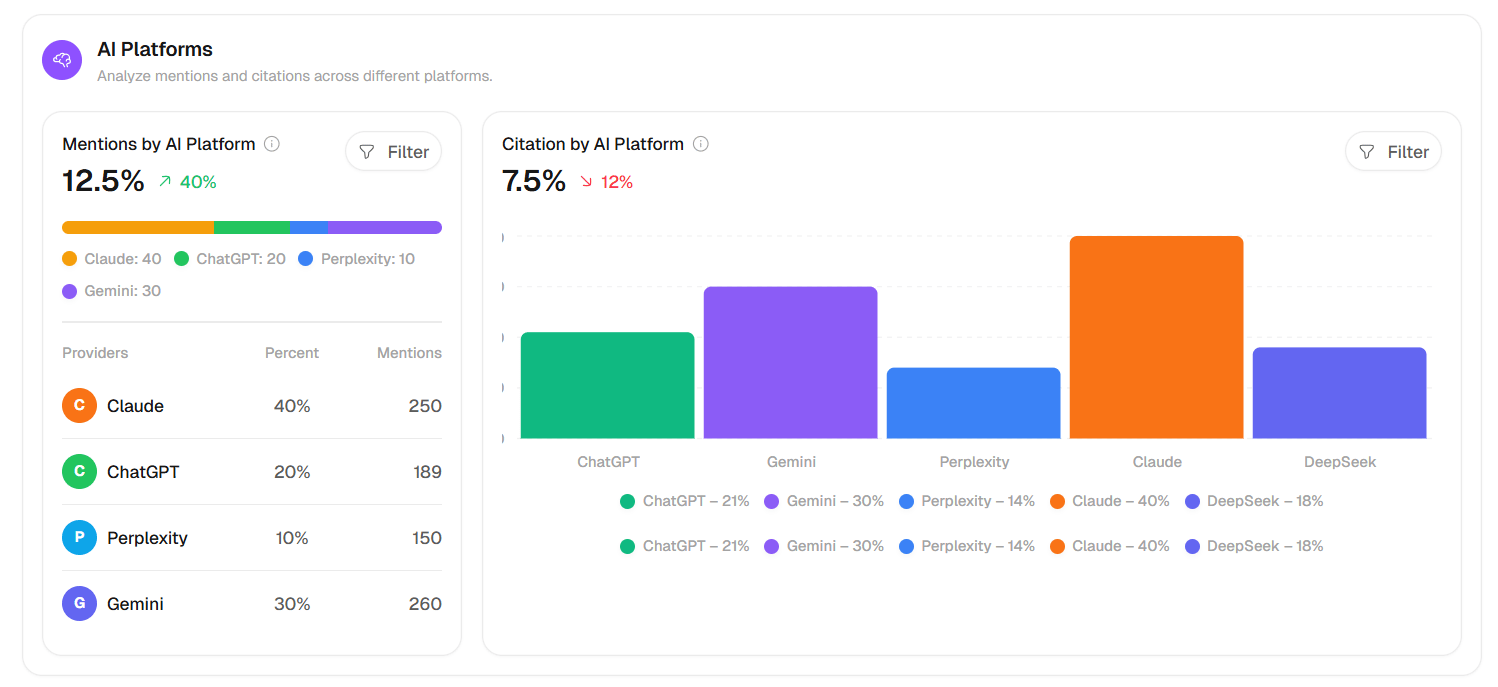
### AI Platforms
A breakdown of citation frequency by AI provider. Toggle between **Mentions** (bar chart showing how many times each platform cited you) and **Position** (average rank per platform).
***
### AI Platforms
A breakdown of citation frequency by AI provider. Toggle between **Mentions** (bar chart showing how many times each platform cited you) and **Position** (average rank per platform).
 ***
### Domain Table
Toggle between **Domain** view (grouped by domain) and **URL** view (individual URLs).
| Column | What it tells you |
| ---------------- | ---------------------------------------------------------------------- |
| **#** | Rank |
| **Domain / URL** | Source with favicon, truncated name, and full URL |
| **Prompts** | Number of prompts this source appears in (click to open brand summary) |
| **Type** | Color-coded pill (corporate, editorial, community, etc.) |
| **Citations** | Citation count with growth indicator |
| **Usage %** | Percentage with growth indicator |
| **Actions** | Toggle to mark as direct competitor |
Expand any domain row to see the individual child URLs from that domain. Use the search box to find specific sources, and pin your brand to keep it visible.
The **Prompts** tab is where you manage all your tracked search queries. Each prompt represents a specific question or search phrase that SnowSEO runs against AI platforms to measure your brand's visibility.
### Top Command Bar
The command bar shows:
* **"You're tracking X prompts with Y responses"** — your current tracking scope
* **Date filter** — scope the data to a time window
* **Add Prompts** button — opens a dropdown with two options:
* **Single prompt** — Opens the **Track New Prompt** dialog where you enter one query, select a region, and toggle auto-tracking
* **Bulk import** — Opens a dialog with a textarea where you can paste multiple prompts (one per line). SnowSEO detects the count and lets you set a region and toggle auto-tracking before importing
### Top Metric Cards
All prompts ever created for this brand.
Prompts that are actively being tracked (enabled).
Total AI responses collected across all prompts.
When you filter by **Branded** or **Unbranded**, these card titles update to match (for example, "Total Unbranded Prompts" and "Tracked Unbranded Prompts").
***
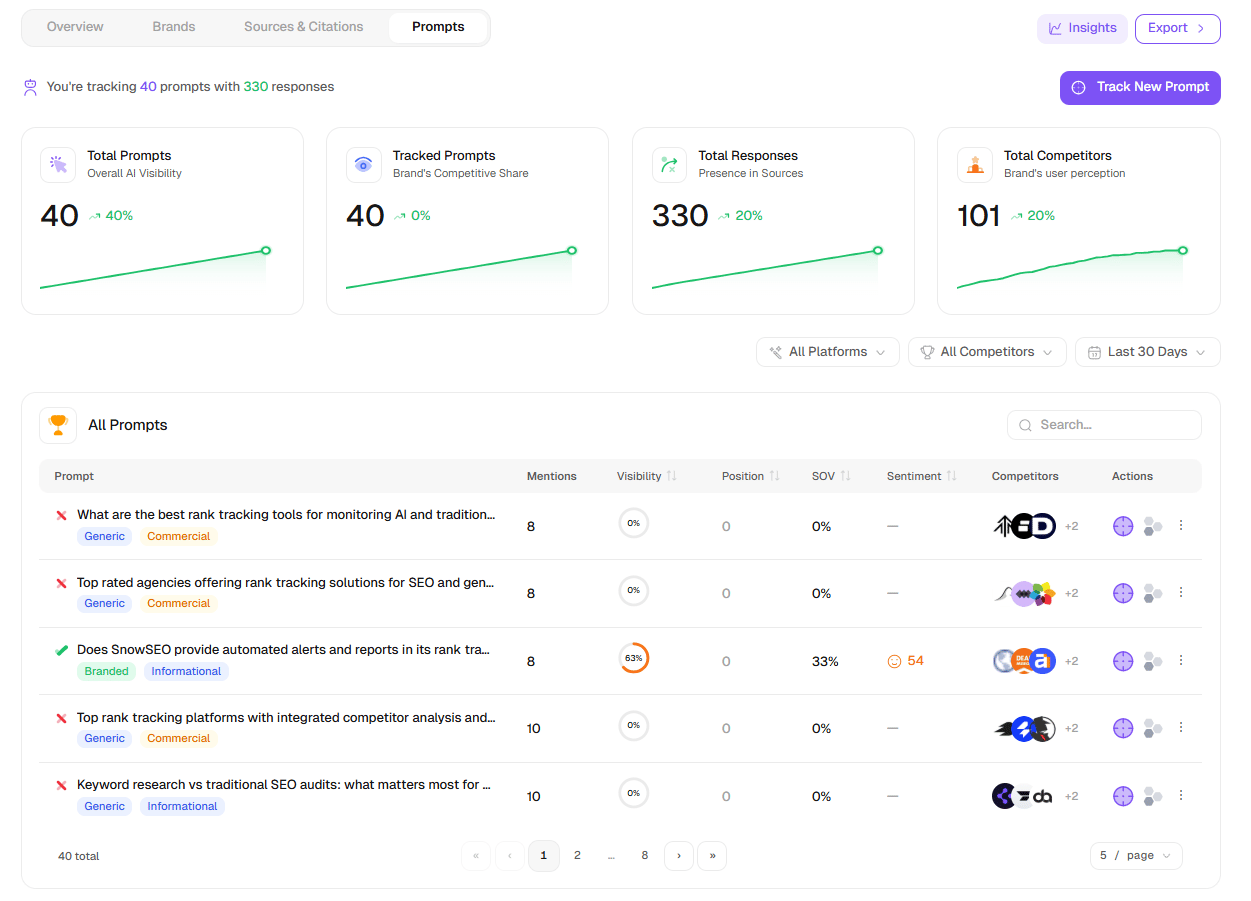
### Tracked Prompts Table
Every prompt you've created appears in this table, with powerful filtering:
**Search box** — Filter prompts by text
**Type filter** — Scope to All, Branded, or Unbranded prompts (the **Type** group inside the global **Filter** dropdown)
**Intent filter** — All / Informational / Navigational / Transactional / Commercial (in the **Filter** dropdown)
| Column | What it tells you |
| --------------- | ------------------------------------------------------------------------------------------------------------------------------------------------------------------------------------------------------ |
| **Select** | Checkbox for bulk actions |
| **Prompt** | The query text with status indicators (checkmark = mentioned, cross = not mentioned), plus status badges (Processing, Failed), type badges (Branded, Unbranded), intent badges, and next-run countdown |
| **Mentions** | How many times your brand appeared in responses for this prompt |
| **Visibility** | A circular progress gauge (0–100%) |
| **Position** | Your brand's average rank (#) |
| **SOV** | Share of Voice percentage |
| **Sentiment** | Icon + score (smile / neutral / sad, color-coded) |
| **Competitors** | Avatar stack showing top 3 competitors (+N more) |
| **Actions** | Track/Stop (target icon), Add to Topic/Remove from Topic (cluster icon), row menu (⋮): Track toggle, Pin/Unpin, Remove |
**Row actions menu (⋮):**
* **Track / Stop tracking** — Enable or disable the prompt's automated refresh
* **Pin / Unpin** — Pin important prompts to the top of the list
* **Remove** — Delete the prompt and all its response data (with confirmation)
**Bulk actions** (select multiple rows):
* **Track / Untrack selected** — Enable or disable in bulk
* **Add to Cluster** — Connect selected prompts to a topic cluster
* **Delete selected** — Remove with confirmation
**Sorting:** Click any column header to sort. Pinned prompts always appear first, then processing prompts, then by date.
Click any prompt row to navigate to its **Prompt Detail** page.
***
### Domain Table
Toggle between **Domain** view (grouped by domain) and **URL** view (individual URLs).
| Column | What it tells you |
| ---------------- | ---------------------------------------------------------------------- |
| **#** | Rank |
| **Domain / URL** | Source with favicon, truncated name, and full URL |
| **Prompts** | Number of prompts this source appears in (click to open brand summary) |
| **Type** | Color-coded pill (corporate, editorial, community, etc.) |
| **Citations** | Citation count with growth indicator |
| **Usage %** | Percentage with growth indicator |
| **Actions** | Toggle to mark as direct competitor |
Expand any domain row to see the individual child URLs from that domain. Use the search box to find specific sources, and pin your brand to keep it visible.
The **Prompts** tab is where you manage all your tracked search queries. Each prompt represents a specific question or search phrase that SnowSEO runs against AI platforms to measure your brand's visibility.
### Top Command Bar
The command bar shows:
* **"You're tracking X prompts with Y responses"** — your current tracking scope
* **Date filter** — scope the data to a time window
* **Add Prompts** button — opens a dropdown with two options:
* **Single prompt** — Opens the **Track New Prompt** dialog where you enter one query, select a region, and toggle auto-tracking
* **Bulk import** — Opens a dialog with a textarea where you can paste multiple prompts (one per line). SnowSEO detects the count and lets you set a region and toggle auto-tracking before importing
### Top Metric Cards
All prompts ever created for this brand.
Prompts that are actively being tracked (enabled).
Total AI responses collected across all prompts.
When you filter by **Branded** or **Unbranded**, these card titles update to match (for example, "Total Unbranded Prompts" and "Tracked Unbranded Prompts").
***
### Tracked Prompts Table
Every prompt you've created appears in this table, with powerful filtering:
**Search box** — Filter prompts by text
**Type filter** — Scope to All, Branded, or Unbranded prompts (the **Type** group inside the global **Filter** dropdown)
**Intent filter** — All / Informational / Navigational / Transactional / Commercial (in the **Filter** dropdown)
| Column | What it tells you |
| --------------- | ------------------------------------------------------------------------------------------------------------------------------------------------------------------------------------------------------ |
| **Select** | Checkbox for bulk actions |
| **Prompt** | The query text with status indicators (checkmark = mentioned, cross = not mentioned), plus status badges (Processing, Failed), type badges (Branded, Unbranded), intent badges, and next-run countdown |
| **Mentions** | How many times your brand appeared in responses for this prompt |
| **Visibility** | A circular progress gauge (0–100%) |
| **Position** | Your brand's average rank (#) |
| **SOV** | Share of Voice percentage |
| **Sentiment** | Icon + score (smile / neutral / sad, color-coded) |
| **Competitors** | Avatar stack showing top 3 competitors (+N more) |
| **Actions** | Track/Stop (target icon), Add to Topic/Remove from Topic (cluster icon), row menu (⋮): Track toggle, Pin/Unpin, Remove |
**Row actions menu (⋮):**
* **Track / Stop tracking** — Enable or disable the prompt's automated refresh
* **Pin / Unpin** — Pin important prompts to the top of the list
* **Remove** — Delete the prompt and all its response data (with confirmation)
**Bulk actions** (select multiple rows):
* **Track / Untrack selected** — Enable or disable in bulk
* **Add to Cluster** — Connect selected prompts to a topic cluster
* **Delete selected** — Remove with confirmation
**Sorting:** Click any column header to sort. Pinned prompts always appear first, then processing prompts, then by date.
Click any prompt row to navigate to its **Prompt Detail** page.
 Start with 10–15 prompts covering your main product categories and buyer questions. The system will automatically surface related opportunities as it processes responses.
Filter your prompts by **Type** and review **Unbranded** prompts separately from **Branded** ones. Unbranded prompts show where you win or lose purely on content merit — without your brand name biasing the AI. A low visibility score on unbranded prompts signals a content authority gap that needs attention.
***
## Prompt Detail Page
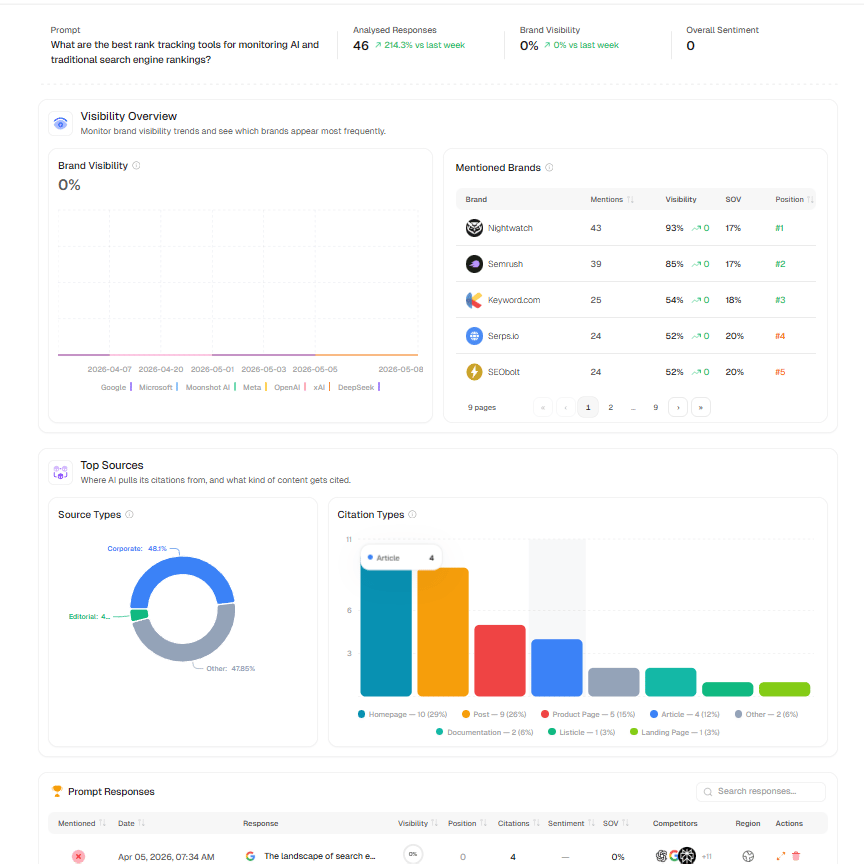
Clicking any prompt in the Prompts table takes you to the **Prompt Detail** page at `/dashboard/ai-visibility/prompt/[id]`. This page shows everything SnowSEO knows about a single search query.
Start with 10–15 prompts covering your main product categories and buyer questions. The system will automatically surface related opportunities as it processes responses.
Filter your prompts by **Type** and review **Unbranded** prompts separately from **Branded** ones. Unbranded prompts show where you win or lose purely on content merit — without your brand name biasing the AI. A low visibility score on unbranded prompts signals a content authority gap that needs attention.
***
## Prompt Detail Page
Clicking any prompt in the Prompts table takes you to the **Prompt Detail** page at `/dashboard/ai-visibility/prompt/[id]`. This page shows everything SnowSEO knows about a single search query.
 ### Header Metrics
| Metric | What it shows |
| ---------------------- | ---------------------------------------------------- |
| **Prompt** | The full query text |
| **Analysed Responses** | Total responses collected (with change vs last week) |
| **Brand Visibility** | Your visibility score for this prompt (with change) |
| **Overall Sentiment** | Sentiment score (with change) |
### Visibility Overview
A line chart showing brand visibility over time for this prompt, broken down by AI platform. Below the chart, a **Mentioned Brands** table lists every brand detected with their Mentions, Visibility %, SOV, and Position.
### Top Sources
Two charts showing the types of sources cited in responses for this prompt:
* **Source Types** — Domain type breakdown (pie chart)
* **Citation Types** — Page type breakdown (bar chart)
### Prompt Responses
A searchable table of every individual AI response collected for this prompt:
| Column | What it shows |
| --------------- | ---------------------------------------------------- |
| **Mentioned** | Checkmark or cross indicating if your brand appeared |
| **Date** | When the response was collected |
| **Response** | AI platform favicon + truncated response text |
| **Visibility** | Circular gauge |
| **Position** | Rank in this response |
| **Citations** | Count |
| **Sentiment** | Icon + score |
| **SOV** | Percentage |
| **Competitors** | Avatar stack |
| **Region** | Flag or globe icon |
| **Actions** | Expand (opens Response Sidebar) or Delete |
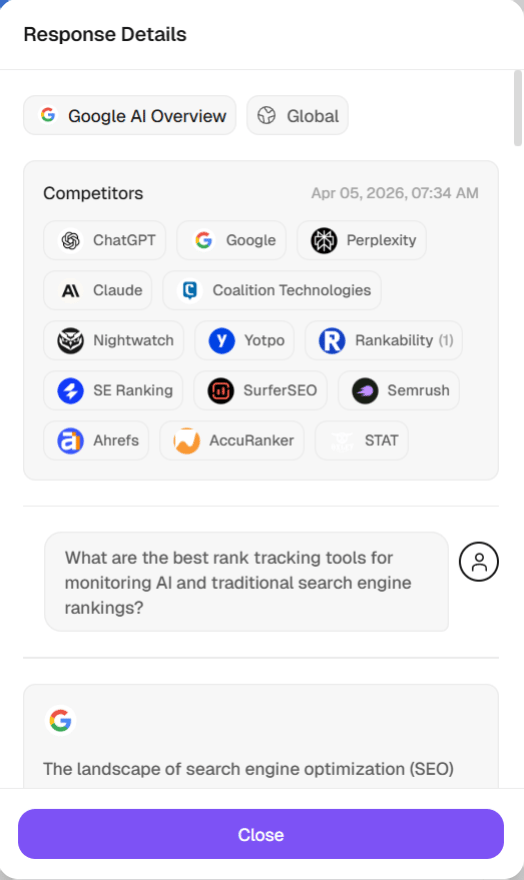
**Response Sidebar** — Clicking the expand action opens a slide-in panel showing:
* Platform badge with favicon
* Region badge with country flag
* Competitors section with clickable links
* The original user query
* Full AI response rendered as formatted Markdown
* Sources table with numbered list, favicon, URL, and "View" link
### Header Metrics
| Metric | What it shows |
| ---------------------- | ---------------------------------------------------- |
| **Prompt** | The full query text |
| **Analysed Responses** | Total responses collected (with change vs last week) |
| **Brand Visibility** | Your visibility score for this prompt (with change) |
| **Overall Sentiment** | Sentiment score (with change) |
### Visibility Overview
A line chart showing brand visibility over time for this prompt, broken down by AI platform. Below the chart, a **Mentioned Brands** table lists every brand detected with their Mentions, Visibility %, SOV, and Position.
### Top Sources
Two charts showing the types of sources cited in responses for this prompt:
* **Source Types** — Domain type breakdown (pie chart)
* **Citation Types** — Page type breakdown (bar chart)
### Prompt Responses
A searchable table of every individual AI response collected for this prompt:
| Column | What it shows |
| --------------- | ---------------------------------------------------- |
| **Mentioned** | Checkmark or cross indicating if your brand appeared |
| **Date** | When the response was collected |
| **Response** | AI platform favicon + truncated response text |
| **Visibility** | Circular gauge |
| **Position** | Rank in this response |
| **Citations** | Count |
| **Sentiment** | Icon + score |
| **SOV** | Percentage |
| **Competitors** | Avatar stack |
| **Region** | Flag or globe icon |
| **Actions** | Expand (opens Response Sidebar) or Delete |
**Response Sidebar** — Clicking the expand action opens a slide-in panel showing:
* Platform badge with favicon
* Region badge with country flag
* Competitors section with clickable links
* The original user query
* Full AI response rendered as formatted Markdown
* Sources table with numbered list, favicon, URL, and "View" link
 ***
## Brand Summary Sidebar
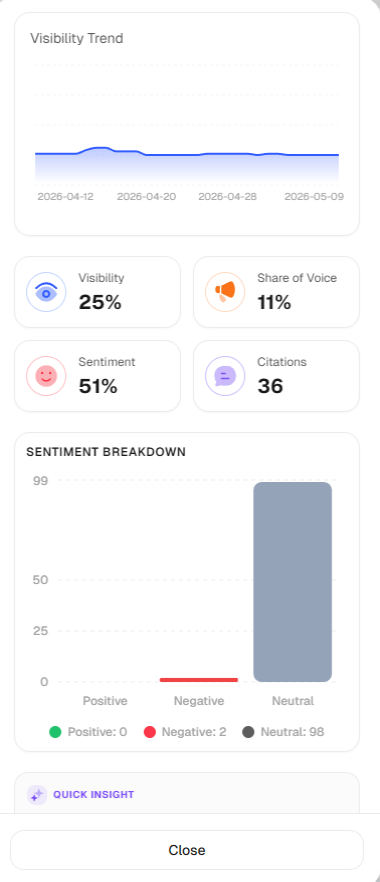
Clicking any brand name anywhere in AI Visibility opens a **Brand Summary** sidebar — a persistent right-side drawer with:
* **Brand header** — Favicon, name, website link, "(You)" label if it's your brand
* **Key metrics** — Mentions, Visibility %, Citations, Share of Voice %, Sentiment (with Positive/Neutral/Negative breakdown bar)
* **Visibility history chart** — Line chart showing visibility over time
* **Prompt accordions** — Each prompt where the brand appeared, expandable to see individual responses with platform name and truncated response text
* **Quick Insight** — An AI-generated summary of the brand's presence
***
## Brand Summary Sidebar
Clicking any brand name anywhere in AI Visibility opens a **Brand Summary** sidebar — a persistent right-side drawer with:
* **Brand header** — Favicon, name, website link, "(You)" label if it's your brand
* **Key metrics** — Mentions, Visibility %, Citations, Share of Voice %, Sentiment (with Positive/Neutral/Negative breakdown bar)
* **Visibility history chart** — Line chart showing visibility over time
* **Prompt accordions** — Each prompt where the brand appeared, expandable to see individual responses with platform name and truncated response text
* **Quick Insight** — An AI-generated summary of the brand's presence
 ***
## How to Get Cited More By AI
AI models prefer citing pages that make clear, specific, and factual statements. Instead of vague claims like "Our product is great for businesses," write "Our product reduces onboarding time by 40% for teams under 50 people." Use clear headings, bullet points, and data — content that's easy for both humans and AI to parse.
Schema markup is code you add to your pages that tells AI crawlers exactly what type of content they're reading — an Article, FAQ, Product, or Organization. Pages with proper schema are indexed more accurately and prioritized as authoritative sources. Key schema types to add: `Article`, `FAQPage`, `HowTo`, and `Organization`.
AI models build a picture of your brand from many sources — your website, LinkedIn, Crunchbase, Wikipedia, press mentions, and reviews. If your company name, description, or contact info is inconsistent across these, AI models may not trust you as a reliable "entity." Audit your online presence and ensure all profiles are accurate and consistent.
Some sites unknowingly block AI crawlers in their `robots.txt` file, which prevents those AI tools from ever reading your content.
Make sure these bots are allowed:
```txt theme={null}
User-agent: GPTBot
Allow: /
User-agent: PerplexityBot
Allow: /
User-agent: ClaudeBot
Allow: /
```
You can check your current `robots.txt` by visiting `yourdomain.com/robots.txt`.
AI models disproportionately cite pages with specific numbers, statistics, and data — they prefer verifiable facts over opinions or generic claims. A single unique data point (e.g., "67% of SaaS companies increased AI visibility in Q1 2025") can get cited across dozens of AI responses. Run original surveys, analyze your internal data, or commission industry research. Each unique statistic is a citation magnet.
AI models favor depth over breadth. Instead of publishing one-off blog posts on loosely related topics, create **topic clusters** — a pillar page that covers a subject comprehensively, supported by detailed sub-pages that each dive into a specific angle. When AI evaluates your site as a source, a tightly interlinked cluster signals authority on that topic much more effectively than scattered standalone articles.
***
## Frequently Asked Questions
We track your brand visibility across **ChatGPT, Claude, Google Gemini, Grok, Perplexity, DeepSeek, and Meta Llama** — all the major AI platforms where users now search for information and recommendations. You can enable or disable specific platforms in **Settings → Automation Settings → AI Visibility**.
Each tracked prompt is sent to every enabled AI platform. The raw response is analyzed using SnowSEO's brand extraction engine, which identifies all mentioned brands, their position in the response, the sentiment around each mention, and any cited sources. This data is then aggregated into visibility scores, share of voice, and citation metrics.
Prompts refresh automatically based on your plan's configuration (default every 15 days). You can also manually refresh any prompt at any time from the Prompts tab. A cron worker checks daily for prompts that are due for refresh and queues them automatically.
Yes, and it's increasingly common. Traditional search ranking and AI citation are different systems. Google's algorithm ranks your page based on links, relevance, and authority. AI systems rank content based on how clearly and factually it answers questions. A page optimized for keywords may not be structured the way AI prefers. See the "How to Get Cited More" section above.
Yes. The **Competitors** tab (Distribution Overview) and **Citations** tab show citation rates per platform, so you can see if you're cited in ChatGPT but missing from Perplexity, for example. This helps you understand where to focus your GEO (Generative Engine Optimization) efforts.
When an AI tool cites your brand, SnowSEO captures the surrounding context and classifies it as positive, neutral, or negative. The sentiment score ranges from 0 (very negative) to 100 (very positive), with 50 being neutral. This is determined by the brand extraction AI model that analyzes each response.
Visibility (0–100) is a composite metric that considers how often your brand appears in AI responses, how prominently it's positioned (rank), how frequently it's cited with sources, and the sentiment of mentions. A score of 80+ means your brand is consistently appearing early and positively in AI responses.
Start with 10–15 prompts covering your main topics and buyer questions. As you get comfortable, expand to 30–50 prompts for comprehensive coverage. There's no hard limit, but each prompt consumes AI credits on each refresh cycle.
Each prompt refresh costs **15 AI credits per active platform**. So if you have 4 platforms enabled and 20 prompts, a full refresh costs 20 × 4 × 15 = 1,200 credits. Credits are deducted from your Autumn billing balance. When credits run low, refresh jobs are skipped until more credits are available.
Yes. Use the **Export** button (available in the Prompts tab and Prompt Detail page) to download a CSV with columns: Prompt, Platform, Provider, Company, AI Response, Brand Mentions, Brand Position, Total Mentions, Sources, Brands, Sentiment, Citations, and Date.
Share of Voice is calculated per prompt using `calculateSOVPerPrompt()` from SnowSEO's shared utils. It measures your brand's visibility share relative to all competitors detected in that prompt's responses. The aggregate SOV averages this across all your tracked prompts.
***
## How to Get Cited More By AI
AI models prefer citing pages that make clear, specific, and factual statements. Instead of vague claims like "Our product is great for businesses," write "Our product reduces onboarding time by 40% for teams under 50 people." Use clear headings, bullet points, and data — content that's easy for both humans and AI to parse.
Schema markup is code you add to your pages that tells AI crawlers exactly what type of content they're reading — an Article, FAQ, Product, or Organization. Pages with proper schema are indexed more accurately and prioritized as authoritative sources. Key schema types to add: `Article`, `FAQPage`, `HowTo`, and `Organization`.
AI models build a picture of your brand from many sources — your website, LinkedIn, Crunchbase, Wikipedia, press mentions, and reviews. If your company name, description, or contact info is inconsistent across these, AI models may not trust you as a reliable "entity." Audit your online presence and ensure all profiles are accurate and consistent.
Some sites unknowingly block AI crawlers in their `robots.txt` file, which prevents those AI tools from ever reading your content.
Make sure these bots are allowed:
```txt theme={null}
User-agent: GPTBot
Allow: /
User-agent: PerplexityBot
Allow: /
User-agent: ClaudeBot
Allow: /
```
You can check your current `robots.txt` by visiting `yourdomain.com/robots.txt`.
AI models disproportionately cite pages with specific numbers, statistics, and data — they prefer verifiable facts over opinions or generic claims. A single unique data point (e.g., "67% of SaaS companies increased AI visibility in Q1 2025") can get cited across dozens of AI responses. Run original surveys, analyze your internal data, or commission industry research. Each unique statistic is a citation magnet.
AI models favor depth over breadth. Instead of publishing one-off blog posts on loosely related topics, create **topic clusters** — a pillar page that covers a subject comprehensively, supported by detailed sub-pages that each dive into a specific angle. When AI evaluates your site as a source, a tightly interlinked cluster signals authority on that topic much more effectively than scattered standalone articles.
***
## Frequently Asked Questions
We track your brand visibility across **ChatGPT, Claude, Google Gemini, Grok, Perplexity, DeepSeek, and Meta Llama** — all the major AI platforms where users now search for information and recommendations. You can enable or disable specific platforms in **Settings → Automation Settings → AI Visibility**.
Each tracked prompt is sent to every enabled AI platform. The raw response is analyzed using SnowSEO's brand extraction engine, which identifies all mentioned brands, their position in the response, the sentiment around each mention, and any cited sources. This data is then aggregated into visibility scores, share of voice, and citation metrics.
Prompts refresh automatically based on your plan's configuration (default every 15 days). You can also manually refresh any prompt at any time from the Prompts tab. A cron worker checks daily for prompts that are due for refresh and queues them automatically.
Yes, and it's increasingly common. Traditional search ranking and AI citation are different systems. Google's algorithm ranks your page based on links, relevance, and authority. AI systems rank content based on how clearly and factually it answers questions. A page optimized for keywords may not be structured the way AI prefers. See the "How to Get Cited More" section above.
Yes. The **Competitors** tab (Distribution Overview) and **Citations** tab show citation rates per platform, so you can see if you're cited in ChatGPT but missing from Perplexity, for example. This helps you understand where to focus your GEO (Generative Engine Optimization) efforts.
When an AI tool cites your brand, SnowSEO captures the surrounding context and classifies it as positive, neutral, or negative. The sentiment score ranges from 0 (very negative) to 100 (very positive), with 50 being neutral. This is determined by the brand extraction AI model that analyzes each response.
Visibility (0–100) is a composite metric that considers how often your brand appears in AI responses, how prominently it's positioned (rank), how frequently it's cited with sources, and the sentiment of mentions. A score of 80+ means your brand is consistently appearing early and positively in AI responses.
Start with 10–15 prompts covering your main topics and buyer questions. As you get comfortable, expand to 30–50 prompts for comprehensive coverage. There's no hard limit, but each prompt consumes AI credits on each refresh cycle.
Each prompt refresh costs **15 AI credits per active platform**. So if you have 4 platforms enabled and 20 prompts, a full refresh costs 20 × 4 × 15 = 1,200 credits. Credits are deducted from your Autumn billing balance. When credits run low, refresh jobs are skipped until more credits are available.
Yes. Use the **Export** button (available in the Prompts tab and Prompt Detail page) to download a CSV with columns: Prompt, Platform, Provider, Company, AI Response, Brand Mentions, Brand Position, Total Mentions, Sources, Brands, Sentiment, Citations, and Date.
Share of Voice is calculated per prompt using `calculateSOVPerPrompt()` from SnowSEO's shared utils. It measures your brand's visibility share relative to all competitors detected in that prompt's responses. The aggregate SOV averages this across all your tracked prompts.